> ## Documentation Index
> Fetch the complete documentation index at: https://docs.galileo.ai/llms.txt
> Use this file to discover all available pages before exploring further.
# Create and Use Sessions
> Learn to create and use Sessions in Galileo
{/**/}
## Overview
This tutorial will guide you through creating and using a [Session](/concepts/logging/sessions/sessions-overview) in Galileo, using a simple LLM-driven example that you can expand to multiple agents and data sources. It is a quick way to introduce you to logging sessions. By the end of this guide, you will know how to:
1. Initialize a [logging session](/concepts/logging/sessions/sessions-overview)
2. Add events to your session
3. Inspect the Session in the Galileo Console to see all related Traces and Spans.
```mermaid theme={null}
---
config:
flowchart:
curve: linear
---
graph TD;
__start__([Initialize a Session])
app_logic(Run LLM logic)
log_traces([Galileo captures Traces and Spans])
flush([Flush the context])
__end__([View Session in Galileo Console
])
__start__ --> app_logic
app_logic -.-> log_traces
app_logic --> flush
flush --> __end__
```
There will be minor differences around starting and flushing the session context, depending on whether you're using the automatic or manual way. We'll cover both below.
## Prerequisites
* **Galileo Account**: Ensure you have signed up for a Galileo account. This should provide you with the following values:
* `GALILEO_API_KEY`: Your API key
* `GALILEO_PROJECT`: The name of your Galileo Project
* `GALILEO_LOG_STREAM`: The Log stream where you will save your sessions
* `GALILEO_CONSOLE_URL`: Optional. The URL of your Galileo console for custom deployments. If you are using `app.galileo.ai`, you don't need to set this.
* **OpenAI API Key**: This example will use OpenAI as the underlying LLM, so you will need an API key from them.
In addition, this tutorial assumes you are familiar with:
* Simple LLM Apps, and making simple OpenAI completion calls using Python or TypeScript
* The [`GalileoLogger`](/sdk-api/logging/galileo-logger) class from the Python or TypeScript SDK
## Project setup
Let's take a moment to prepare the development environment. If you already have a project setup with `Galileo`, `LangChain`, and `LangGraph`, you can skip right to [Manage a Session](#manage-a-session). If not, here's an abbreviated quickstart:
We'll need the Galileo [Python](/sdk-api/python/sdk-reference) or [TypeScript](/sdk-api/python/sdk-reference) SDK, LangChain, LangGraph, OpenAI, and `dotenv` to pull in variables from your `.env` file. Let's start by installing them:
```bash Python theme={null}
pip install "galileo[openai]" langchain langchain-openai langgraph python-dotenv
```
```bash TypeScript theme={null}
npm i -s galileo openai @langchain/langgraph @langchain/core dotenv
```
Next, create a `.env` file and add in the following variables:
```ini .env theme={null}
# Your Galileo API key
GALILEO_API_KEY="your-galileo-api-key"
# Your Galileo project name
GALILEO_PROJECT="your-galileo-project-name"
# The name of the Log stream you want to use for logging
GALILEO_LOG_STREAM="your-galileo-log-stream"
# Provide the console url below if you are using a
# custom deployment, and not using the free tier, or app.galileo.ai.
# This will look something like “console.galileo.yourcompany.com”.
# GALILEO_CONSOLE_URL="your-galileo-console-url"
# OpenAI properties
OPENAI_API_KEY="your-openai-api-key"
# Optional. The base URL of your OpenAI deployment.
# Leave this commented out if you are using the default OpenAI API.
# OPENAI_BASE_URL="your-openai-base-url-here"
# Optional. Your OpenAI organization.
# OPENAI_ORGANIZATION="your-openai-organization-here"
```
Finally, create a main script file (e.g. `main.py` or `main.ts`) where you'll add and run your application logic.
Now we can dive in.
## Manage a session
Recall our objectives from earlier? We'll build a simple application and use it to work through each step. If you're in a hurry, you jump to the [full code sample here](#full-code-sample), then return to see how it was put together.
### Steps
In your main script, import the following dependencies. Let's begin by creating a very simple agent using LangGraph and OpenAI:
```python Python {9,17-22} theme={null}
from time import time
from dotenv import load_dotenv
# Galileo dependencies
from galileo import GalileoLogger
from galileo.handlers.langchain import GalileoCallback
# LangChain and LangGraph dependencies
from langchain.agents import create_agent
from langchain_core.runnables.config import RunnableConfig
# Load `.env` variables
load_dotenv()
# Create a simple assistant for our test (or import one). You can also provide
# your agent with tools: the session will log their usage
simple_agent = create_agent(
name="simple_agent",
model="openai:o3-mini", # you can choose any OpenAI model here
system_prompt="You are a friendly assistant that answers the user's questions",
tools=[], # (OPTIONAL) provide tools to your agent
)
```
```typescript TypeScript {7,9,16-22} theme={null}
import { configDotenv } from "dotenv";
// Galileo dependencies
import { GalileoCallback, GalileoLogger } from "galileo";
// LangChain and LangGraph dependencies
import { createReactAgent } from "@langchain/langgraph/prebuilt";
import { RunnableConfig } from "@langchain/core/runnables";
import { ChatOpenAI } from "@langchain/openai";
// Load environment variables
configDotenv();
// Create a simple assistant for our test (or import one). You can also provide
// your agent with tools: the session will log their usage
const simpleAgent = createReactAgent({
name: "simpleAssistant",
llm: new ChatOpenAI({ model: "o3-mini" }),
prompt: "You are a friendly assistant that answers the user's questions",
tools: [] // (OPTIONAL) provide tools to your agent
});
```
We'll see `GalileoCallback` and `RunnableConfig` in action later. For now, let's move on to the next step.
We'll be using the `GalileoLogger` to manage our logging session. Let's create one next:
```python Python theme={null}
# Create a GalileoLogger instance for our session
logger = GalileoLogger()
```
```typescript TypeScript theme={null}
// Create a GalileoLogger instance for our session
const logger = new GalileoLogger();
```
`GalileoLogger` takes some optional arguments: you don't have to provide any of them, but they are listed below so that you can see what is available.
```python Python theme={null}
GalileoLogger(
project_name: Optional[str]
""" name of target project for the logger instance """
log_stream_name: Optional[str]
""" name of target logstream for the logger instance """
project_id: Optional[str]
""" ID of target project for the logger instance """
log_stream_id: Optional[str]
""" ID of target logstream for the logger instance """
experiment_id: Optional[str]
""" ID of an experiment to which this log session will be linked """
session_id: Optional[str]
""" ID of a previous session to which this log session will be linked """
local_metrics: Optional[list[LocalMetricConfig]]
""" Locally-defined metrics that should be used on spans/traces from
this session: See 'Custom Metrics' for more information """
)
```
```typescript TypeScript theme={null}
new GalileoLogger({
/** name of target project for the logger instance */
projectName?: string;
/** name of target logstream for the logger instance */
logStreamName?: string;
/** ID of an experiment to which this log session will be linked */
projectId?: string;
/** ID of target project for the logger instance */
logStreamId?: string;
/** ID of target logstream for the logger instance */
experimentId?: string;
/** ID of a previous session to which this log session will be linked */
sessionId?: string;
/** Locally-defined metrics that should be used on spans/traces from
this session: See 'Custom Metrics' for more information */
localMetrics?: LocalMetricConfig[];
/** Logger mode: "batch" or "streaming". Defaults to "batch" if not set.
- "batch": Batches traces and sends on flush() (default)
- "streaming": Enables streaming tracing with immediate
updates to backend */
mode?: string;
/** Optional callback invoked on `flush()` in batch mode with the payload
that would be sent to the API. When set, it runs instead of the
default `ingestTraces` call—use for custom delivery. */
ingestionHook?: (request: LogTracesIngestRequest) => Promise | void;
})
```
Our simple application will have a `main` function where everything happens. The first thing we will do in this function is start up a logging session. This will prepare the logger to group all captured events under a single session.
Below, we give the session a unique `name` and `external id`. The name helps us find the session more easily in the Galileo Console. The `external id` is to link this session to external tracing: for example, linking to a conversation ID in your chatbot app by an ID created inside that app.
You can also pass an optional `metadata` dictionary of string key-value pairs to attach structured information to the session, such as customer IDs, environment names, or application versions. Metadata keys appear as filterable columns in the Sessions table in the Galileo Console.
```python Python {7-14} theme={null}
def main():
"""Main application logic"""
# start a logging session
external_id = f"custom_id-{int(time())}"
logger.start_session(
name="Logger Session Tutorial",
external_id=external_id,
metadata={
"brand_id": "acme",
"environment": "production",
},
)
```
```typescript TypeScript {5-12} theme={null}
/** Main application logic */
async function main() {
// Start a logging session
const externalId = `custom_id-${Math.round(Date.now() / 1000)}`;
await logger.startSession({
name: "Logger Session Tutorial",
externalId,
metadata: {
brand_id: "acme",
environment: "production",
},
});
}
```
Treat `logger.start_session` like a lifecycle event, and call it before any code you want to monitor. The `name`, `external id`, and `metadata` arguments are all optional; `name` and `external id` are recommended.
Now you can interact with your LLM. Our very simple application will invoke the LLM with two questions: each question will be a question/answer exchange that generates a `Trace` with child spans in our session. We will also pass a callback handler, which will be called by `LangChain` after each LLM invocation.
Here's our full `main` function: you can make this part as complex as you like!
```python Python {9-12, 17, 19-28} theme={null}
def main():
"""Main application logic"""
# start a logging session
external_id = f"custom_id-{int(time())}"
logger.start_session(name="Logger Session Tutorial", external_id=external_id)
# Here's what we will ask the LLM:
prompts = [
"Hello! How many minutes are in a year?",
"Hello! How far is an Astronomical Unit in kilometers?",
]
# Create a LangChain Runnable config object with a LangGraph callback handler:
# We will supply the logger instance to ensure that it generates traces in the
# correct session
agent_config = RunnableConfig(callbacks=[GalileoCallback(galileo_logger=logger)])
for prompt in prompts:
# Invoke the LLM with our question:
response = simple_agent.invoke(
input={"messages": [{"role": "user", "content": prompt}]},
config=agent_config, # pass the RunnableConfig here
)
# Print out the LLM's response to confirm that this code block ran:
print("Model response:", response["messages"][-1].content.strip())
```
```typescript TypeScript {8-11, 16-18, 20-29} theme={null}
/** Main application logic */
async function main() {
// Start a logging session
const externalId = `custom_id-${Math.round(Date.now() / 1000)}`;
await logger.startSession({ name: "Logger Session Tutorial", externalId });
// Here's what we will ask the LLM:
const prompts = [
"Hello! How many minutes are in a year?",
"Hello! How far is an Astronomical Unit in kilometers?"
];
// Create a LangChain Runnable config object with a LangGraph callback handler.
// We will supply the logger instance to ensure that it generates traces in the
// correct session
const agentConfig: RunnableConfig = {
callbacks: [new GalileoCallback(logger)]
};
for (const prompt of prompts) {
// Invoke the LLM with our question:
const result = await simpleAgent.invoke(
{ messages: [{ role: "user", content: prompt }] },
agentConfig // pass the RunnableConfig here
);
// Print out the LLM's response to confirm that this code block ran:
console.log("LLM Reply:", result.messages.at(-1)?.content);
}
}
```
### The GalileoCallback handler
`GalileoCallback` is a callback handler specifically for `LangChain`. It sends the most-recent captured traces to Galileo Console when it is called behind the scenes: your LLM logic determines what traces are generated and/or captured.
`GalileoCallback` has a few optional parameters:
```python Python theme={null}
GalileoCallback(
galileo_logger: Optional[GalileoLogger] = None,
""" A `GalileoLogger` instance. Defaults to a global singleton """
start_new_trace: bool = True,
""" Start a new trace on next invocation. Defaults to "true" """
flush_on_chain_end: bool = True,
""" Flush captured traces after invocation. Defaults to "true" """
)
```
```typescript TypeScript theme={null}
new GalileoCallback(
/** A `GalileoLogger` instance. Defaults to a global singleton */
galileoLogger?: GalileoLogger,
/** Start a new trace on next invocation. Defaults to "true" */
startNewTrace?: boolean,
/** Flush captured traces after invocation. Defaults to "true" */
flushOnChainEnd?: boolean
)
```
### Full code sample
Here's everything we have done so far:
```python Python theme={null}
from time import time
from dotenv import load_dotenv
# Galileo dependencies
from galileo import GalileoLogger
from galileo.handlers.langchain import GalileoCallback
# LangChain and LangGraph dependencies
from langchain.agents import create_agent
from langchain_core.runnables.config import RunnableConfig
# Load `.env` variables
load_dotenv()
# Create a simple assistant for our test (or import one). You can also provide
# your agent with tools: the session will log their usage
simple_agent = create_agent(
name="simple_agent",
model="openai:o3-mini", # you can choose any OpenAI model here
system_prompt="You are a friendly assistant that answers the user's questions",
tools=[], # (OPTIONAL) provide tools to your agent
)
# Create a GalileoLogger instance
logger = GalileoLogger()
def main():
"""Main application logic"""
# start a logging session
external_id = f"custom_id-{int(time())}"
logger.start_session(name="Logger Session Tutorial", external_id=external_id)
# Here's what we will ask the LLM:
prompts = [
"Hello! How many minutes are in a year?",
"Hello! How far is an Astronomical Unit in kilometers?",
]
# Create a LangChain Runnable config object with a LangGraph callback handler:
# We will supply the logger instance to ensure that it generates traces in the
# correct session
agent_config = RunnableConfig(callbacks=[GalileoCallback(galileo_logger=logger)])
for prompt in prompts:
# Invoke the LLM with our question:
response = simple_agent.invoke(
input={"messages": [{"role": "user", "content": prompt}]},
config=agent_config, # pass the RunnableConfig here
)
# Print out the LLM's response to confirm that this code block ran:
print("Model response:", response["messages"][-1].content.strip())
if __name__ == "__main__":
main()
```
```typescript TypeScript theme={null}
import { configDotenv } from "dotenv";
// Galileo dependencies
import { GalileoCallback, GalileoLogger } from "galileo";
// LangChain and LangGraph dependencies
import { createReactAgent } from "@langchain/langgraph/prebuilt";
import { RunnableConfig } from "@langchain/core/runnables";
import { ChatOpenAI } from "@langchain/openai";
// Load environment variables
configDotenv();
// Create a simple assistant for our test (or import one). You can also provide
// your agent with tools: the session will log their usage
const simpleAgent = createReactAgent({
name: "simpleAgent",
llm: new ChatOpenAI({ model: "o3-mini" }),
prompt: "You are a friendly assistant that answers the user's questions",
tools: [] // (OPTIONAL) provide tools to your agent
});
// Create a GalileoLogger instance for our session
const logger = new GalileoLogger();
/** Main application logic */
async function main() {
// Start a logging session
const externalId = `custom_id-${Math.round(Date.now() / 1000)}`;
await logger.startSession({ name: "Logger Session Tutorial", externalId });
// Here's what we will ask the LLM:
const prompts = [
"Hello! How many minutes are in a year?",
"Hello! How far is an Astronomical Unit in kilometers?"
];
// Create a LangChain Runnable config object with a LangGraph callback handler.
// We will supply the logger instance to ensure that it generates traces in the
// correct session
const agentConfig: RunnableConfig = {
callbacks: [new GalileoCallback(logger)]
};
for (const prompt of prompts) {
// Invoke the LLM with our question:
const result = await simpleAgent.invoke(
{ messages: [{ role: "user", content: prompt }] },
agentConfig // pass the RunnableConfig here
);
// Print out the LLM's response to confirm that this code block ran:
console.log("LLM Reply:", result.messages.at(-1)?.content);
}
}
main();
```
### Run your script
That's all the code: we have now learned to use `logger.start_session` before starting LLM chat session, and supply `GalileoCallback` to ensure your traces get sent to the Galileo Console.
Now let's run the script:
```bash Python theme={null}
python main.py
```
```bash TypeScript theme={null}
npx tsx main.ts
```
You should see the LLM's response in your terminal! You can also head to the [Galileo Console](https://app.galileo.ai) to view the newly-created session. (Shown below)
## View your session
Now that you've logged a session, it's time to view results.
Head over to the [Galileo Console](https://app.galileo.ai) and log in.
On your dashboard, select the Log stream where you were sending your session logs. If you didn't specify a unique or new Log stream name, you will find the logs in your **default** Log stream.
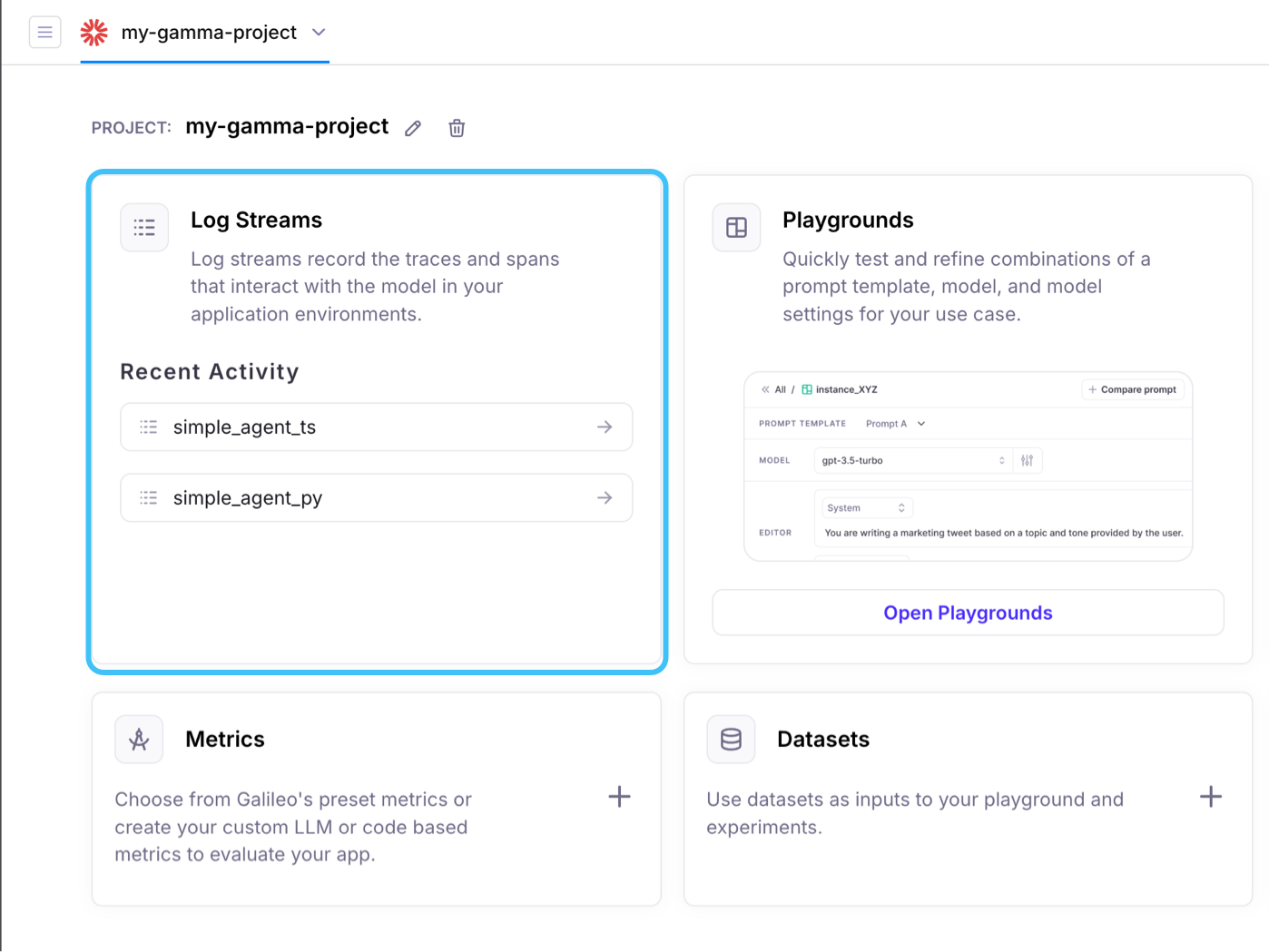 Selecting the Log stream will bring you to its event records. All logs will be grouped by *Session*, though you can use the control near the top-left of your screen to change the Log stream's event grouping:
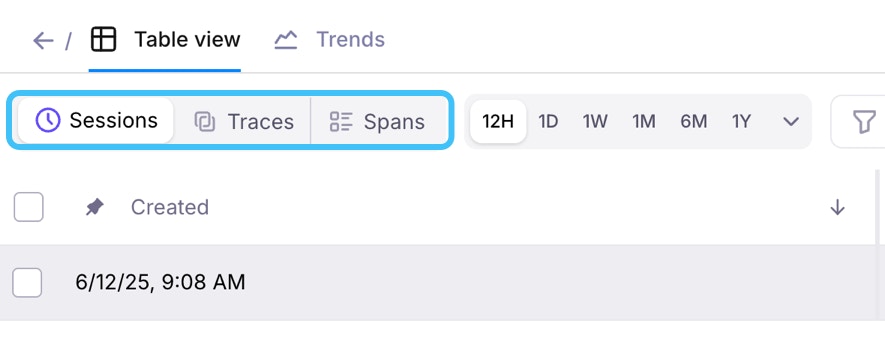 Your session should be visible in the table below the controls, especially if you gave it a recognizable name. Select it to view the traces.
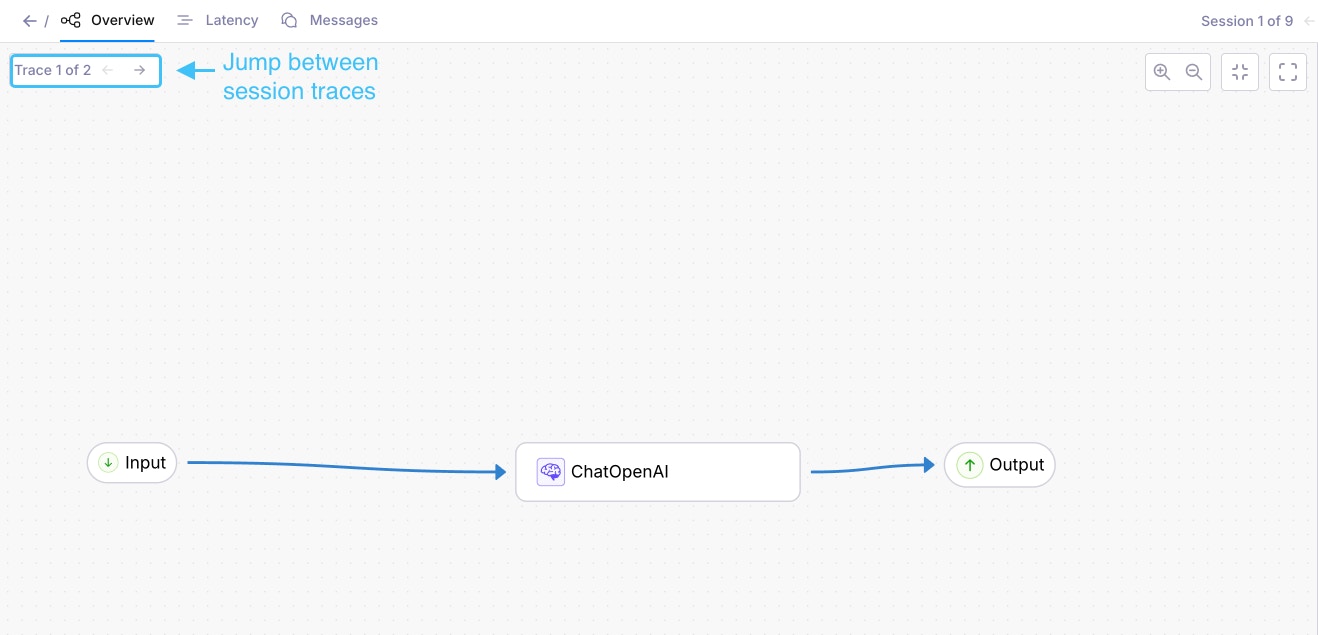
Once you select your session, you can see the Traces you captured from your test run as a flowchart. Any tools that were used will also show up as individual Spans.
Select the nodes of the flowchart to see their inputs and outputs on the right-edge of your screen.
Your session should be visible in the table below the controls, especially if you gave it a recognizable name. Select it to view the traces.
Once you select your session, you can see the Traces you captured from your test run as a flowchart. Any tools that were used will also show up as individual Spans.
Select the nodes of the flowchart to see their inputs and outputs on the right-edge of your screen.
 Each message from the user and response from the LLM will form a single trace; you can view the contents here in a familiar format, as well as other details like tool calls. Just select the **Messages** tab (shown in the image below) to see a list of traces in the session, along with their child spans. You can select a span to see metrics and other details on the right edge of the screen (not pictured)
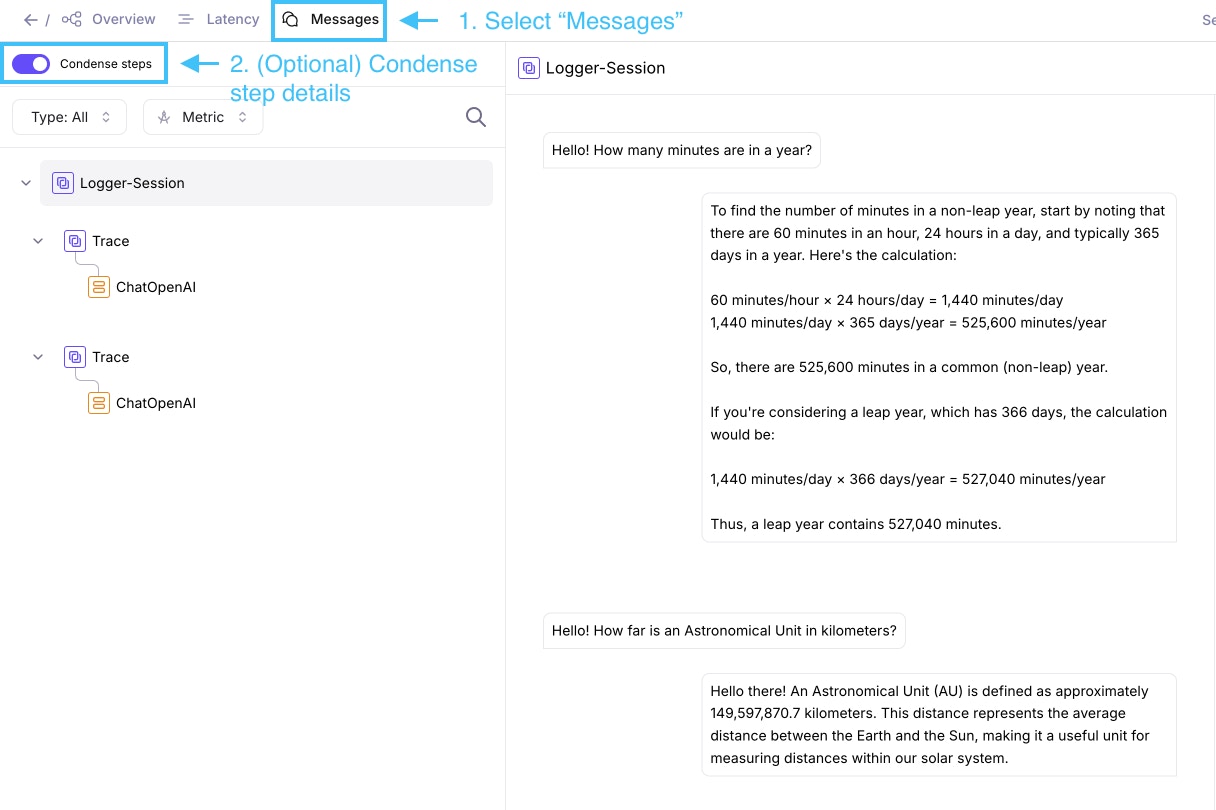 Use the **Condense Steps** toggle to show only the most relevant spans in a trace. This will include any tool calls made by the LLM!
## Additional considerations
Remember to always use the same `GalileoLogger` instance across your project. This ensures that all captured events are placed in the same session. You can achieve this in a few ways:
1. Export your `logger` instance from a separate module, so that your application uses a singleton instance.
2. Use the TypeScript SDK's `getLogger` function, or the Python SDK's `galileo_context` context manager for a consistent reference:
```python Python theme={null}
from galileo import galileo_context
# Create a new session (with optional metadata)
galileo_context.start_session(
name="My Session",
metadata={"brand_id": "acme", "environment": "production"},
)
# Application logic follows
# Flush the session (if you are not using galileo callback or "with galileo_context()")
galileo_context.flush()
```
```typescript TypeScript theme={null}
import { getLogger } from 'galileo';
const logger = getLogger();
// Create a new session (with optional metadata)
logger.startSession({
name: "My Session",
metadata: { brand_id: "acme", environment: "production" },
});
// Application logic follows
// Flush the session (if you are not using GalileoCallback)
logger.flush()
```
3. You can also add `Traces` wherever you see fit. A `Trace` might represent a question asked to your LLM, and the response generated for it — as well as any tools used! Galileo will generate traces for you, but you can also create new ones by using your logger instance:
```python Python theme={null}
question = "What is the meaning of plenipotentiary?"
logger.start_trace(input=question)
logger.add_llm_span(
input=question,
output="Plenipotentiary means 'Invested with full power'"
)
logger.conclude({}) # end the trace
```
```typescript TypeScript theme={null}
const question = "What is the meaning of plenipotentiary?"
logger.startTrace({ input: question })
logger.addLlmSpan({
input: question,
output: "Plenipotentiary means 'Invested with full power'"
})
logger.conclude({}); // end the trace
```
You can learn more about traces and how to use them [in our logging guide](/sdk-api/logging/galileo-logger#start-a-trace).
## Conclusion
In this tutorial, you learned how to:
1. Create a logging session with the `GalileoLogger` class
2. Manually start your own session with the `logger.start_session()` method
3. View your sessions in the Galileo Console.
## Next steps
For a more detailed walkthrough of a multi-agent application, take a look at [Monitoring LangChain Agents with Galileo](/cookbooks/use-cases/agent-langchain). You can also learn more about using [Galileo's metrics](/concepts/metrics/overview) to gain more insight about your AI application.
## Related resources
* [Sessions](/concepts/logging/sessions/sessions-overview) - An overview of sessions
* [Galileo Context](/sdk-api/logging/galileo-context) - Learn about the Galileo Context Manager
* [Monitoring LangChain Agents with Galileo](/cookbooks/use-cases/agent-langchain) - Follow this cookbook recipe to create and evaluate a multi-agent application.
Use the **Condense Steps** toggle to show only the most relevant spans in a trace. This will include any tool calls made by the LLM!
## Additional considerations
Remember to always use the same `GalileoLogger` instance across your project. This ensures that all captured events are placed in the same session. You can achieve this in a few ways:
1. Export your `logger` instance from a separate module, so that your application uses a singleton instance.
2. Use the TypeScript SDK's `getLogger` function, or the Python SDK's `galileo_context` context manager for a consistent reference:
```python Python theme={null}
from galileo import galileo_context
# Create a new session (with optional metadata)
galileo_context.start_session(
name="My Session",
metadata={"brand_id": "acme", "environment": "production"},
)
# Application logic follows
# Flush the session (if you are not using galileo callback or "with galileo_context()")
galileo_context.flush()
```
```typescript TypeScript theme={null}
import { getLogger } from 'galileo';
const logger = getLogger();
// Create a new session (with optional metadata)
logger.startSession({
name: "My Session",
metadata: { brand_id: "acme", environment: "production" },
});
// Application logic follows
// Flush the session (if you are not using GalileoCallback)
logger.flush()
```
3. You can also add `Traces` wherever you see fit. A `Trace` might represent a question asked to your LLM, and the response generated for it — as well as any tools used! Galileo will generate traces for you, but you can also create new ones by using your logger instance:
```python Python theme={null}
question = "What is the meaning of plenipotentiary?"
logger.start_trace(input=question)
logger.add_llm_span(
input=question,
output="Plenipotentiary means 'Invested with full power'"
)
logger.conclude({}) # end the trace
```
```typescript TypeScript theme={null}
const question = "What is the meaning of plenipotentiary?"
logger.startTrace({ input: question })
logger.addLlmSpan({
input: question,
output: "Plenipotentiary means 'Invested with full power'"
})
logger.conclude({}); // end the trace
```
You can learn more about traces and how to use them [in our logging guide](/sdk-api/logging/galileo-logger#start-a-trace).
## Conclusion
In this tutorial, you learned how to:
1. Create a logging session with the `GalileoLogger` class
2. Manually start your own session with the `logger.start_session()` method
3. View your sessions in the Galileo Console.
## Next steps
For a more detailed walkthrough of a multi-agent application, take a look at [Monitoring LangChain Agents with Galileo](/cookbooks/use-cases/agent-langchain). You can also learn more about using [Galileo's metrics](/concepts/metrics/overview) to gain more insight about your AI application.
## Related resources
* [Sessions](/concepts/logging/sessions/sessions-overview) - An overview of sessions
* [Galileo Context](/sdk-api/logging/galileo-context) - Learn about the Galileo Context Manager
* [Monitoring LangChain Agents with Galileo](/cookbooks/use-cases/agent-langchain) - Follow this cookbook recipe to create and evaluate a multi-agent application.