> ## Documentation Index
> Fetch the complete documentation index at: https://docs.galileo.ai/llms.txt
> Use this file to discover all available pages before exploring further.
# Evaluate Your Traces
> Learn how to evaluate metrics for your logged trace with Galileo, and improve your application
{/* */}
In the [log to Galileo guide](/getting-started/quickstart), you logged your first trace to Galileo. In this guide, you will evaluate the response from the LLM using the [context adherence metric](/concepts/metrics/rag/generation-quality/context-adherence), then improve the prompt, and re-evaluate your application.
## Configure an LLM integration
To evaluate metrics, you need to set up an LLM integration for the LLM that will be used as a judge.
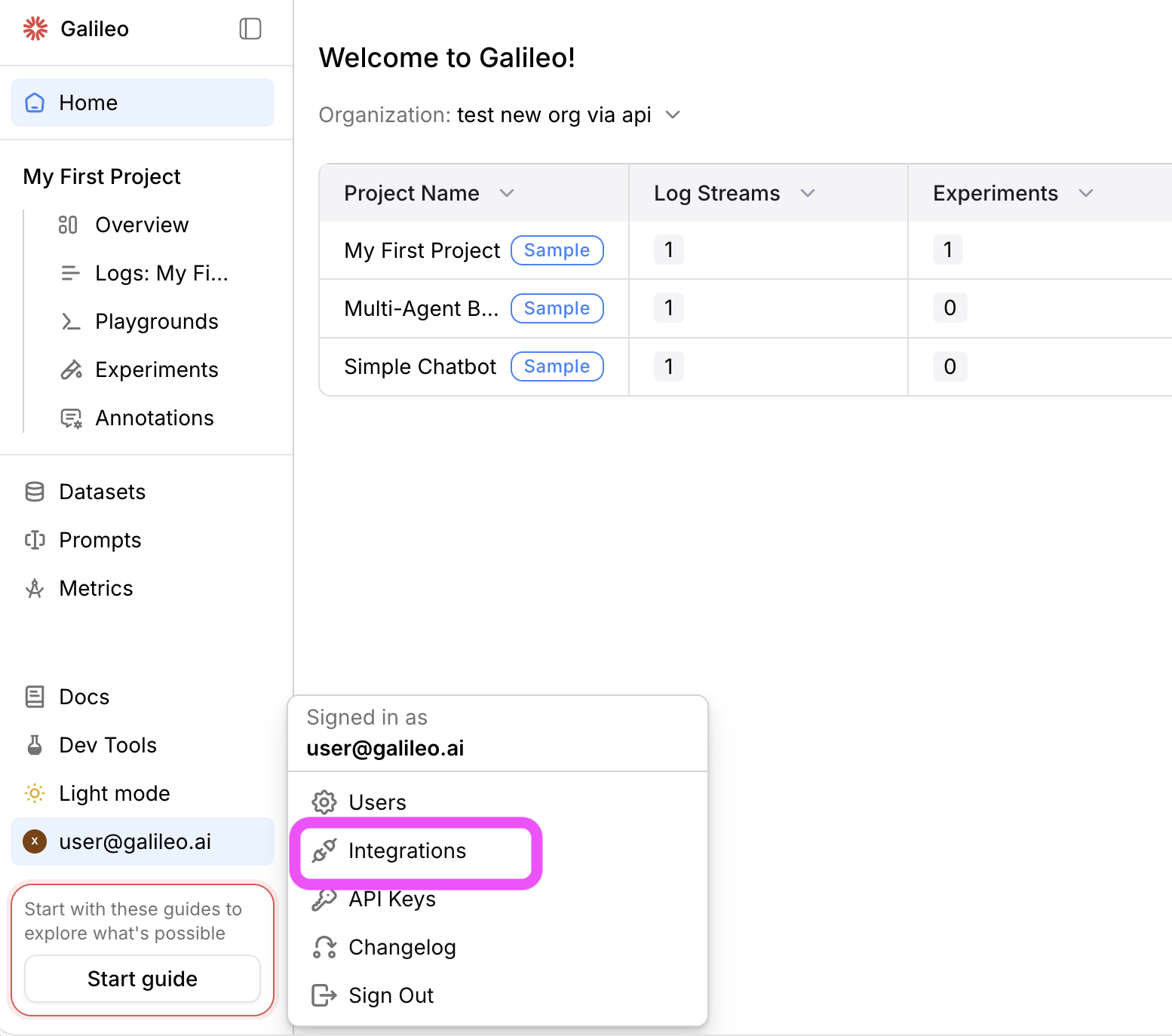
In the Galileo console UI, navigate to the [LLM integrations page](https://app.galileo.ai/settings/integrations) by opening the user menu on the bottom-left corner, and then selecting **Integrations**.
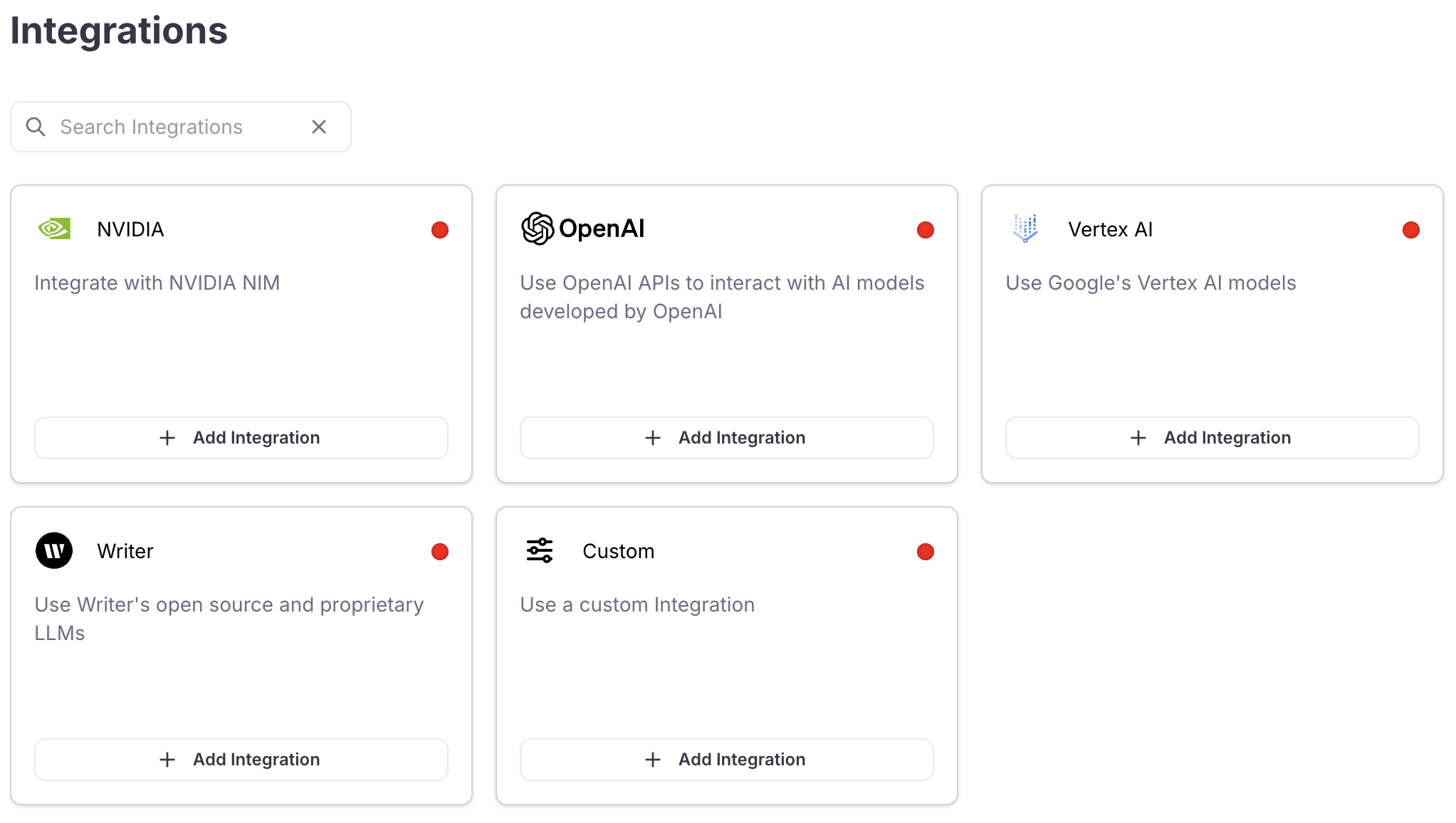
 Locate the LLM provider you are using (or specify a [custom integration](/sdk-api/third-party-integrations/model-integrations/custom-model-integrations/custom-model-integrations)), then select the **+Add Integration** button.
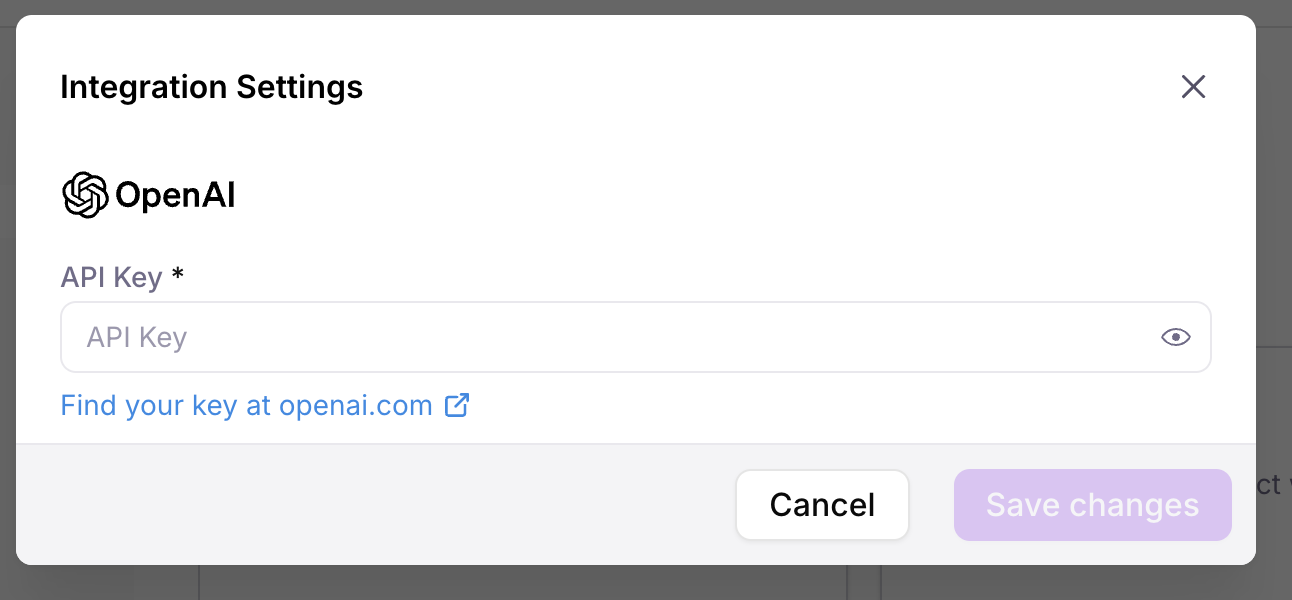
 Specify settings for your integration (such as an API key), then select **Save changes**.
 ## Log a trace with an evaluated metric
To evaluate the Log stream against context adherence, you need to turn this on for your Log stream.
Add the following import statements to the top of your app file:
```python Python theme={null}
from galileo import GalileoMetrics
from galileo.log_streams import enable_metrics
```
```typescript TypeScript theme={null}
import { enableMetrics, GalileoMetrics } from "galileo";
```
Next add the following code to your app file. If you are using Python, add this after the call to `galileo_context.init()`. If you are using TypeScript, add this as the first line in the `async` block.
```python Python theme={null}
# Enable context adherence
enable_metrics(project_name="MyFirstEvaluation",
log_stream_name="MyFirstLogStream",
metrics=[GalileoMetrics.context_adherence])
```
```typescript TypeScript theme={null}
// Enable context adherence
await enableMetrics({
projectName: "MyFirstEvaluation",
logStreamName: "MyFirstLogStream",
metrics: [GalileoMetrics.contextAdherence]
});
```
This code will enable the context adherence metric for your Log stream, and this metric will then be calculated for all LLM spans that are logged.
Now that you have metrics turned on for your Log stream, re-run your application to generate another trace. This time the context adherence metric will be calculated.
```bash Python theme={null}
python app.py
```
```bash TypeScript theme={null}
npx tsx app.ts
```
In the Galileo console, select your project, then select the Log stream.
You can see the trace that was just logged in the **Traces** tab. The context adherence metric will be calculated, showing low score.
## Log a trace with an evaluated metric
To evaluate the Log stream against context adherence, you need to turn this on for your Log stream.
Add the following import statements to the top of your app file:
```python Python theme={null}
from galileo import GalileoMetrics
from galileo.log_streams import enable_metrics
```
```typescript TypeScript theme={null}
import { enableMetrics, GalileoMetrics } from "galileo";
```
Next add the following code to your app file. If you are using Python, add this after the call to `galileo_context.init()`. If you are using TypeScript, add this as the first line in the `async` block.
```python Python theme={null}
# Enable context adherence
enable_metrics(project_name="MyFirstEvaluation",
log_stream_name="MyFirstLogStream",
metrics=[GalileoMetrics.context_adherence])
```
```typescript TypeScript theme={null}
// Enable context adherence
await enableMetrics({
projectName: "MyFirstEvaluation",
logStreamName: "MyFirstLogStream",
metrics: [GalileoMetrics.contextAdherence]
});
```
This code will enable the context adherence metric for your Log stream, and this metric will then be calculated for all LLM spans that are logged.
Now that you have metrics turned on for your Log stream, re-run your application to generate another trace. This time the context adherence metric will be calculated.
```bash Python theme={null}
python app.py
```
```bash TypeScript theme={null}
npx tsx app.ts
```
In the Galileo console, select your project, then select the Log stream.
You can see the trace that was just logged in the **Traces** tab. The context adherence metric will be calculated, showing low score.
 Select the trace to drill down for more information. Select the LLM span, and use the arrow next to the context adherence score to see an explanation of the metric.
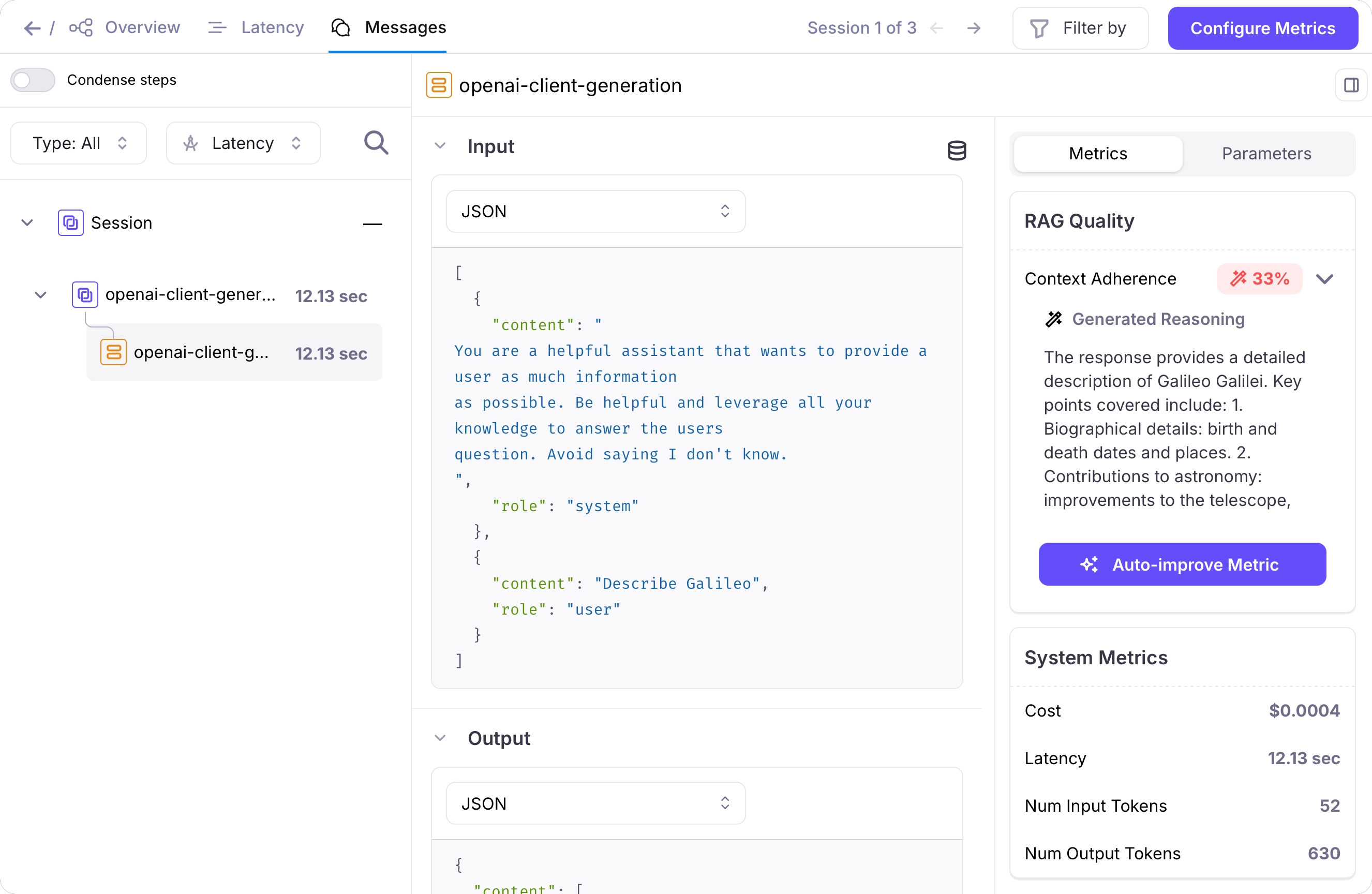 This shows a typical problem with an AI application - the LLM doesn't have enough relevant context to answer a question correctly, so hallucinates, or uses irrelevant information from its training data. We are after information about Galileo, the AI reliability platform, and want to avoid this irrelevant information about Galileo Galilei.
Let's now fix this by giving the LLM more relevant context, and show the fix with an improved evaluation score.
## Improve your application
To improve the context adherence score, you can provide relevant context to the LLM in the system.
To improve the context adherence, you can add relevant context to the system prompt. This is similar to adding extra information from a RAG system.
Update your code, replacing the code to set the system prompt with the following:
```python Python theme={null}
relevant_documents = [
"""
Galileo is the fastest way to ship reliable apps.
Galileo brings automation and insight to AI evaluations so you can
ship with confidence.
""",
"""
Galileo has Automated evaluations
Eliminate 80% of evaluation time by replacing manual reviews
with high-accuracy, adaptive metrics. Test your AI features,
offline and online, and bring CI/CD rigor to your AI workflows.
""",
"""
Galileo allows Rapid iteration
Ship iterations 20% faster by automating testing numerous
prompts and models. Find the best performance for any given
test set. When something breaks, Galileo helps identify
failure modes and root cause.
"""
]
system_prompt = f"""
You are a helpful assistant that wants to provide a user as much information
as possible. Avoid saying I don't know.
Here is some relevant information:
{relevant_documents}
"""
```
```typescript TypeScript theme={null}
const relevantDocuments = [
`
Galileo is the fastest way to ship reliable apps.
Galileo brings automation and insight to AI
evaluations so you can ship with confidence.
`,
`
Galileo has Automated evaluations
Eliminate 80% of evaluation time by replacing manual reviews
with high-accuracy, adaptive metrics. Test your AI features,
offline and online, and bring CI/CD rigor to your AI workflows.
`,
`
Galileo allows Rapid iteration
Ship iterations 20% faster by automating testing numerous
prompts and models. Find the best performance for any given
test set. When something breaks, Galileo helps identify
failure modes and root cause.
`
];
// Define a system prompt with guidance
const systemPrompt = `
You are a helpful assistant that wants to provide a user
as much information as possible. Avoid saying I don't know.
Here is some relevant information:
${relevantDocuments}
`;
```
Run your application again to log a new trace.
Now the results should show relevant information:
```output Terminal wrap theme={null}
Galileo is an advanced platform designed to streamline the development and deployment of reliable AI applications. It focuses on enhancing the efficiency of AI evaluations through automation and insightful metrics. Here are some of the key features and benefits of using Galileo:
1. **Automated Evaluations**: Galileo significantly reduces the time spent on manual reviews by automating the evaluation process. This can eliminate up to 80% of evaluation time through the use of high-accuracy, adaptive metrics. Both offline and online testing of AI features are supported, allowing for a more structured and rigorous CI/CD (Continuous Integration/Continuous Delivery) approach within AI workflows.
2. **Rapid Iteration**: The platform accelerates the iteration process, enabling teams to ship new features 20% faster. It automates the testing of multiple prompts and models, helping teams quickly identify the best performance for different test sets. When issues arise, Galileo aids in pinpointing failure modes and root causes, which streamlines the troubleshooting process.
3. **CI/CD Integration**: By introducing CI/CD rigor to AI workflows, Galileo ensures that AI models undergo continuous testing and improvement, ultimately boosting the quality and reliability of applications being deployed.
In summary, Galileo is a powerful tool for teams seeking to enhance their AI app development capabilities by utilizing automation and insightful metrics for evaluations, leading to faster iterations and improved reliability.
```
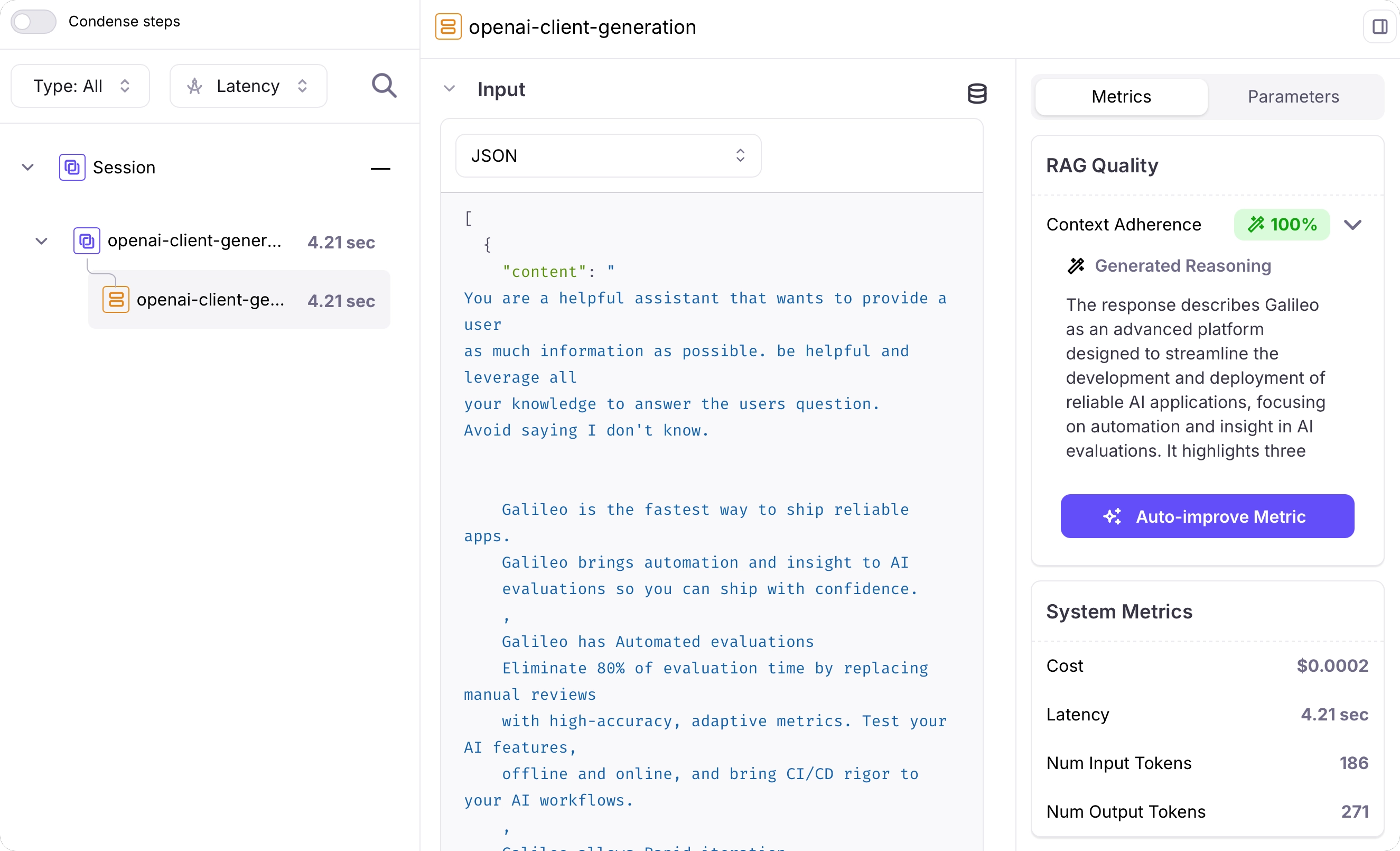
A new trace will have been logged. This time, the context adherence score will be higher. Select the trace to see more details.
This shows a typical problem with an AI application - the LLM doesn't have enough relevant context to answer a question correctly, so hallucinates, or uses irrelevant information from its training data. We are after information about Galileo, the AI reliability platform, and want to avoid this irrelevant information about Galileo Galilei.
Let's now fix this by giving the LLM more relevant context, and show the fix with an improved evaluation score.
## Improve your application
To improve the context adherence score, you can provide relevant context to the LLM in the system.
To improve the context adherence, you can add relevant context to the system prompt. This is similar to adding extra information from a RAG system.
Update your code, replacing the code to set the system prompt with the following:
```python Python theme={null}
relevant_documents = [
"""
Galileo is the fastest way to ship reliable apps.
Galileo brings automation and insight to AI evaluations so you can
ship with confidence.
""",
"""
Galileo has Automated evaluations
Eliminate 80% of evaluation time by replacing manual reviews
with high-accuracy, adaptive metrics. Test your AI features,
offline and online, and bring CI/CD rigor to your AI workflows.
""",
"""
Galileo allows Rapid iteration
Ship iterations 20% faster by automating testing numerous
prompts and models. Find the best performance for any given
test set. When something breaks, Galileo helps identify
failure modes and root cause.
"""
]
system_prompt = f"""
You are a helpful assistant that wants to provide a user as much information
as possible. Avoid saying I don't know.
Here is some relevant information:
{relevant_documents}
"""
```
```typescript TypeScript theme={null}
const relevantDocuments = [
`
Galileo is the fastest way to ship reliable apps.
Galileo brings automation and insight to AI
evaluations so you can ship with confidence.
`,
`
Galileo has Automated evaluations
Eliminate 80% of evaluation time by replacing manual reviews
with high-accuracy, adaptive metrics. Test your AI features,
offline and online, and bring CI/CD rigor to your AI workflows.
`,
`
Galileo allows Rapid iteration
Ship iterations 20% faster by automating testing numerous
prompts and models. Find the best performance for any given
test set. When something breaks, Galileo helps identify
failure modes and root cause.
`
];
// Define a system prompt with guidance
const systemPrompt = `
You are a helpful assistant that wants to provide a user
as much information as possible. Avoid saying I don't know.
Here is some relevant information:
${relevantDocuments}
`;
```
Run your application again to log a new trace.
Now the results should show relevant information:
```output Terminal wrap theme={null}
Galileo is an advanced platform designed to streamline the development and deployment of reliable AI applications. It focuses on enhancing the efficiency of AI evaluations through automation and insightful metrics. Here are some of the key features and benefits of using Galileo:
1. **Automated Evaluations**: Galileo significantly reduces the time spent on manual reviews by automating the evaluation process. This can eliminate up to 80% of evaluation time through the use of high-accuracy, adaptive metrics. Both offline and online testing of AI features are supported, allowing for a more structured and rigorous CI/CD (Continuous Integration/Continuous Delivery) approach within AI workflows.
2. **Rapid Iteration**: The platform accelerates the iteration process, enabling teams to ship new features 20% faster. It automates the testing of multiple prompts and models, helping teams quickly identify the best performance for different test sets. When issues arise, Galileo aids in pinpointing failure modes and root causes, which streamlines the troubleshooting process.
3. **CI/CD Integration**: By introducing CI/CD rigor to AI workflows, Galileo ensures that AI models undergo continuous testing and improvement, ultimately boosting the quality and reliability of applications being deployed.
In summary, Galileo is a powerful tool for teams seeking to enhance their AI app development capabilities by utilizing automation and insightful metrics for evaluations, leading to faster iterations and improved reliability.
```
A new trace will have been logged. This time, the context adherence score will be higher. Select the trace to see more details.
 🎉 **Congratulations**, you have evaluated a trace, and used the results of the evaluation to improve your AI application.
## Next steps
Learn how to get started with the Galileo sample projects that are included in every new account.
Learn about the Galileo integrations with third-party SDKs to automatically log your applications
### Cookbooks
Learn how to perform common tasks with Galileo, work with third-party integrations, and use evaluations to solve AI problems
### SDK reference
The Galileo Python SDK reference.
The Galileo TypeScript SDK reference.
🎉 **Congratulations**, you have evaluated a trace, and used the results of the evaluation to improve your AI application.
## Next steps
Learn how to get started with the Galileo sample projects that are included in every new account.
Learn about the Galileo integrations with third-party SDKs to automatically log your applications
### Cookbooks
Learn how to perform common tasks with Galileo, work with third-party integrations, and use evaluations to solve AI problems
### SDK reference
The Galileo Python SDK reference.
The Galileo TypeScript SDK reference.