> ## Documentation Index
> Fetch the complete documentation index at: https://docs.galileo.ai/llms.txt
> Use this file to discover all available pages before exploring further.
# Log MCP Server Tool Calls
> Learn how to log tool calls when calling MCP servers from your AI application
This guide explains how to log tool calls in Galileo from calls to MCP servers.
MCP has become a popular way to add tools to AI applications. The MCP protocol provides a way for clients to connect to servers over well-defined transports, and discover and call tools in a standardized way. If you are building an AI application using MCP servers to provide tools, you can use Galileo to log these interactions using [tool spans](/sdk-api/logging/galileo-logger#tool-spans)
In this guide you will:
1. Create a simple chatbot using Anthropic
2. Connect to the [Galileo MCP server](/getting-started/mcp/setup-galileo-mcp) to add tools to your chatbot
3. Add logging with Galileo
You can find the code from this guide in the [Galileo SDK Examples repo](https://github.com/rungalileo/sdk-examples/tree/main/python/logging-samples/log-mcp-calls).
## Before you start
Before you begin, ensure you have:
* Python 3.10+ installed
* [A Galileo API key](https://app.galileo.ai/settings/api-keys)
* [An Anthropic API key](https://console.anthropic.com/settings/keys)
## Install dependencies
To use Galileo, you need to install some package dependencies, and configure environment variables.
Install the required dependencies for your app. Create a virtual environment using your preferred method, then install dependencies inside that environment:
```bash Terminal theme={null}
pip install anthropic mcp galileo
```
```ini .env theme={null}
# Your Galileo API key
GALILEO_API_KEY="your-galileo-api-key"
# Your Galileo project name
GALILEO_PROJECT="your-galileo-project-name"
# The name of the Log stream you want to use for logging
GALILEO_LOG_STREAM="your-galileo-log-stream"
# Provide the console url below if you are using a
# custom deployment, and not using the free tier, or app.galileo.ai.
# This will look something like “console.galileo.yourcompany.com”.
# GALILEO_CONSOLE_URL="your-galileo-console-url"
# The URL of the MCP server you are connecting to
MCP_SERVER_URL=https://api.galileo.ai/mcp/http/mcp
# Anthropic properties
ANTHROPIC_API_KEY="your-anthropic-api-key"
# The Anthropic model you are using
ANTHROPIC_MODEL=claude-sonnet-4-5
```
Update these values to match your setup.
This assumes you are using a free Galileo account. If you are using a custom deployment, then you will also need to add the URL of your Galileo Console:
```ini .env theme={null}
GALILEO_CONSOLE_URL=your-Galileo-console-URL
```
## Create a simple chat bot with logging to Galileo
Create a new file called `app.py`. Add the following code to this file to create a basic chatbot to interact with your chosen Anthropic model:
```python app.py theme={null}
import asyncio
import os
from datetime import datetime
from anthropic import Anthropic, omit
from anthropic.types import Message
from dotenv import load_dotenv
from galileo import galileo_context
load_dotenv() # load environment variables from .env
anthropic = Anthropic()
message_history = []
def call_llm(messages) -> Message:
"""
Call the LLM with the provided query and return
the response text
"""
galileo_logger = galileo_context.get_logger_instance()
# Capture the current time in nanoseconds for logging
start_time_ns = datetime.now().timestamp() * 1_000_000_000
# Call the LLM
response = anthropic.messages.create(
model=os.environ["ANTHROPIC_MODEL"],
max_tokens=1000,
messages=messages
)
# Log the LLM call
for content in [c for c in response.content if c.type == "text"]:
galileo_logger.add_llm_span(
input=messages,
output=content.text,
model=os.environ["ANTHROPIC_MODEL"],
num_input_tokens=response.usage.input_tokens,
num_output_tokens=response.usage.output_tokens,
total_tokens=response.usage.input_tokens +
response.usage.output_tokens,
duration_ns=int(
(datetime.now().timestamp() * 1_000_000_000) -
start_time_ns
),
)
return response
async def process_query(query: str) -> str:
"""Process a query using Claude"""
# Capture the current time in nanoseconds for logging
start_time_ns = datetime.now().timestamp() * 1_000_000_000
# Start a Galileo Logger trace
galileo_logger = galileo_context.get_logger_instance()
galileo_logger.start_trace(
input=query,
name="MCP Chatbot Query",
)
message_history.append({"role": "user", "content": query})
# Call the LLM
response = call_llm(message_history)
# Process the response
final_text = []
for content in response.content:
if content.type == "text":
# Save the text response to the message history
message_history.append({
"role": "assistant",
"content": content.text
})
final_text.append(content.text)
# Conclude and flush the trace
galileo_logger.conclude(
output="\n".join(final_text),
duration_ns=int(
(datetime.now().timestamp() * 1_000_000_000) -
start_time_ns
),
)
galileo_logger.flush()
# Return the final response text
return "\n".join(final_text)
async def main():
"""Main function to run the chat loop"""
# Start a Galileo Logger session
current_time = datetime.now().strftime("%Y-%m-%d %H:%M:%S")
galileo_context.start_session(
f"MCP Chatbot Session - {current_time}"
)
while True:
query = input("\nQuery: ").strip()
if query.lower() == "quit":
break
print(await process_query(query))
if __name__ == "__main__":
asyncio.run(main())
```
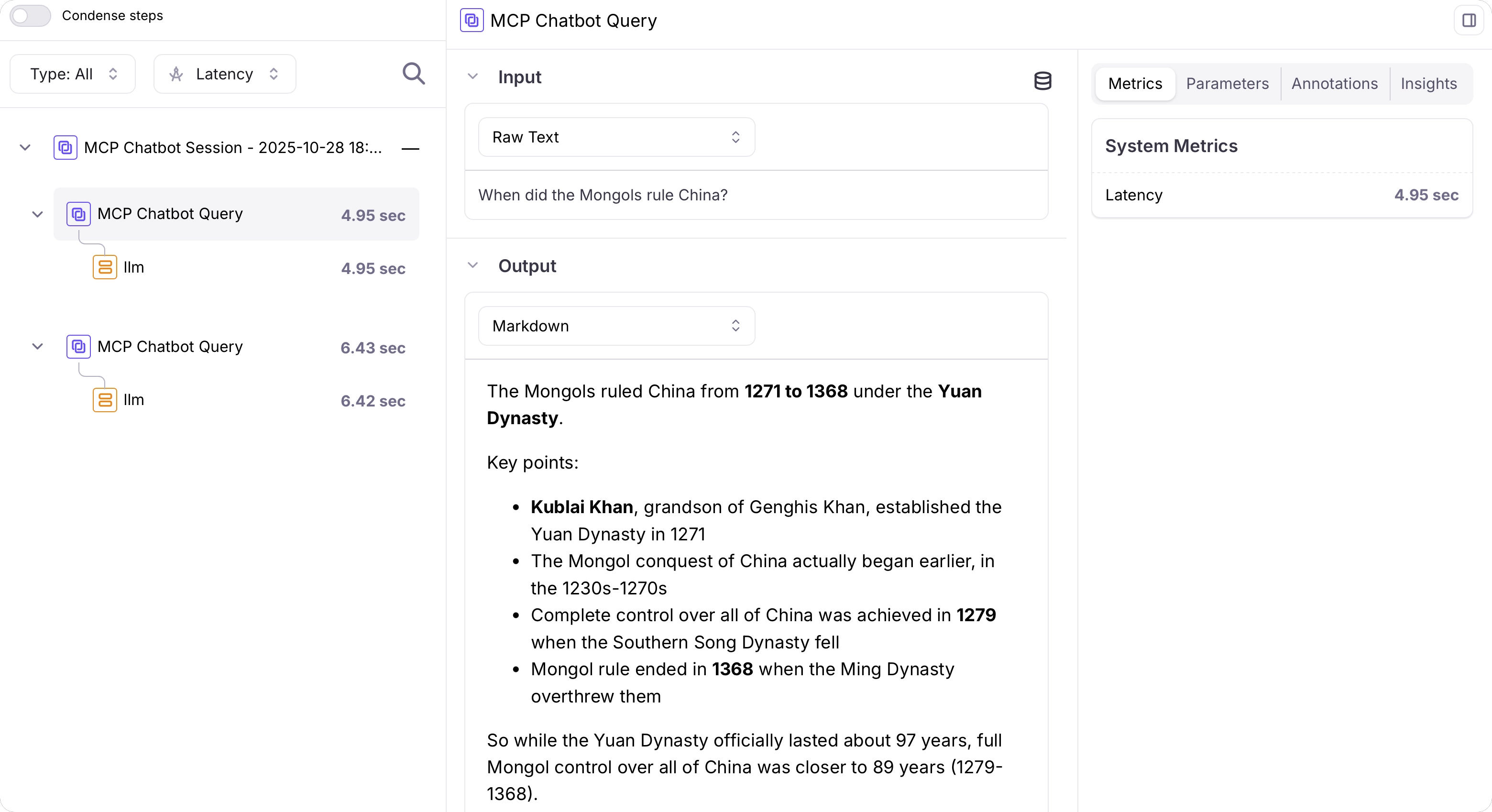
This code will log the interactions with the LLM to Galileo. Each time you run the application, a new session will be started, and each turn in the conversation will be a new trace.
Run the code to ensure it works. Ask the chat bot a simple query and make sure you get a response.
```bash Terminal theme={null}
python app.py
```
Then open your Log stream in Galileo, and you will see the queries logged as traces in a session.
 ## Add tool calling against an MCP server to the chat bot
Create a new file called `mcp_client.py`. Add the following code to this file to create an MCP client:
```python mcp_client.py theme={null}
import os
from contextlib import AsyncExitStack
from typing import Optional
from mcp import ClientSession
from mcp.client.streamable_http import streamablehttp_client
class MCPClient:
"""MCP Client to connect to MCP server and manage tools"""
def __init__(self):
# Initialize session and client objects
self._session: Optional[ClientSession] = None
self._exit_stack = AsyncExitStack()
self.tools = []
async def connect_to_server(self):
"""Connect to an MCP server"""
# Establish streamable HTTP connection
read, write, _ = await self._exit_stack.enter_async_context(
streamablehttp_client(
url=os.environ.get(
"MCP_SERVER_URL",
"https://api.galileo.ai/mcp/http/mcp"
),
headers={
"Galileo-API-Key": os.environ["GALILEO_API_KEY"],
"Accept": "text/event-stream",
},
)
)
# Create the MCP client session
self._session = await self._exit_stack.enter_async_context(
ClientSession(read, write)
)
# Initialize the session
await self._session.initialize()
# List the available tools
response = await self._session.list_tools()
self.tools = [
{
"name": tool.name,
"description": tool.description,
"input_schema": tool.inputSchema,
}
for tool in response.tools
]
print(
"\nConnected to server with tools:",
[tool["name"] for tool in self.tools],
)
async def call_tool(self, tool_name: str, input_data: dict):
"""Call a tool by name with the provided input data"""
# Ensure a session is established
if not self._session:
raise RuntimeError(
"MCP Client is not connected to a server."
)
# Call the tool and return the result
return await self._session.call_tool(tool_name, input_data)
async def cleanup(self):
"""Clean up resources"""
await self._exit_stack.aclose()
```
This code defines an `MCPClient` class that connects to the Galileo MCP server.
In your `app.py` file, import the MCP Client, and create an instance of it. Add the following import statement to the top of the `app.py`:
```python app.py theme={null}
from mcp_client import MCPClient
```
Under the declaration of the Anthropic client and message history, create an instance of the MCP client with the following code:
```python app.py theme={null}
mcp_client = MCPClient()
```
Then in the `main` function, connect the MCP client to the Galileo MCP server. Add the following line of code to the top of the `main` function:
```python app.py theme={null}
# Connect to the MCP server
await mcp_client.connect_to_server()
```
The MCP client loads a list of tools from the MCP server. This needs to be passed to the LLM so that it can decided to call a tool if required.
Change the `call_llm` function to take a boolean parameter called `use_tools`. Then if this is set, set the `tools` parameter on the call to `anthropic.messages.create` to use the tools from the MCP client.
Change the `call_llm` function to the following:
```python app.py theme={null}
def call_llm(messages, use_tools: bool = True) -> Message:
"""
Call the LLM with the provided query and return
the response text
"""
galileo_logger = galileo_context.get_logger_instance()
# Capture the current time in nanoseconds for logging
start_time_ns = datetime.now().timestamp() * 1_000_000_000
# Call the LLM
response = anthropic.messages.create(
model=os.environ["ANTHROPIC_MODEL"],
max_tokens=1000,
messages=messages,
tools=mcp_client.tools if use_tools else omit,
)
# Log the LLM call
for content in [c for c in response.content if c.type == "text"]:
galileo_logger.add_llm_span(
input=messages,
output=content.text,
model=os.environ["ANTHROPIC_MODEL"],
num_input_tokens=response.usage.input_tokens,
num_output_tokens=response.usage.output_tokens,
total_tokens=response.usage.input_tokens +
response.usage.output_tokens,
duration_ns=int(
(datetime.now().timestamp() * 1_000_000_000) -
start_time_ns
),
)
return response
```
Tools are required when a user query is passed to the LLM, but not when the LLM is processing the response from the tool call.
The `use_tools` parameter allows the calling code to control if tools are used, and turn them off when the tool response is processed. You will set this up in a later step.
If the LLM returns a request to call a tool, you will then need to call the relevant tool, and pass the response from the tool back to the LLM.
In the `for content in response.content:` block, add another clause after the `if content.type == "text":` block for if the content type is tool use:
```python app.py theme={null}
elif content.type == 'tool_use':
# Execute tool call
result = await mcp_client.call_tool(
content.name,
content.input
)
final_text.append(f"[Calling tool {content.name}"+
f"with args {content.input}]")
# Create a copy of the messages
# And add the tool response
messages = message_history.copy()
if hasattr(content, 'text') and content.text:
messages.append({
"role": "assistant",
"content": content.text
})
messages.append({
"role": "user",
"content": result.content
})
# Call the LLM without tools for the final response
response = call_llm(messages, use_tools=False)
# Add the response to the original message history
message_history.append({
"role": "assistant",
"content": response.content[0].text
})
final_text.append(response.content[0].text)
```
This code calls the MCP client to call the tool on the MCP server. The response is saved to the message history, then the message history is sent back to the LLM, this time without the tools list. The LLM then processes the tool result and returns a response.
Run the code to ensure it works. Ask the chat bot a query that the Galileo MCP server can answer, such as "How do I use the GalileoLogger?".
```output Terminal wrap theme={null}
Connected to server with tools: ['integrate_galileo_with_langchain', 'integrate_galileo_with_openai', 'get_logstream_insights', 'validate_dataset', 'create_galileo_dataset', 'create_prompt_template', 'setup_galileo_experiment', 'search_docs']
Query: How do I use the GalileoLogger?
I'll search the Galileo documentation to find information about how to use the GalileoLogger.
[Calling tool search_docs with args {'query': 'GalileoLogger usage how to use'}]
# Using the GalileoLogger
The **GalileoLogger** class provides granular control over logging in Galileo. Here's how to use it:
...
```
When you run the app, a list of the all the tools on the server will be written to the console. Then if you ask a question that the MCP server can help with, the LLM will return a tool use request, the tool will be called, the tool result sent back to the LLM, then the final answer will be returned from the LLM and output to the console.
## Log the tool call as a tool span
Add the following code before the call to `mcp_client.call_tool` to get the start time of the call. This will allow you to time the tool call and add this duration to the span.
```python app.py theme={null}
# Get the tool start time
tool_start_time_ns = datetime.now().timestamp() * 1_000_000_000
```
After the tool call, log a tool span with the input and output of the tool. Add the following code after the call to `mcp_client.call_tool`:
```python app.py theme={null}
# Log the tool call
galileo_logger.add_tool_span(
input=query,
output=result.content[0].text,
name=content.name,
tool_call_id=content.id,
duration_ns=int(
(datetime.now().timestamp() * 1_000_000_000) -
tool_start_time_ns
),
)
```
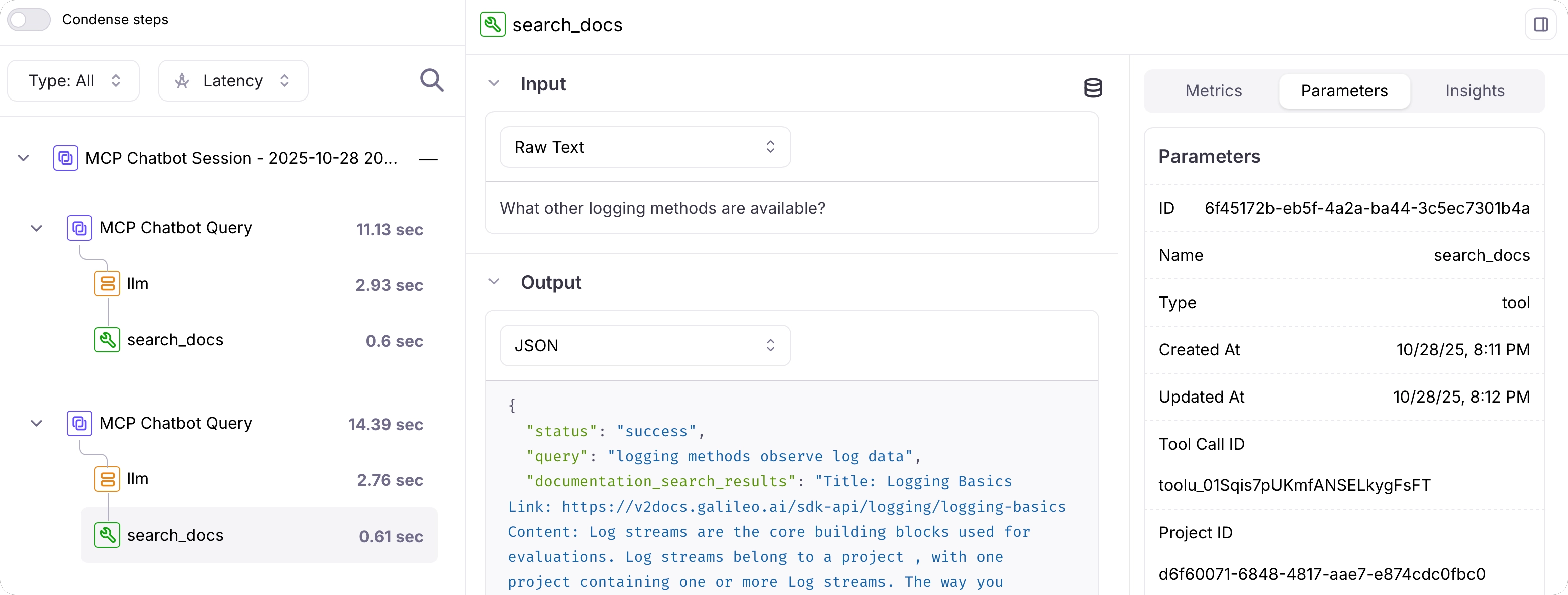
Run the code and ask a question that will cause the tool to be called. Then open your Log stream in Galileo, and you will see the tool calls logged under the traces.
## Add tool calling against an MCP server to the chat bot
Create a new file called `mcp_client.py`. Add the following code to this file to create an MCP client:
```python mcp_client.py theme={null}
import os
from contextlib import AsyncExitStack
from typing import Optional
from mcp import ClientSession
from mcp.client.streamable_http import streamablehttp_client
class MCPClient:
"""MCP Client to connect to MCP server and manage tools"""
def __init__(self):
# Initialize session and client objects
self._session: Optional[ClientSession] = None
self._exit_stack = AsyncExitStack()
self.tools = []
async def connect_to_server(self):
"""Connect to an MCP server"""
# Establish streamable HTTP connection
read, write, _ = await self._exit_stack.enter_async_context(
streamablehttp_client(
url=os.environ.get(
"MCP_SERVER_URL",
"https://api.galileo.ai/mcp/http/mcp"
),
headers={
"Galileo-API-Key": os.environ["GALILEO_API_KEY"],
"Accept": "text/event-stream",
},
)
)
# Create the MCP client session
self._session = await self._exit_stack.enter_async_context(
ClientSession(read, write)
)
# Initialize the session
await self._session.initialize()
# List the available tools
response = await self._session.list_tools()
self.tools = [
{
"name": tool.name,
"description": tool.description,
"input_schema": tool.inputSchema,
}
for tool in response.tools
]
print(
"\nConnected to server with tools:",
[tool["name"] for tool in self.tools],
)
async def call_tool(self, tool_name: str, input_data: dict):
"""Call a tool by name with the provided input data"""
# Ensure a session is established
if not self._session:
raise RuntimeError(
"MCP Client is not connected to a server."
)
# Call the tool and return the result
return await self._session.call_tool(tool_name, input_data)
async def cleanup(self):
"""Clean up resources"""
await self._exit_stack.aclose()
```
This code defines an `MCPClient` class that connects to the Galileo MCP server.
In your `app.py` file, import the MCP Client, and create an instance of it. Add the following import statement to the top of the `app.py`:
```python app.py theme={null}
from mcp_client import MCPClient
```
Under the declaration of the Anthropic client and message history, create an instance of the MCP client with the following code:
```python app.py theme={null}
mcp_client = MCPClient()
```
Then in the `main` function, connect the MCP client to the Galileo MCP server. Add the following line of code to the top of the `main` function:
```python app.py theme={null}
# Connect to the MCP server
await mcp_client.connect_to_server()
```
The MCP client loads a list of tools from the MCP server. This needs to be passed to the LLM so that it can decided to call a tool if required.
Change the `call_llm` function to take a boolean parameter called `use_tools`. Then if this is set, set the `tools` parameter on the call to `anthropic.messages.create` to use the tools from the MCP client.
Change the `call_llm` function to the following:
```python app.py theme={null}
def call_llm(messages, use_tools: bool = True) -> Message:
"""
Call the LLM with the provided query and return
the response text
"""
galileo_logger = galileo_context.get_logger_instance()
# Capture the current time in nanoseconds for logging
start_time_ns = datetime.now().timestamp() * 1_000_000_000
# Call the LLM
response = anthropic.messages.create(
model=os.environ["ANTHROPIC_MODEL"],
max_tokens=1000,
messages=messages,
tools=mcp_client.tools if use_tools else omit,
)
# Log the LLM call
for content in [c for c in response.content if c.type == "text"]:
galileo_logger.add_llm_span(
input=messages,
output=content.text,
model=os.environ["ANTHROPIC_MODEL"],
num_input_tokens=response.usage.input_tokens,
num_output_tokens=response.usage.output_tokens,
total_tokens=response.usage.input_tokens +
response.usage.output_tokens,
duration_ns=int(
(datetime.now().timestamp() * 1_000_000_000) -
start_time_ns
),
)
return response
```
Tools are required when a user query is passed to the LLM, but not when the LLM is processing the response from the tool call.
The `use_tools` parameter allows the calling code to control if tools are used, and turn them off when the tool response is processed. You will set this up in a later step.
If the LLM returns a request to call a tool, you will then need to call the relevant tool, and pass the response from the tool back to the LLM.
In the `for content in response.content:` block, add another clause after the `if content.type == "text":` block for if the content type is tool use:
```python app.py theme={null}
elif content.type == 'tool_use':
# Execute tool call
result = await mcp_client.call_tool(
content.name,
content.input
)
final_text.append(f"[Calling tool {content.name}"+
f"with args {content.input}]")
# Create a copy of the messages
# And add the tool response
messages = message_history.copy()
if hasattr(content, 'text') and content.text:
messages.append({
"role": "assistant",
"content": content.text
})
messages.append({
"role": "user",
"content": result.content
})
# Call the LLM without tools for the final response
response = call_llm(messages, use_tools=False)
# Add the response to the original message history
message_history.append({
"role": "assistant",
"content": response.content[0].text
})
final_text.append(response.content[0].text)
```
This code calls the MCP client to call the tool on the MCP server. The response is saved to the message history, then the message history is sent back to the LLM, this time without the tools list. The LLM then processes the tool result and returns a response.
Run the code to ensure it works. Ask the chat bot a query that the Galileo MCP server can answer, such as "How do I use the GalileoLogger?".
```output Terminal wrap theme={null}
Connected to server with tools: ['integrate_galileo_with_langchain', 'integrate_galileo_with_openai', 'get_logstream_insights', 'validate_dataset', 'create_galileo_dataset', 'create_prompt_template', 'setup_galileo_experiment', 'search_docs']
Query: How do I use the GalileoLogger?
I'll search the Galileo documentation to find information about how to use the GalileoLogger.
[Calling tool search_docs with args {'query': 'GalileoLogger usage how to use'}]
# Using the GalileoLogger
The **GalileoLogger** class provides granular control over logging in Galileo. Here's how to use it:
...
```
When you run the app, a list of the all the tools on the server will be written to the console. Then if you ask a question that the MCP server can help with, the LLM will return a tool use request, the tool will be called, the tool result sent back to the LLM, then the final answer will be returned from the LLM and output to the console.
## Log the tool call as a tool span
Add the following code before the call to `mcp_client.call_tool` to get the start time of the call. This will allow you to time the tool call and add this duration to the span.
```python app.py theme={null}
# Get the tool start time
tool_start_time_ns = datetime.now().timestamp() * 1_000_000_000
```
After the tool call, log a tool span with the input and output of the tool. Add the following code after the call to `mcp_client.call_tool`:
```python app.py theme={null}
# Log the tool call
galileo_logger.add_tool_span(
input=query,
output=result.content[0].text,
name=content.name,
tool_call_id=content.id,
duration_ns=int(
(datetime.now().timestamp() * 1_000_000_000) -
tool_start_time_ns
),
)
```
Run the code and ask a question that will cause the tool to be called. Then open your Log stream in Galileo, and you will see the tool calls logged under the traces.
 ## See also
* [Tool spans](/sdk-api/logging/galileo-logger#tool-spans)
* [Using the Galileo Logger](/sdk-api/logging/galileo-logger)
## See also
* [Tool spans](/sdk-api/logging/galileo-logger#tool-spans)
* [Using the Galileo Logger](/sdk-api/logging/galileo-logger)