> ## Documentation Index
> Fetch the complete documentation index at: https://docs.galileo.ai/llms.txt
> Use this file to discover all available pages before exploring further.
# Set Up Alerts on Logs
> Learn how to set up alerts and be automatically notified when things go wrong
{/**/}
## Overview
Galileo enables you to get alerted whenever unexpected things happen. For example:
* Your cost is higher than expected
* Your model is hallucinating more than you want
* Users are entering foul language into your app
To successfully set up an alert, you will need to have [logged your first trace](/getting-started/quickstart).
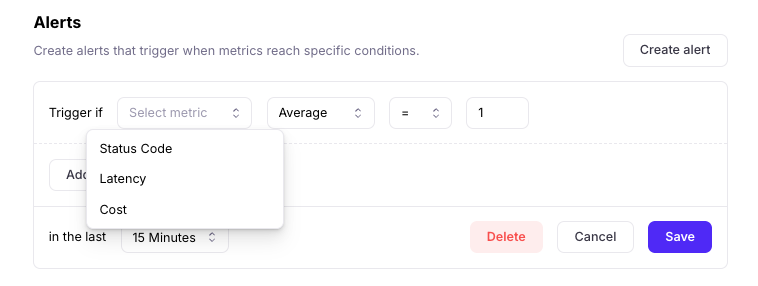 These system metrics are available for alerts by default: Status Code, Cost, Latency.
[Add metrics](/concepts/metrics/overview) to enable more alerts.
## Example alerts
Each alert configuration includes:
* a metric e.g. Cost, Correctness, Context Adherence
* an aggregation function: Average, Minimum, Maximum, Count, Sum
* a threshold e.g. \< 0.5
* a time window e.g. 1 hour
These system metrics are available for alerts by default: Status Code, Cost, Latency.
[Add metrics](/concepts/metrics/overview) to enable more alerts.
## Example alerts
Each alert configuration includes:
* a metric e.g. Cost, Correctness, Context Adherence
* an aggregation function: Average, Minimum, Maximum, Count, Sum
* a threshold e.g. \< 0.5
* a time window e.g. 1 hour
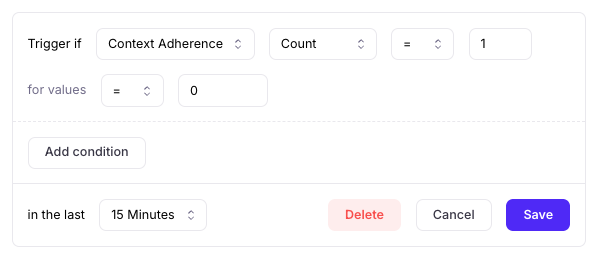 A few example alerts:
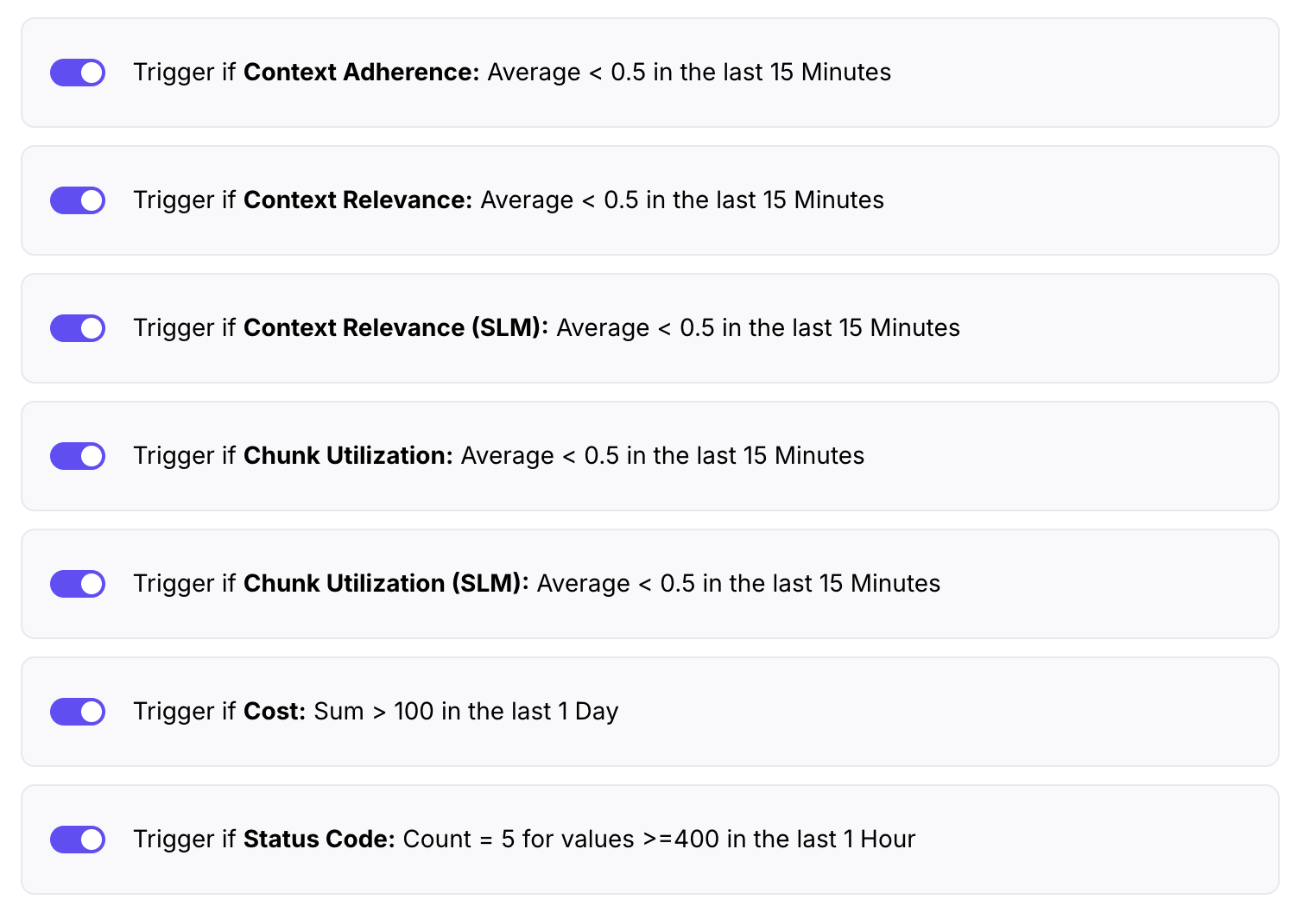
* Exceeding costs: If you want to get alerted with an uptick in cost (above \$100/day), select `Cost` Sum > 100 in the last day
* Hallucinations: If you want to get alerted when there's an extreme hallucination, select `Correctness` or `Context Adherence` Count = 1 for values = 0 in the last 15 minutes.
* Hallucination average: If you want to get alerted when hallucinations are probable (e.g. more than 50% below perfect threshold), select `Correctness` or `Context Adherence` Average \< 0.5 in the last 1 hour.
More example alerts are shown below:
A few example alerts:
* Exceeding costs: If you want to get alerted with an uptick in cost (above \$100/day), select `Cost` Sum > 100 in the last day
* Hallucinations: If you want to get alerted when there's an extreme hallucination, select `Correctness` or `Context Adherence` Count = 1 for values = 0 in the last 15 minutes.
* Hallucination average: If you want to get alerted when hallucinations are probable (e.g. more than 50% below perfect threshold), select `Correctness` or `Context Adherence` Average \< 0.5 in the last 1 hour.
More example alerts are shown below:
 ## Email notifications
To set up email alerts, add your recipients’ email addresses.
## Email notifications
To set up email alerts, add your recipients’ email addresses.
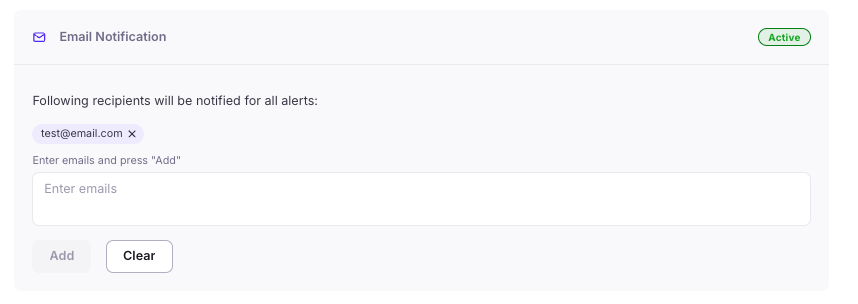 When emails have been added, the top right corner of the section will show "Active".
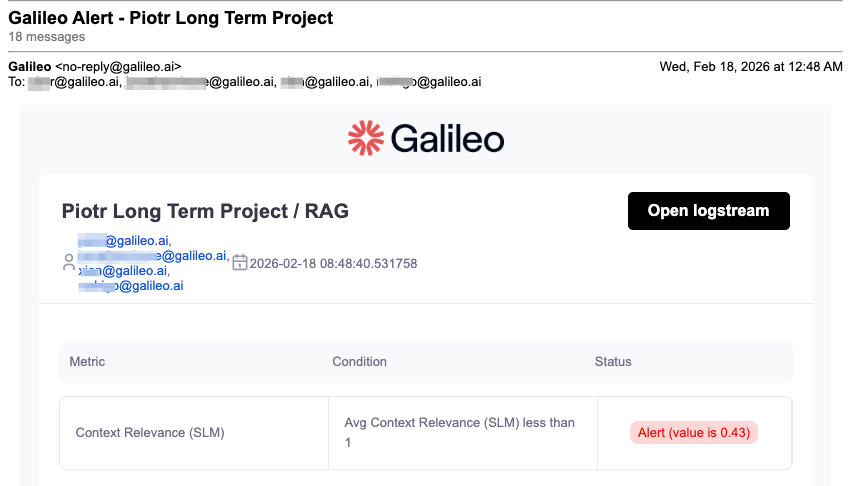
From the email notification (example below), you can click on the "Open Log Stream" button to find the problematic traces.
When emails have been added, the top right corner of the section will show "Active".
From the email notification (example below), you can click on the "Open Log Stream" button to find the problematic traces.
 ## Slack notifications
To set up Slack alerts, you'll need to configure your workspace to receive Slack messages via webhook URLs.
Follow Slack's instructions to generate a webhook URL.
A few pointers:
1. [Create a Slack app](https://api.slack.com/apps/new). If you don't have an existing manifest file, choose the "From scratch" option to create the app.
2. Pick an App Name like "Galileo Alerts" that will help identify the Slack app that the notifications will come from.
3. Go to the "Incoming Webhooks" page of your Slack app (under "Features"), and enable the toggle to "Activate Incoming Webhooks".
4. Click "Add New Webhook" and choose the Slack channel you'd like Galileo's Alerts to go to. (You can also test the webhook by direct messaging your user account.)
## Slack notifications
To set up Slack alerts, you'll need to configure your workspace to receive Slack messages via webhook URLs.
Follow Slack's instructions to generate a webhook URL.
A few pointers:
1. [Create a Slack app](https://api.slack.com/apps/new). If you don't have an existing manifest file, choose the "From scratch" option to create the app.
2. Pick an App Name like "Galileo Alerts" that will help identify the Slack app that the notifications will come from.
3. Go to the "Incoming Webhooks" page of your Slack app (under "Features"), and enable the toggle to "Activate Incoming Webhooks".
4. Click "Add New Webhook" and choose the Slack channel you'd like Galileo's Alerts to go to. (You can also test the webhook by direct messaging your user account.)
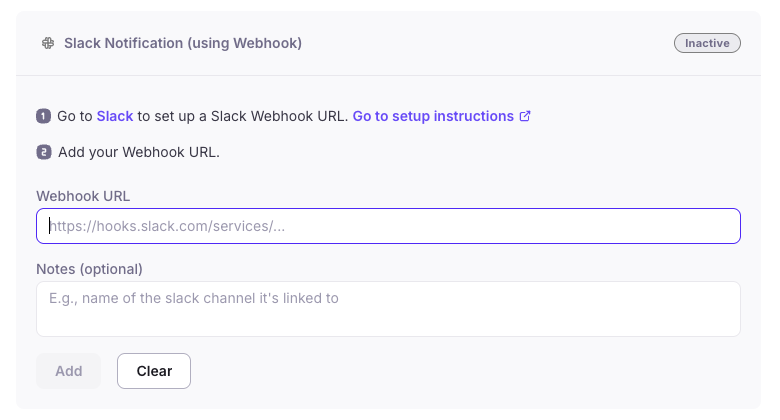 1. Copy the generated webhook URL from Slack, and paste it into Galileo's Slack Notification section.
2. In the "Notes" section, add the name of the channel that's getting notified.
1. Copy the generated webhook URL from Slack, and paste it into Galileo's Slack Notification section.
2. In the "Notes" section, add the name of the channel that's getting notified.
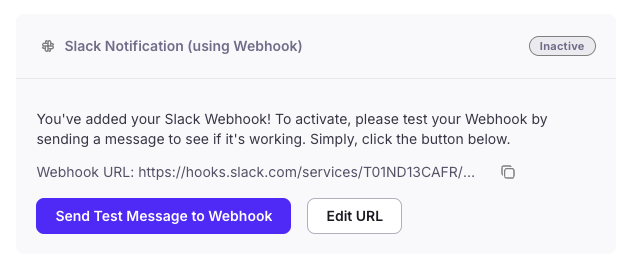 1. Try sending a test message to webhook to verify the connection.
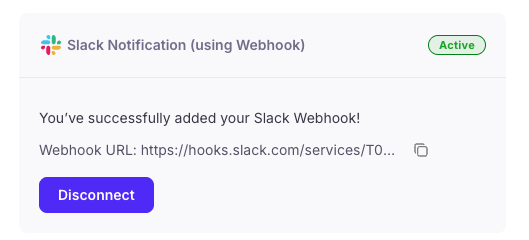 When a Slack notification have been added, the top right corner of the section will show "Active".