> ## Documentation Index
> Fetch the complete documentation index at: https://docs.galileo.ai/llms.txt
> Use this file to discover all available pages before exploring further.
# Integrate NVIDIA NIM with Galileo
> Learn how to connect your self-hosted NVIDIA NIM (NVIDIA Inference Microservices) to Galileo for comprehensive LLM performance assessment, playground experimentation, and enhanced generative AI model capabilities
This section explains how to integrate your self-hosted NVIDIA NIM deployments with Galileo. This allows you to:
* Query your NVIDIA NIM models via the Galileo Playground or run experiments.
* Evaluate the performance and quality of responses from your NIM-hosted models within Galileo.
## Prerequisites
Before adding the NVIDIA NIM integration in Galileo, ensure you have:
1. A Deployed NVIDIA NIM Instance: Your NVIDIA NIM service should be up and running, accessible via a network endpoint. This could be on Google Kubernetes Engine (GKE), other cloud providers, or on-premises, as long as Galileo can reach its API.
2. NIM Service Endpoint URL (hostname): This is the base URL where your NIM service is listening for API requests (e.g., `http://YOUR-HOST:PORT`).
3. NIM API Key (optional): If your NIM endpoint is secured with an API key for authentication, you will need this key.
## Setup the integration
In the Galileo Console, click on your profile and open settings.
Once in the settings menu, navigate to 'Integrations'.
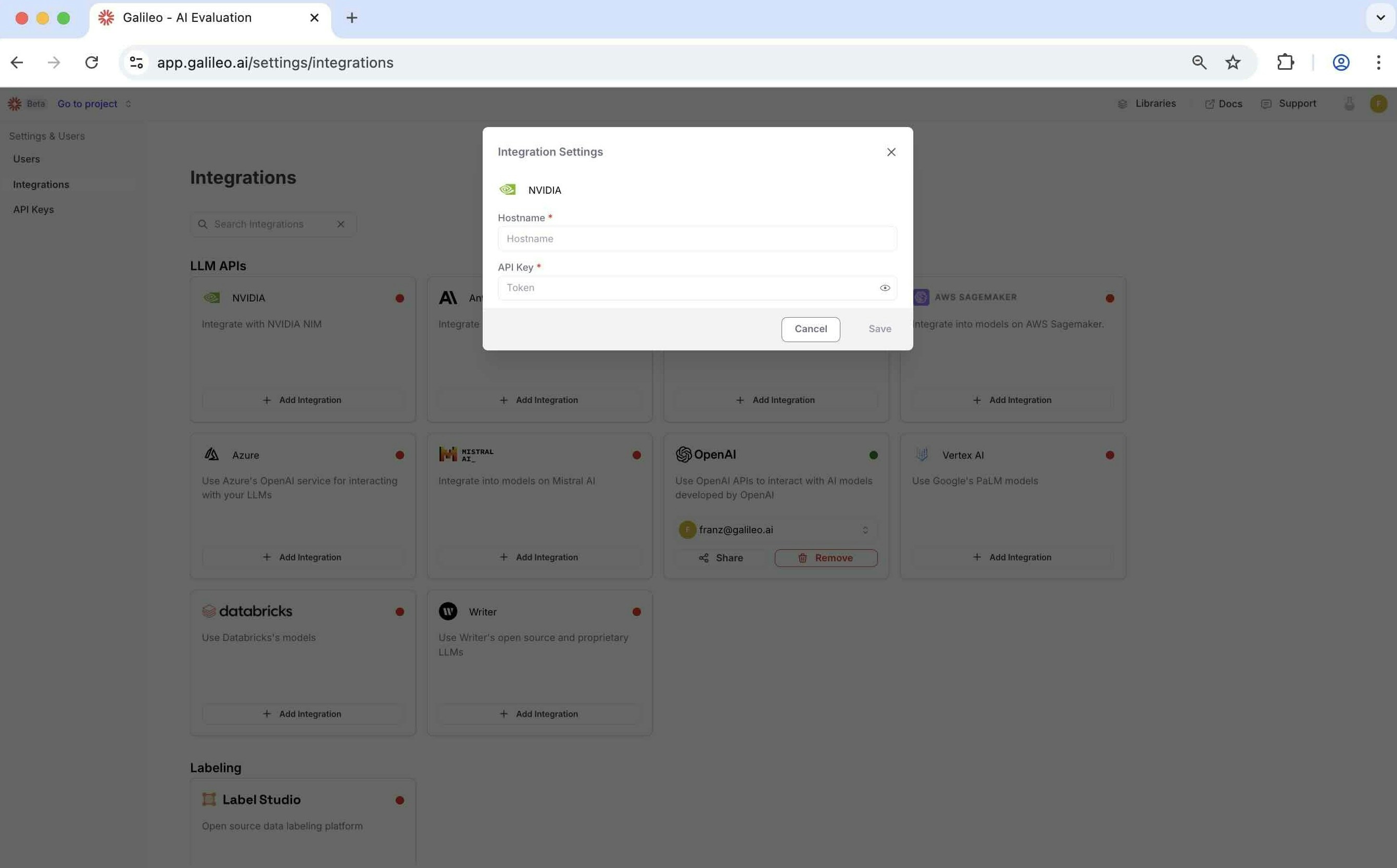 Now add your NVIDIA Endpoint to the integration. For testing you can also use:
`https://integrate.api.nvidia.com/v1` if you created an account + API key.
## Leveraging your NVIDIA NIM integration
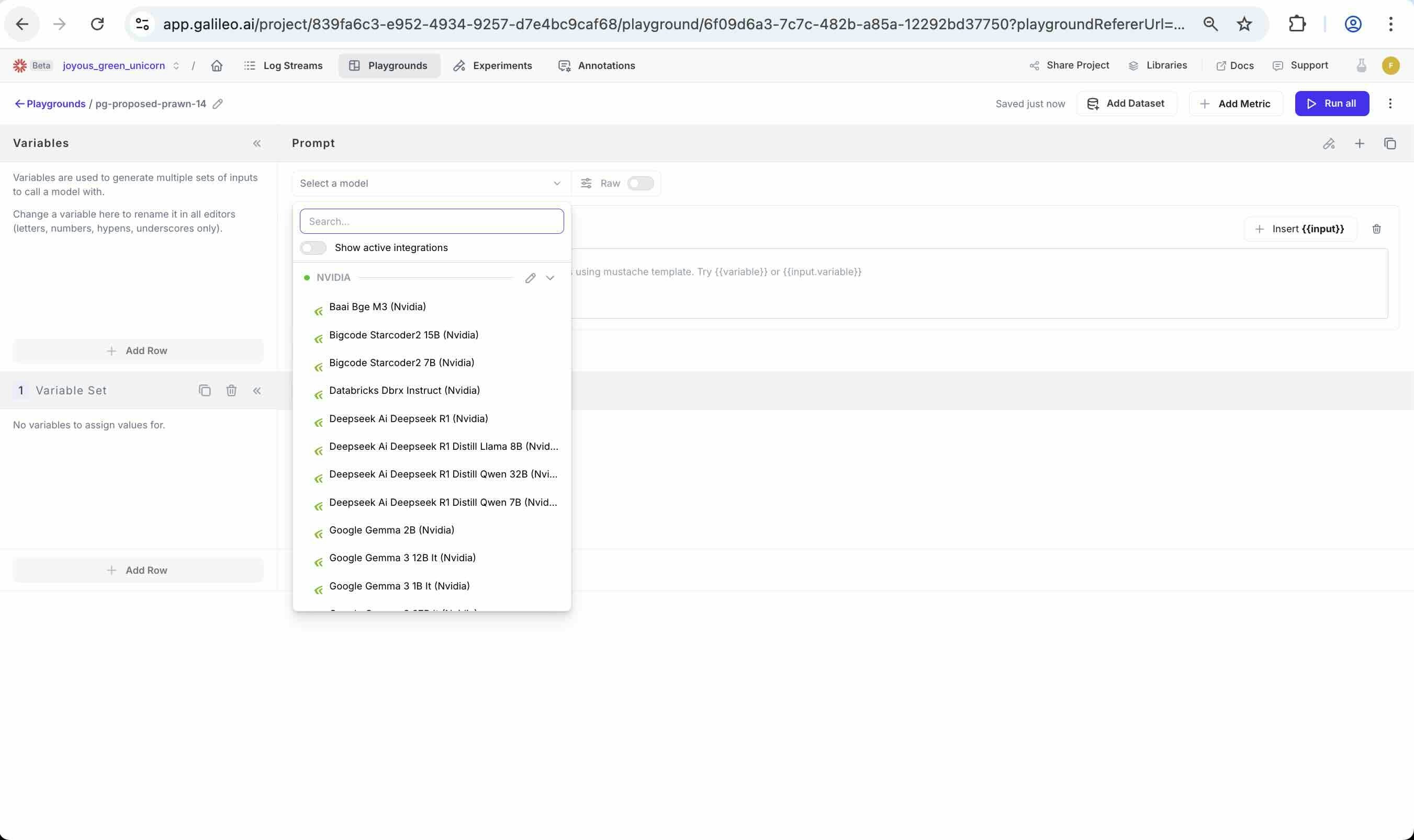
Once the NVIDIA NIM integration is successfully configured. Galileo enables:
* Playground Access: Your NIM-hosted models will become available for selection in the Galileo Playground. You can directly prompt them, experiment with different parameters, and see their responses within the Galileo UI.
* Model Evaluation: You can run evaluation jobs in Galileo targeting your NIM models. This allows you to assess their performance on various datasets and metrics.
* Custom metrics for model evaluation
Now add your NVIDIA Endpoint to the integration. For testing you can also use:
`https://integrate.api.nvidia.com/v1` if you created an account + API key.
## Leveraging your NVIDIA NIM integration
Once the NVIDIA NIM integration is successfully configured. Galileo enables:
* Playground Access: Your NIM-hosted models will become available for selection in the Galileo Playground. You can directly prompt them, experiment with different parameters, and see their responses within the Galileo UI.
* Model Evaluation: You can run evaluation jobs in Galileo targeting your NIM models. This allows you to assess their performance on various datasets and metrics.
* Custom metrics for model evaluation
 Additional resources:
* [Deployment Guide](https://docs.nvidia.com/nim/large-language-models/latest/getting-started.html)
Additional resources:
* [Deployment Guide](https://docs.nvidia.com/nim/large-language-models/latest/getting-started.html)