> ## Documentation Index
> Fetch the complete documentation index at: https://docs.galileo.ai/llms.txt
> Use this file to discover all available pages before exploring further.
# Add a dataset
> Reference for the three dataset sources: Upload, Fetch from URL, and Import from Galileo.
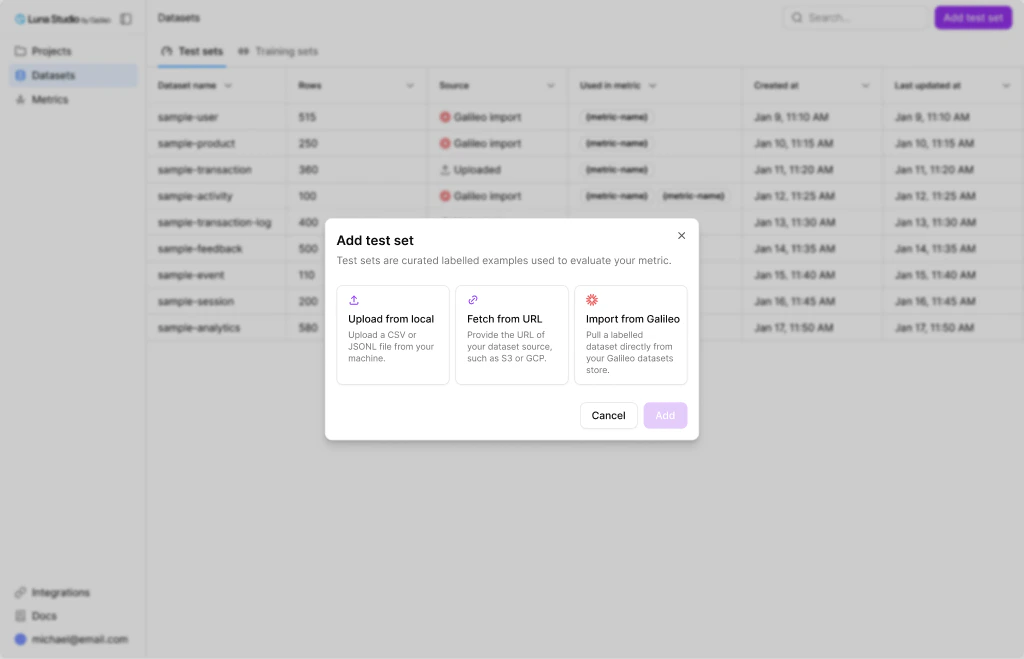
The **Add dataset** modal is reused everywhere you can pick a dataset source — the Datasets page, [Step 2 of the run creation flow](/luna-studio/ui/runs/new-run/step-2-test-set), and [Step 3](/luna-studio/ui/runs/new-run/step-3-training-set). The title and copy adapt to whether you're adding a test set or a training set, but the three sources are the same.
 ## The three sources
Pick one card. Only one source can be active at a time.
Drag-and-drop a `.csv` or `.jsonl` file from your machine.
Paste an `http://`, `https://`, `s3://`, or `gs://` URL.
Browse datasets in your connected Galileo workspace.
A hint at the bottom of the modal lists the expected columns: **input** and **label**.
## Upload from local
## The three sources
Pick one card. Only one source can be active at a time.
Drag-and-drop a `.csv` or `.jsonl` file from your machine.
Paste an `http://`, `https://`, `s3://`, or `gs://` URL.
Browse datasets in your connected Galileo workspace.
A hint at the bottom of the modal lists the expected columns: **input** and **label**.
## Upload from local
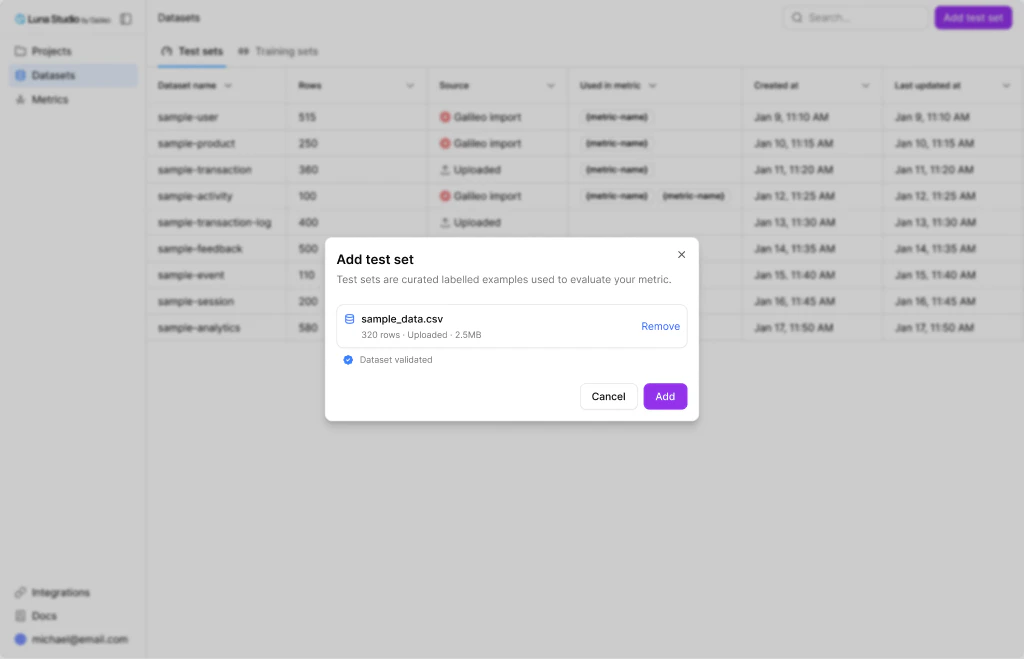 A drop zone replaces the source picker.
Accepted file types: `.csv` and `.jsonl`. Other types are rejected.
Luna uploads the file and starts validation. The modal closes; the dataset appears with a status line of **Validating…**, then **Validated** (or **Validated with warnings** / **Validation error**).
### Format reference
For CSV, the first row is treated as headers. For JSONL, each line is a JSON object with at least `input` and (for labelled data) `label`.
Examples:
```csv theme={null}
input,label
"What's the warranty on this?",false
"You're an idiot.",true
"How do I reset my password?",false
```
```jsonl theme={null}
{"input": "What's the warranty on this?", "label": false}
{"input": "You're an idiot.", "label": true}
{"input": "How do I reset my password?", "label": false}
```
## Fetch from URL
A drop zone replaces the source picker.
Accepted file types: `.csv` and `.jsonl`. Other types are rejected.
Luna uploads the file and starts validation. The modal closes; the dataset appears with a status line of **Validating…**, then **Validated** (or **Validated with warnings** / **Validation error**).
### Format reference
For CSV, the first row is treated as headers. For JSONL, each line is a JSON object with at least `input` and (for labelled data) `label`.
Examples:
```csv theme={null}
input,label
"What's the warranty on this?",false
"You're an idiot.",true
"How do I reset my password?",false
```
```jsonl theme={null}
{"input": "What's the warranty on this?", "label": false}
{"input": "You're an idiot.", "label": true}
{"input": "How do I reset my password?", "label": false}
```
## Fetch from URL
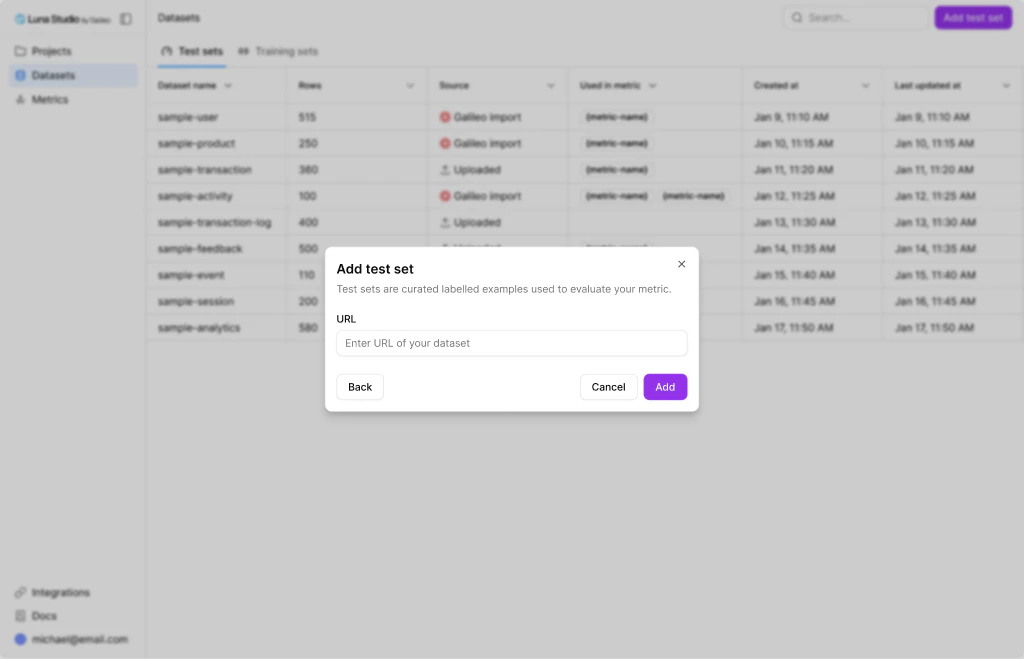 A URL input replaces the source picker.
Acceptable schemes: `http://`, `https://`, `s3://`, `gs://`. The input validates the format inline.
Luna fetches the file and starts validation. Cloud URLs (`s3://`, `gs://`) require the relevant integration to be configured if the bucket isn't public.
### Authentication for cloud URLs
* **`s3://`** — uses the credentials in your [AWS-hosted models integration](/luna-studio/ui/integrations/llm-providers#aws-hosted-models), if any. For public buckets, no auth is needed.
* **`gs://`** — uses the GCS credentials in your [Vertex AI integration](/luna-studio/ui/integrations/llm-providers#vertex-ai) (when **Support file uploads** is on).
If Luna can't fetch the URL, the dataset shows up with status **Validation error: Could not fetch URL**.
## Import from Galileo
A URL input replaces the source picker.
Acceptable schemes: `http://`, `https://`, `s3://`, `gs://`. The input validates the format inline.
Luna fetches the file and starts validation. Cloud URLs (`s3://`, `gs://`) require the relevant integration to be configured if the bucket isn't public.
### Authentication for cloud URLs
* **`s3://`** — uses the credentials in your [AWS-hosted models integration](/luna-studio/ui/integrations/llm-providers#aws-hosted-models), if any. For public buckets, no auth is needed.
* **`gs://`** — uses the GCS credentials in your [Vertex AI integration](/luna-studio/ui/integrations/llm-providers#vertex-ai) (when **Support file uploads** is on).
If Luna can't fetch the URL, the dataset shows up with status **Validation error: Could not fetch URL**.
## Import from Galileo
 **Galileo integration required.** Importing from Galileo requires an active Galileo integration. If one isn't configured, Luna Studio prompts you to add it inline before continuing. See [Galileo
integration](/luna-studio/ui/integrations/galileo) for the API key setup.
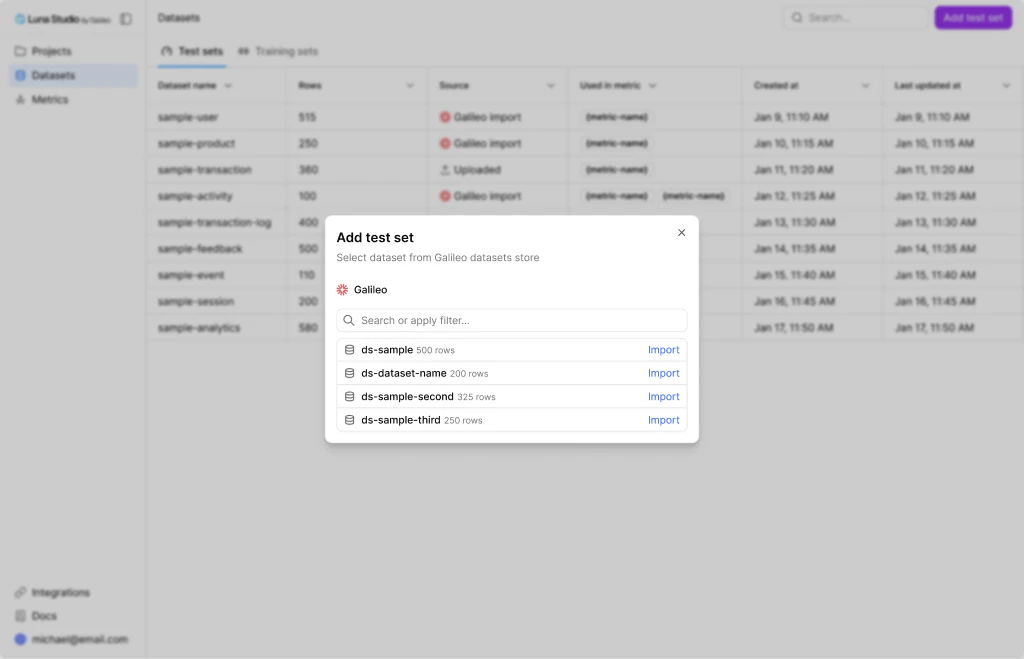
The Galileo import panel replaces the source picker.
If a Galileo integration isn't configured, Luna Studio first opens the [Galileo integration modal](/luna-studio/ui/integrations/galileo). After saving, the import panel appears.
Type into the search input. Each row in the list shows the dataset name plus a row count.
Each row has its own **Import** action — clicking it imports that dataset into Luna Studio. The modal closes immediately after import (no separate **Add** button is shown for Galileo).
### What if the integration is removed mid-flow?
If you cancel the integration modal that pops up before the import panel, the source selection is cleared and you can pick a different source.
## Validation
After **Add**, every dataset goes through schema and content validation. The result is shown as a status line:
* **Validating…** — Luna is checking the file.
* **Validated** — ready to use.
* **Validated with warnings** — usable, but check the warnings (e.g. partial UTF-8 issues, mixed casing).
* **Validation error: `{message}`** — the dataset can't be used until you fix the underlying file.
For the full validation rules, see [Validation](/luna-studio/ui/datasets/validation).
## Where to go next
Schema rules and best practices for evaluation data.
Schema rules and best practices for fine-tuning data.
What Luna checks and what to do when validation fails.
Required for Import from Galileo.
**Galileo integration required.** Importing from Galileo requires an active Galileo integration. If one isn't configured, Luna Studio prompts you to add it inline before continuing. See [Galileo
integration](/luna-studio/ui/integrations/galileo) for the API key setup.
The Galileo import panel replaces the source picker.
If a Galileo integration isn't configured, Luna Studio first opens the [Galileo integration modal](/luna-studio/ui/integrations/galileo). After saving, the import panel appears.
Type into the search input. Each row in the list shows the dataset name plus a row count.
Each row has its own **Import** action — clicking it imports that dataset into Luna Studio. The modal closes immediately after import (no separate **Add** button is shown for Galileo).
### What if the integration is removed mid-flow?
If you cancel the integration modal that pops up before the import panel, the source selection is cleared and you can pick a different source.
## Validation
After **Add**, every dataset goes through schema and content validation. The result is shown as a status line:
* **Validating…** — Luna is checking the file.
* **Validated** — ready to use.
* **Validated with warnings** — usable, but check the warnings (e.g. partial UTF-8 issues, mixed casing).
* **Validation error: `{message}`** — the dataset can't be used until you fix the underlying file.
For the full validation rules, see [Validation](/luna-studio/ui/datasets/validation).
## Where to go next
Schema rules and best practices for evaluation data.
Schema rules and best practices for fine-tuning data.
What Luna checks and what to do when validation fails.
Required for Import from Galileo.