> ## Documentation Index
> Fetch the complete documentation index at: https://docs.galileo.ai/llms.txt
> Use this file to discover all available pages before exploring further.
# Custom metrics
> Define a metric with a custom LLM-as-judge prompt inside the run creation flow.
Most metrics in Luna Studio come from Galileo presets or custom Galileo metrics. When you need a metric that does not fit an existing option, define a custom LLM-as-judge prompt in [Step 1 of the run creation flow](/luna-studio/ui/runs/new-run/step-1-metric#write-a-custom-prompt).
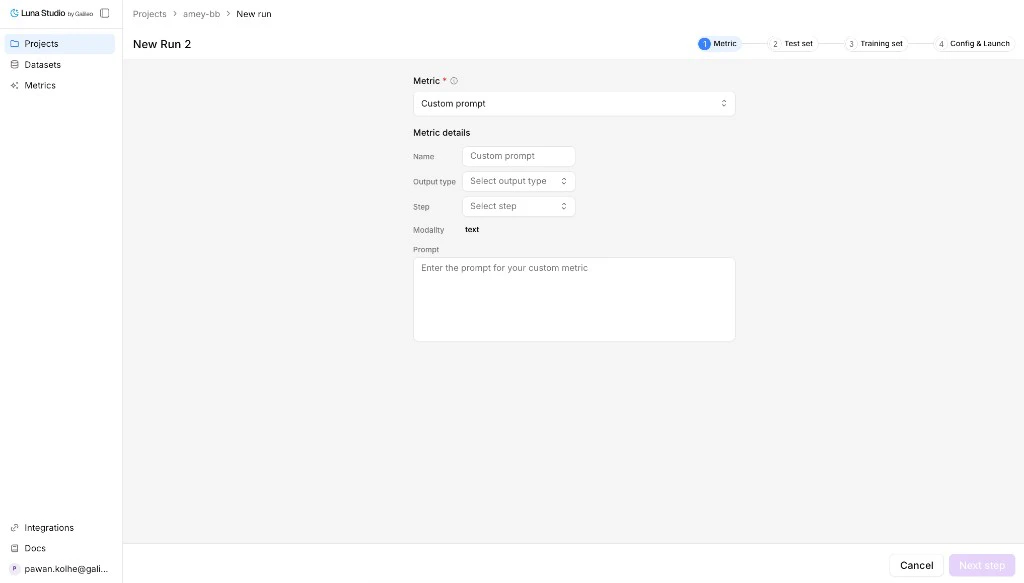 ## Open custom prompt mode
From Step 1 of the run creation flow, open the metric dropdown and click **Use custom prompt**.
## Fields
| Field | Required | Notes |
| ----------- | -------- | --------------------------------------------------------------------------------------- |
| Metric name | No | Optional display name. If blank, Luna Studio derives one from the run context. |
| Output type | Yes | The trainable return shape: Boolean or Categorical. |
| Step | Yes | The trace step the metric runs against: LLM span, Retriever, Agent span, Trace. |
| Input step | Yes | Training input shape: Single message, Input / output pair, Full trace, or Full session. |
| Modality | — | Read-only. Fixed to **Text** today. |
| Prompt | Yes | The LLM-as-judge prompt. Required. |
## Output types in detail
| Output type | When to use |
| ----------- | ----------------------------------------------------------------------- |
| Boolean | Yes/no questions ("Is this toxic?", "Does the answer cite a source?"). |
| Categorical | Picking one of a fixed list (e.g. `positive` / `neutral` / `negative`). |
Other Galileo output types are not trainable in Luna Studio yet. The output type also constrains what label values your test set can use during validation. See [Test sets](/luna-studio/ui/datasets/test-sets#required-schema).
## Steps in detail
| Step | Where it fires |
| ---------- | -------------------------------------------------------------- |
| LLM span | A single LLM call inside a trace. The default and most common. |
| Retriever | A retrieval step (e.g. evaluating chunk relevance). |
| Agent span | A single agent step inside a trace. |
| Trace | The full trace — input, intermediate steps, and final output. |
The right step depends on what your metric needs to see. For "is the final answer toxic?" → LLM span or Trace. For "are retrieved chunks relevant?" → Retriever.
## Input steps
| Input step | When to use |
| ------------------- | --------------------------------------------------------- |
| Single message | One text input per row. |
| Input / output pair | Rows that include both the prompt/input and model output. |
| Full trace | Trace-level metrics that need the full request flow. |
| Full session | Session-level metrics that need multiple related traces. |
Full trace and full session inputs require user-supplied training data; synthetic generation is disabled for those shapes.
## Prompt-writing tips
* **Be specific.** Define exactly what counts as a positive vs negative result.
* **Give examples.** One or two short examples per outcome class is plenty.
* **Constrain the output.** End the prompt with something like "Respond with only `true` or `false`." for Boolean metrics.
* **Avoid open scales.** "Score 1–10" is harder for an LLM-judge to keep consistent than a binary or 3-class categorical.
## Submit
Continue through the run creation flow. Luna Studio saves the metric definition with the run and fine-tunes it once you launch.
## Designing outside Luna Studio
Use the standalone Galileo metrics workflow when you want to design and test a metric outside of Luna Studio before bringing it into a run.
## Where to go next
Define a custom metric inside a new run.
Schema rules and best practices for evaluation data.
Publish a fine-tuned metric to Galileo.
## Open custom prompt mode
From Step 1 of the run creation flow, open the metric dropdown and click **Use custom prompt**.
## Fields
| Field | Required | Notes |
| ----------- | -------- | --------------------------------------------------------------------------------------- |
| Metric name | No | Optional display name. If blank, Luna Studio derives one from the run context. |
| Output type | Yes | The trainable return shape: Boolean or Categorical. |
| Step | Yes | The trace step the metric runs against: LLM span, Retriever, Agent span, Trace. |
| Input step | Yes | Training input shape: Single message, Input / output pair, Full trace, or Full session. |
| Modality | — | Read-only. Fixed to **Text** today. |
| Prompt | Yes | The LLM-as-judge prompt. Required. |
## Output types in detail
| Output type | When to use |
| ----------- | ----------------------------------------------------------------------- |
| Boolean | Yes/no questions ("Is this toxic?", "Does the answer cite a source?"). |
| Categorical | Picking one of a fixed list (e.g. `positive` / `neutral` / `negative`). |
Other Galileo output types are not trainable in Luna Studio yet. The output type also constrains what label values your test set can use during validation. See [Test sets](/luna-studio/ui/datasets/test-sets#required-schema).
## Steps in detail
| Step | Where it fires |
| ---------- | -------------------------------------------------------------- |
| LLM span | A single LLM call inside a trace. The default and most common. |
| Retriever | A retrieval step (e.g. evaluating chunk relevance). |
| Agent span | A single agent step inside a trace. |
| Trace | The full trace — input, intermediate steps, and final output. |
The right step depends on what your metric needs to see. For "is the final answer toxic?" → LLM span or Trace. For "are retrieved chunks relevant?" → Retriever.
## Input steps
| Input step | When to use |
| ------------------- | --------------------------------------------------------- |
| Single message | One text input per row. |
| Input / output pair | Rows that include both the prompt/input and model output. |
| Full trace | Trace-level metrics that need the full request flow. |
| Full session | Session-level metrics that need multiple related traces. |
Full trace and full session inputs require user-supplied training data; synthetic generation is disabled for those shapes.
## Prompt-writing tips
* **Be specific.** Define exactly what counts as a positive vs negative result.
* **Give examples.** One or two short examples per outcome class is plenty.
* **Constrain the output.** End the prompt with something like "Respond with only `true` or `false`." for Boolean metrics.
* **Avoid open scales.** "Score 1–10" is harder for an LLM-judge to keep consistent than a binary or 3-class categorical.
## Submit
Continue through the run creation flow. Luna Studio saves the metric definition with the run and fine-tunes it once you launch.
## Designing outside Luna Studio
Use the standalone Galileo metrics workflow when you want to design and test a metric outside of Luna Studio before bringing it into a run.
## Where to go next
Define a custom metric inside a new run.
Schema rules and best practices for evaluation data.
Publish a fine-tuned metric to Galileo.