> ## Documentation Index
> Fetch the complete documentation index at: https://docs.galileo.ai/llms.txt
> Use this file to discover all available pages before exploring further.
# Metrics overview
> Browse and register custom metrics across your project.
The **Metrics** page (sidebar → **Metrics**) is where you see every metric in your project, including fine-tuned metrics produced by training runs.
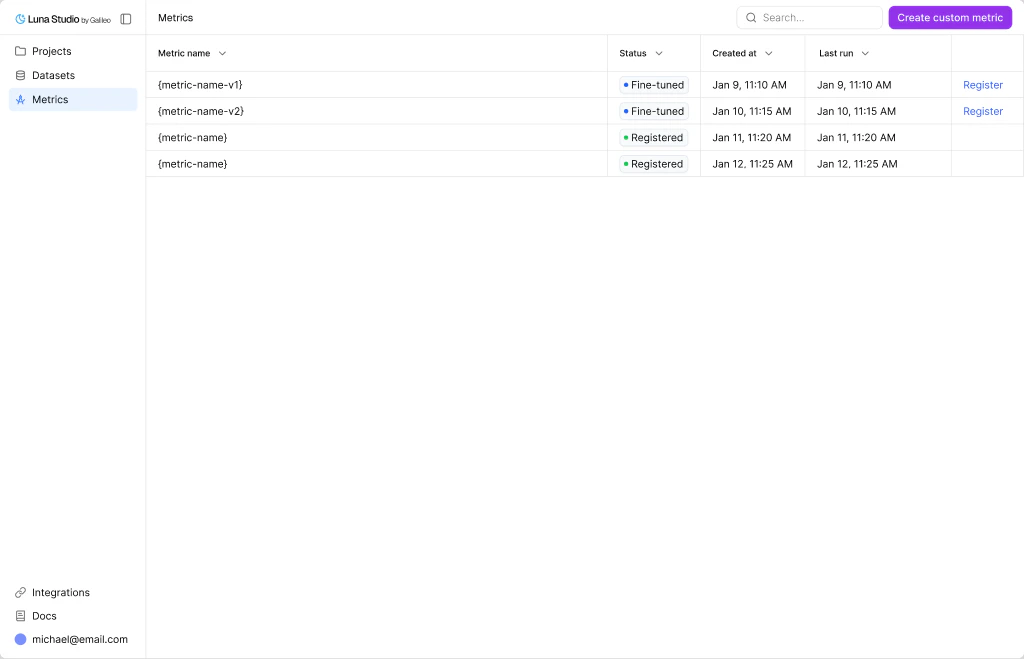 ## Metrics table
The table has these columns:
| Column | What it shows |
| ----------- | --------------------------------------------------------------------------------------------------------------------- |
| Metric name | The metric name. |
| Status | The metric's [lifecycle status](/luna-studio/ui/runs/lifecycle): Queued, Training, Fine-tuned, Registered, or Failed. |
| Created at | When the metric was created. |
| Last run | When the most recent training run for this metric finished. |
| Actions | For **Fine-tuned** metrics only: a **Register metric** action link. |
## Top-bar actions
* **Search** — filter the table by metric name.
## Where metrics come from
Metrics in Luna Studio come from two places:
1. **Training runs.** Every [run](/luna-studio/ui/runs/lifecycle) produces exactly one metric. After Step 1 of the run creation flow, the metric is implicitly created and tracks the run's status.
2. **Metric definitions.** Runs can start from Galileo presets, custom Galileo metrics, saved custom prompts, or a custom prompt written in Step 1.
## Register a metric
Once a metric reaches **Fine-tuned**, the **Register metric** action appears in the row's Actions cell. Clicking it opens the same modal documented in [Register a metric](/luna-studio/ui/runs/register-metric).
## Lifecycle
Metrics share the same five-state lifecycle as runs:
* **Queued** → **Training** → **Fine-tuned** → **Registered**
* (or **Failed** at any point)
See [Run lifecycle](/luna-studio/ui/runs/lifecycle) for the full state machine.
## Where to go next
Define a custom prompt inside the run creation flow.
The five statuses runs and metrics flow through.
Publish a Fine-tuned metric to the Galileo metrics store.
Launch a training run that produces a metric.
## Metrics table
The table has these columns:
| Column | What it shows |
| ----------- | --------------------------------------------------------------------------------------------------------------------- |
| Metric name | The metric name. |
| Status | The metric's [lifecycle status](/luna-studio/ui/runs/lifecycle): Queued, Training, Fine-tuned, Registered, or Failed. |
| Created at | When the metric was created. |
| Last run | When the most recent training run for this metric finished. |
| Actions | For **Fine-tuned** metrics only: a **Register metric** action link. |
## Top-bar actions
* **Search** — filter the table by metric name.
## Where metrics come from
Metrics in Luna Studio come from two places:
1. **Training runs.** Every [run](/luna-studio/ui/runs/lifecycle) produces exactly one metric. After Step 1 of the run creation flow, the metric is implicitly created and tracks the run's status.
2. **Metric definitions.** Runs can start from Galileo presets, custom Galileo metrics, saved custom prompts, or a custom prompt written in Step 1.
## Register a metric
Once a metric reaches **Fine-tuned**, the **Register metric** action appears in the row's Actions cell. Clicking it opens the same modal documented in [Register a metric](/luna-studio/ui/runs/register-metric).
## Lifecycle
Metrics share the same five-state lifecycle as runs:
* **Queued** → **Training** → **Fine-tuned** → **Registered**
* (or **Failed** at any point)
See [Run lifecycle](/luna-studio/ui/runs/lifecycle) for the full state machine.
## Where to go next
Define a custom prompt inside the run creation flow.
The five statuses runs and metrics flow through.
Publish a Fine-tuned metric to the Galileo metrics store.
Launch a training run that produces a metric.