> ## Documentation Index
> Fetch the complete documentation index at: https://docs.galileo.ai/llms.txt
> Use this file to discover all available pages before exploring further.
# Quickstart
> Sign up, configure your first integration, run a training, and register the resulting metric — end-to-end in about 15 minutes.
This walkthrough takes you from a fresh sign-up to a registered custom metric. By the end, you'll have one project, one training run, and one metric available in the Galileo metrics store.
## Before you start
**Enterprise tier and your own deployment.** Luna Studio is part of the enterprise tier of Galileo and is deployed by Galileo into your own cluster or cloud. See [Availability and deployment](/luna-studio/ui/availability), or [contact
us](https://galileo.ai/contact-sales) to get started.
You'll need:
* An instance of Luna Studio deployed for your org (Luna Studio is part of the enterprise tier — see [Availability and deployment](/luna-studio/ui/availability)).
* An email address for the Luna Studio account.
* An API key for at least one LLM provider — typically [OpenAI](https://platform.openai.com/api-keys), [Anthropic](https://console.anthropic.com/settings/keys), or [Google AI Studio](https://aistudio.google.com/api-keys).
* A small labelled dataset (CSV or JSONL with the columns your metric requires). Use at least 300 rows for a first run when possible.
* *Optional but recommended:* a [Galileo](/what-is-galileo) API key, so you can import datasets and register metrics into the Galileo platform.
Don't have a labelled training dataset yet? Luna Studio can **generate a training set** from your test set — see the [training-set step below](#step-6-add-a-training-set). The test set still needs enough labelled rows for reliable
evaluation.
## Walkthrough
Open your org's Luna Studio URL and create an account.
{" "}
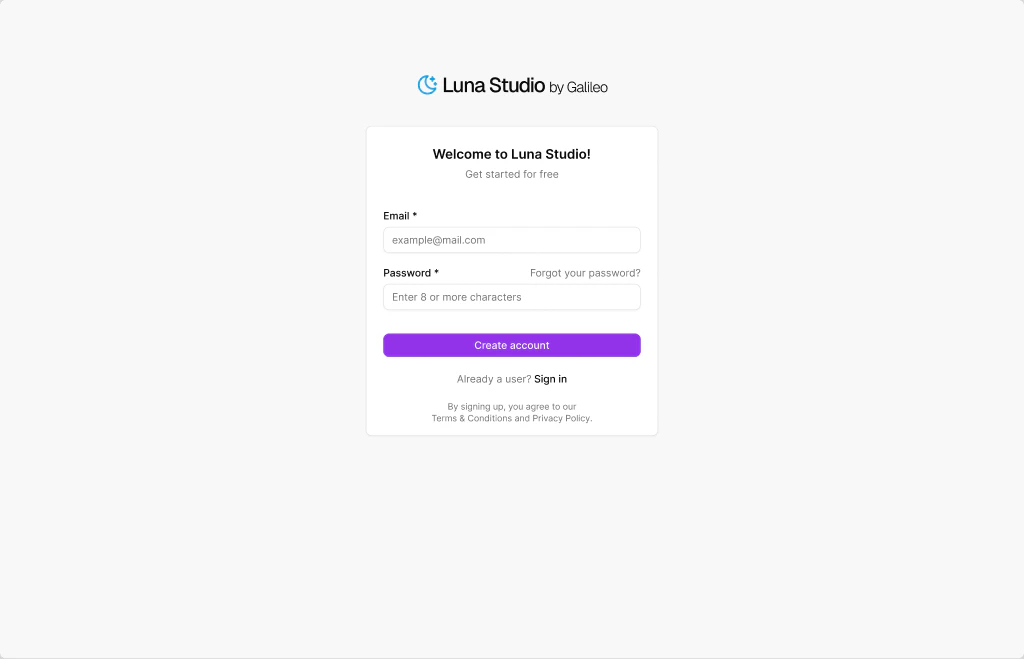 Enter an email and a password (8+ characters), accept the terms, and click **Create account**.
On first launch, Luna Studio drops you into the onboarding wizard. Pick a supported LLM provider, such as OpenAI or Anthropic, and click **Add integration** on the card.
{" "}
Enter an email and a password (8+ characters), accept the terms, and click **Create account**.
On first launch, Luna Studio drops you into the onboarding wizard. Pick a supported LLM provider, such as OpenAI or Anthropic, and click **Add integration** on the card.
{" "}
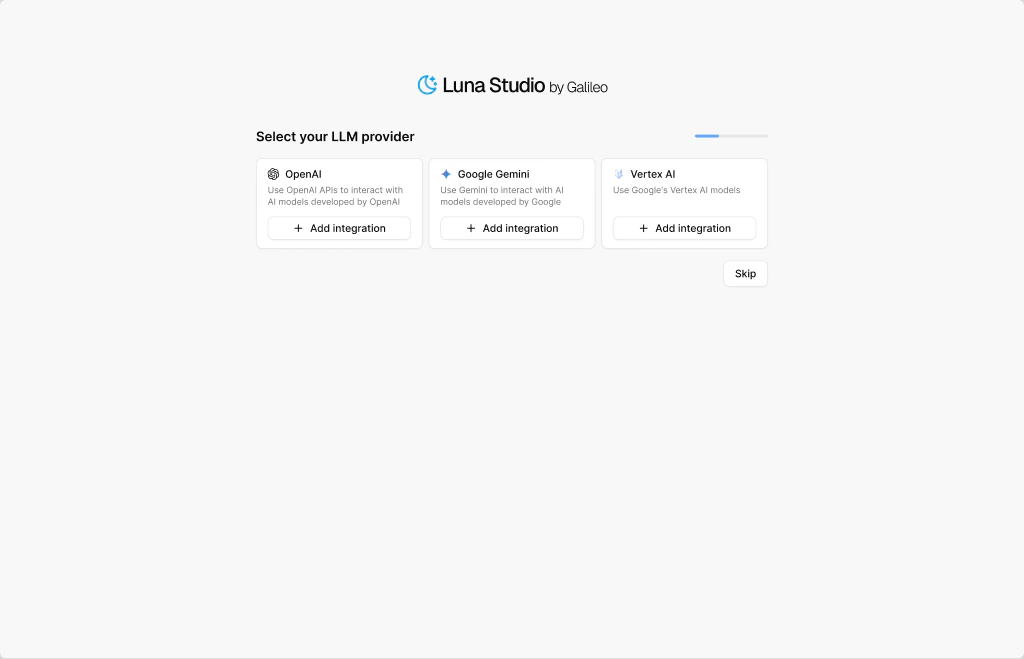 A modal opens with the fields the provider needs (typically an API key). Paste it and click **Save changes**.
Optionally add the **Galileo** integration in the section below — this unlocks the "Import from Galileo" dataset source later.
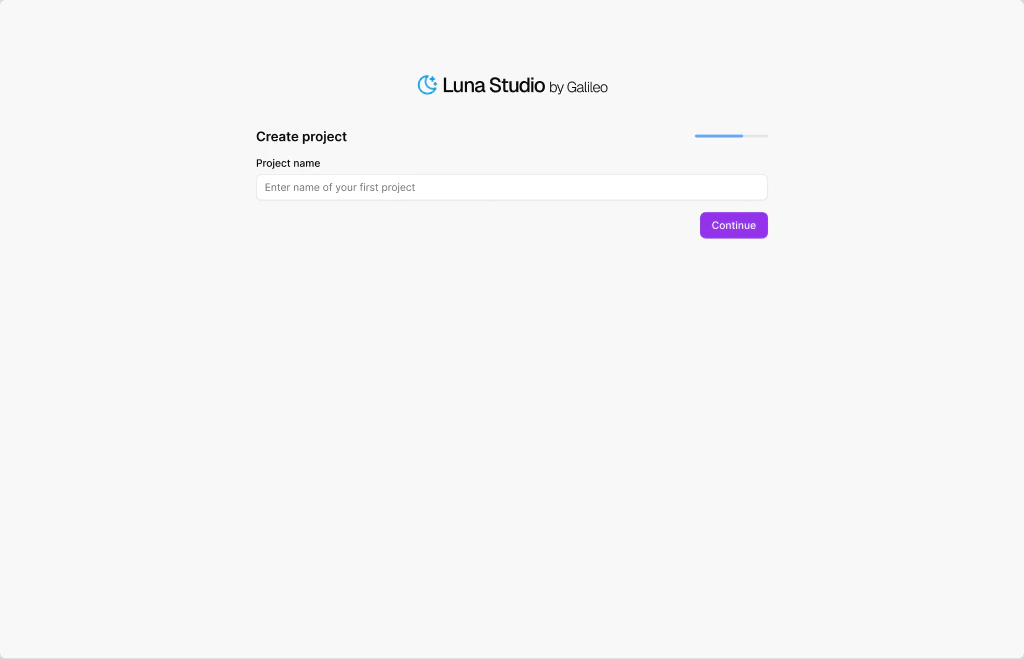
Click **Continue** and enter a project name (e.g. `support-tone-classifier`). Click **Continue** again — Luna Studio creates the project and routes you to its **Training runs** page.
{" "}
A modal opens with the fields the provider needs (typically an API key). Paste it and click **Save changes**.
Optionally add the **Galileo** integration in the section below — this unlocks the "Import from Galileo" dataset source later.
Click **Continue** and enter a project name (e.g. `support-tone-classifier`). Click **Continue** again — Luna Studio creates the project and routes you to its **Training runs** page.
{" "}
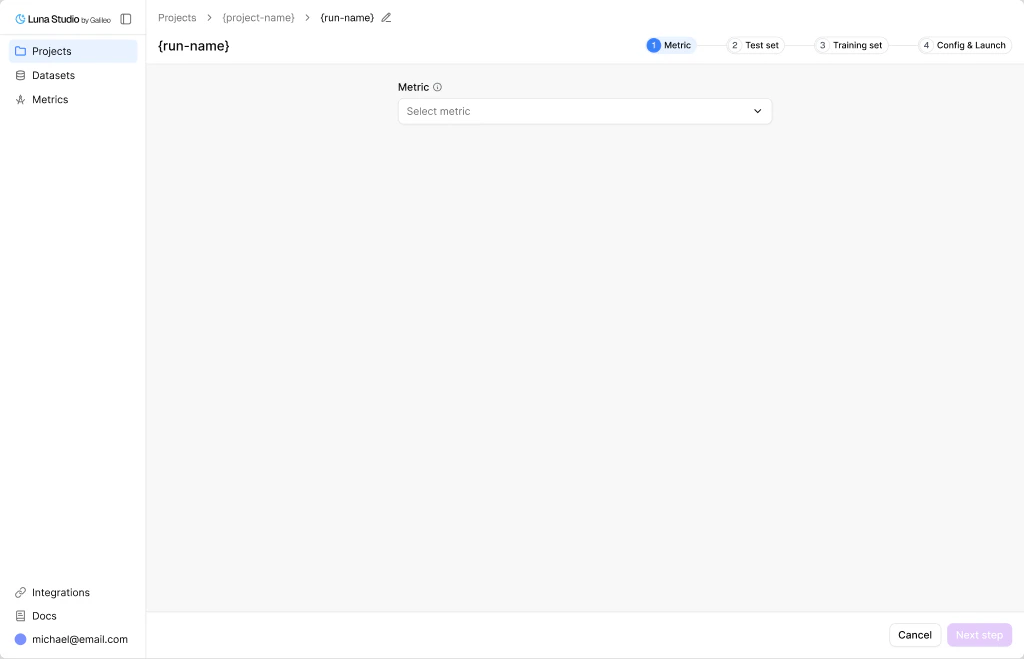
 On the project page, click **New run** in the top right. The run creation flow opens at **Step 1 — Metric**.
Pick a metric from the dropdown. The list includes Galileo presets, custom Galileo metrics, and saved custom prompts that are trainable in Luna Studio.
{" "}
On the project page, click **New run** in the top right. The run creation flow opens at **Step 1 — Metric**.
Pick a metric from the dropdown. The list includes Galileo presets, custom Galileo metrics, and saved custom prompts that are trainable in Luna Studio.
{" "}
 Or click the dropdown's **Use custom prompt** option to write your own LLM-as-judge prompt. See [Step 1: Metric](/luna-studio/ui/runs/new-run/step-1-metric) for the full reference.
Click **Next step**.
Pick an existing test set from the dropdown, or click **Add new test set** to upload one.
{" "}
Or click the dropdown's **Use custom prompt** option to write your own LLM-as-judge prompt. See [Step 1: Metric](/luna-studio/ui/runs/new-run/step-1-metric) for the full reference.
Click **Next step**.
Pick an existing test set from the dropdown, or click **Add new test set** to upload one.
{" "}
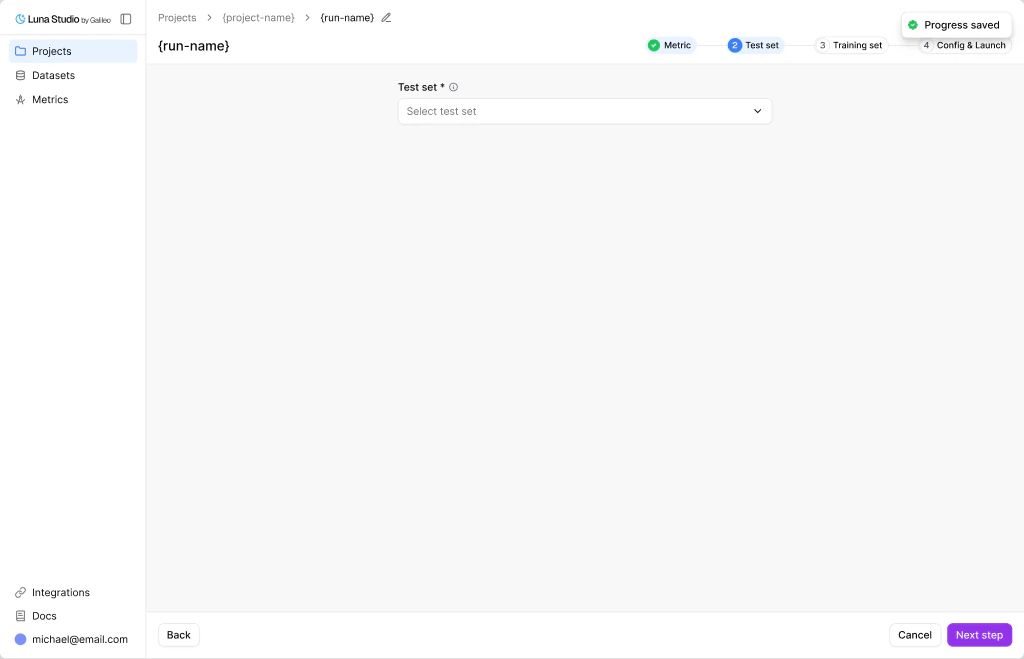 Test sets need the columns required by your metric, plus a `label` column. Luna Studio validates the file as soon as you upload it — wait for the **Validated** status before continuing.
Click **Next step**.
Choose a training source:
* **Generate from test set** (recommended for a first run) — Luna Studio uses 20% of your test set as seed examples and generates 2,000 labelled training examples using your LLM-as-judge prompt from Step 1.
* **Add training logs** — upload or import your own production logs.
* **Use existing training set** — reuse a training dataset that already exists in your workspace.
Test sets need the columns required by your metric, plus a `label` column. Luna Studio validates the file as soon as you upload it — wait for the **Validated** status before continuing.
Click **Next step**.
Choose a training source:
* **Generate from test set** (recommended for a first run) — Luna Studio uses 20% of your test set as seed examples and generates 2,000 labelled training examples using your LLM-as-judge prompt from Step 1.
* **Add training logs** — upload or import your own production logs.
* **Use existing training set** — reuse a training dataset that already exists in your workspace.
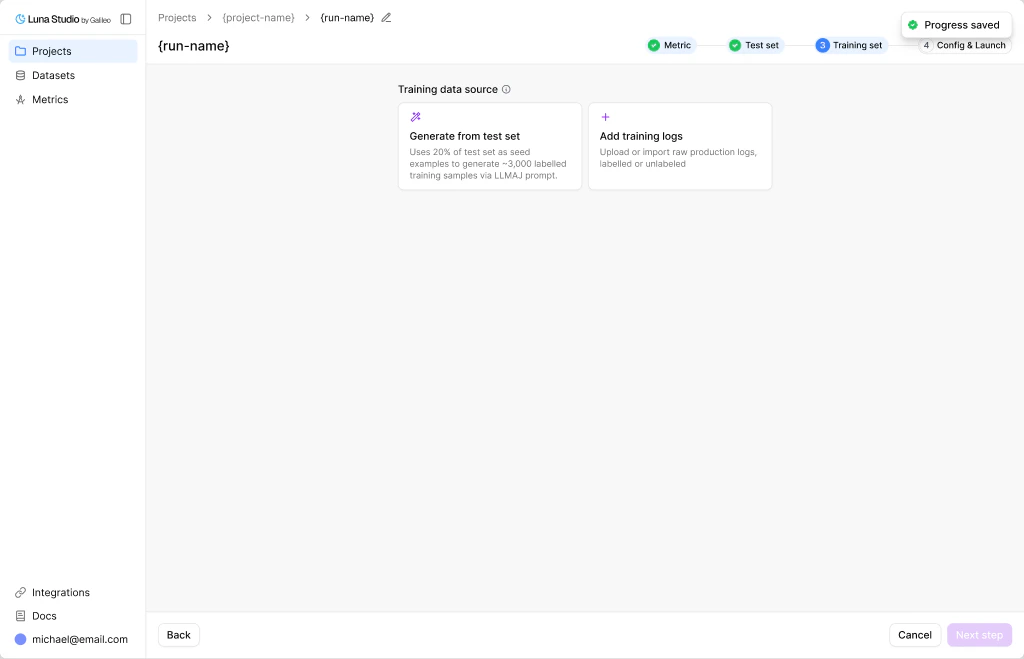 If you pick Generate, a drawer opens. Pick a model from your configured providers and click **Generate sample dataset**. Review the sample rows, select any that should steer regeneration, and click **Generate final dataset**.
Click **Next step**.
Review the run summary. The base model is selected from the models configured for your organization.
{" "}
If you pick Generate, a drawer opens. Pick a model from your configured providers and click **Generate sample dataset**. Review the sample rows, select any that should steer regeneration, and click **Generate final dataset**.
Click **Next step**.
Review the run summary. The base model is selected from the models configured for your organization.
{" "}
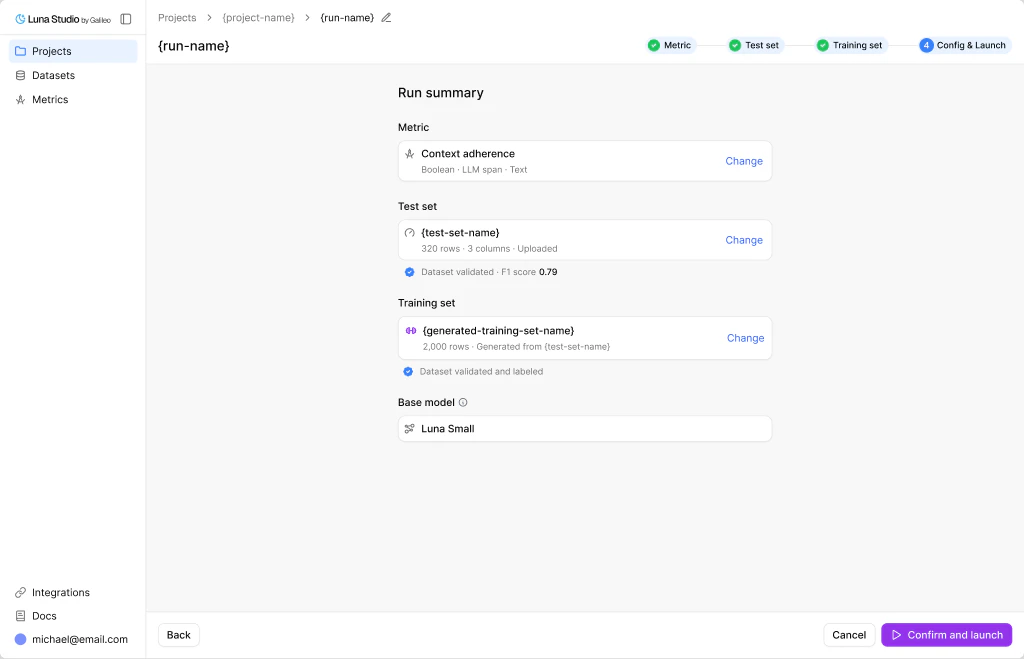 Click **Confirm and launch**. The run enters the **Queued** state and you're routed back to the project page.
Training runs progress through **Queued → Training → Fine-tuned**. Click the run row to open its details page and see live status.
Once the run reaches **Fine-tuned**, the run details page shows a metrics grid (F1 score, AUC-ROC, etc.) versus a baseline.
{" "}
Click **Confirm and launch**. The run enters the **Queued** state and you're routed back to the project page.
Training runs progress through **Queued → Training → Fine-tuned**. Click the run row to open its details page and see live status.
Once the run reaches **Fine-tuned**, the run details page shows a metrics grid (F1 score, AUC-ROC, etc.) versus a baseline.
{" "}
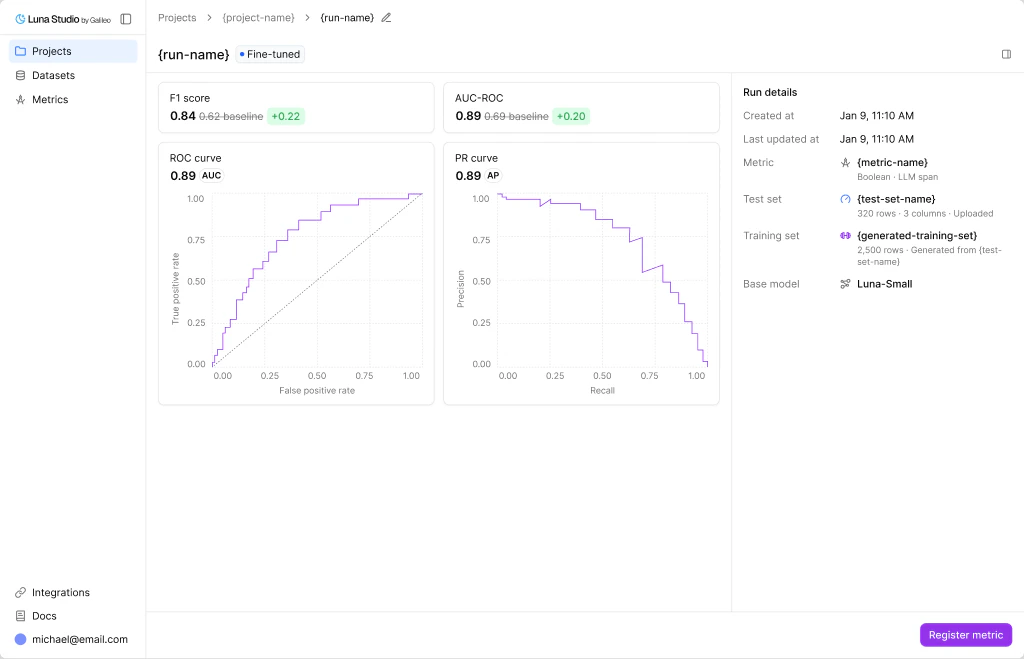 Happy with the result? Click **Register metric** in the run details footer. Enter a metric name and click **Register**.
Your metric now appears in the [Galileo metrics store](/concepts/metrics/overview) and can be used across Galileo for evaluation, observability, and guardrails. The run's status flips to **Registered**.
Congratulations! You've now created your first custom Luna metric.
## What's next
Understand the relationships between projects, runs, metrics, and datasets.
Deep dive on every step of the new run flow.
Manage your test sets and training sets.
Add provider credentials for the models and platform features your team uses.
Happy with the result? Click **Register metric** in the run details footer. Enter a metric name and click **Register**.
Your metric now appears in the [Galileo metrics store](/concepts/metrics/overview) and can be used across Galileo for evaluation, observability, and guardrails. The run's status flips to **Registered**.
Congratulations! You've now created your first custom Luna metric.
## What's next
Understand the relationships between projects, runs, metrics, and datasets.
Deep dive on every step of the new run flow.
Manage your test sets and training sets.
Add provider credentials for the models and platform features your team uses.