> ## Documentation Index
> Fetch the complete documentation index at: https://docs.galileo.ai/llms.txt
> Use this file to discover all available pages before exploring further.
# Step 1 — Metric
> Pick a predefined metric template or write a custom LLM-as-judge prompt.
The first step asks: *what should this metric measure?* You can pick from a curated list of templates, or click **Use custom prompt** to write your own.
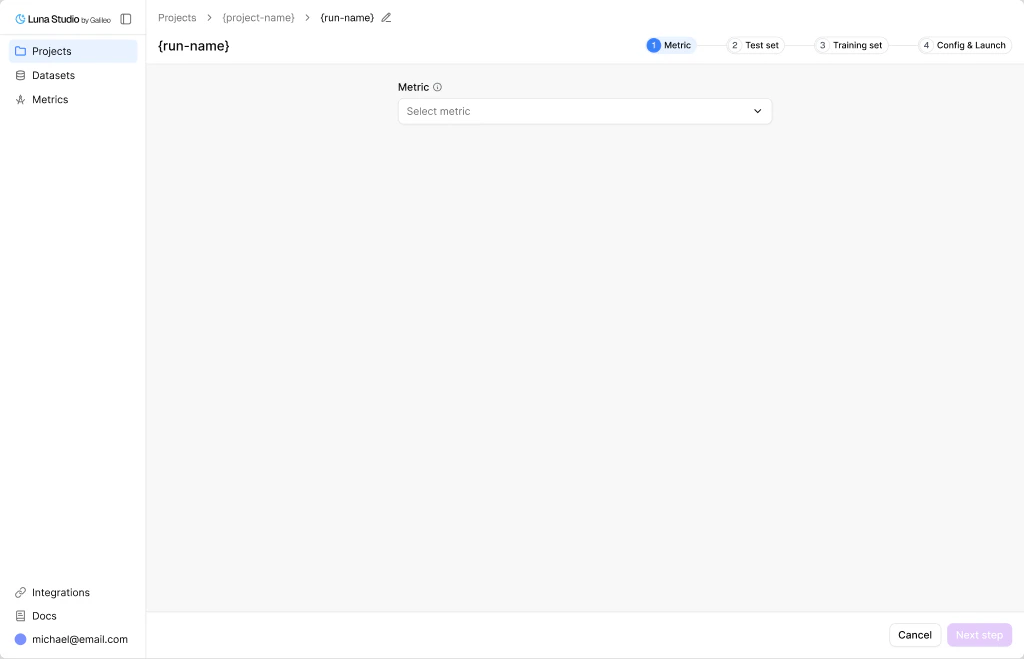 ## Pick a metric
The **Metric** select is searchable. It includes trainable Galileo LLM-as-judge metrics available to your workspace, plus custom metrics and prompts your org created.
The picker is organized into three groups:
* **Galileo presets** — built-in Galileo scorers that Luna Studio can train.
* **Custom Galileo metrics** — custom metrics already created in Galileo.
* **Saved custom prompts** — prompts previously authored in Luna Studio.
Metrics that exist but are not trainable yet can appear disabled with a "not trainable yet" suffix. Multimodal metrics are filtered out because Luna Studio trains text metrics today.
## Inspect a selected template
Once you pick a template, the form expands to show a read-only **Metric details** panel:
* **Output type** — the metric's return shape (Boolean, Categorical etc.). See [Output types](/luna-studio/ui/core-concepts#metrics).
* **Step** — the trace step the metric runs against (LLM span, Retriever, Agent span, or Trace).
* **Input step** — the input shape Luna Studio expects for training data, such as a single message, input / output pair, full trace, or full session.
* **Prompt** — the LLM-as-judge prompt the template uses, in a read-only textarea.
## Write a custom prompt
For metrics that don't fit a template, click the dropdown's **Use custom prompt** option (with a `+` icon). The form switches into editable mode.
## Pick a metric
The **Metric** select is searchable. It includes trainable Galileo LLM-as-judge metrics available to your workspace, plus custom metrics and prompts your org created.
The picker is organized into three groups:
* **Galileo presets** — built-in Galileo scorers that Luna Studio can train.
* **Custom Galileo metrics** — custom metrics already created in Galileo.
* **Saved custom prompts** — prompts previously authored in Luna Studio.
Metrics that exist but are not trainable yet can appear disabled with a "not trainable yet" suffix. Multimodal metrics are filtered out because Luna Studio trains text metrics today.
## Inspect a selected template
Once you pick a template, the form expands to show a read-only **Metric details** panel:
* **Output type** — the metric's return shape (Boolean, Categorical etc.). See [Output types](/luna-studio/ui/core-concepts#metrics).
* **Step** — the trace step the metric runs against (LLM span, Retriever, Agent span, or Trace).
* **Input step** — the input shape Luna Studio expects for training data, such as a single message, input / output pair, full trace, or full session.
* **Prompt** — the LLM-as-judge prompt the template uses, in a read-only textarea.
## Write a custom prompt
For metrics that don't fit a template, click the dropdown's **Use custom prompt** option (with a `+` icon). The form switches into editable mode.
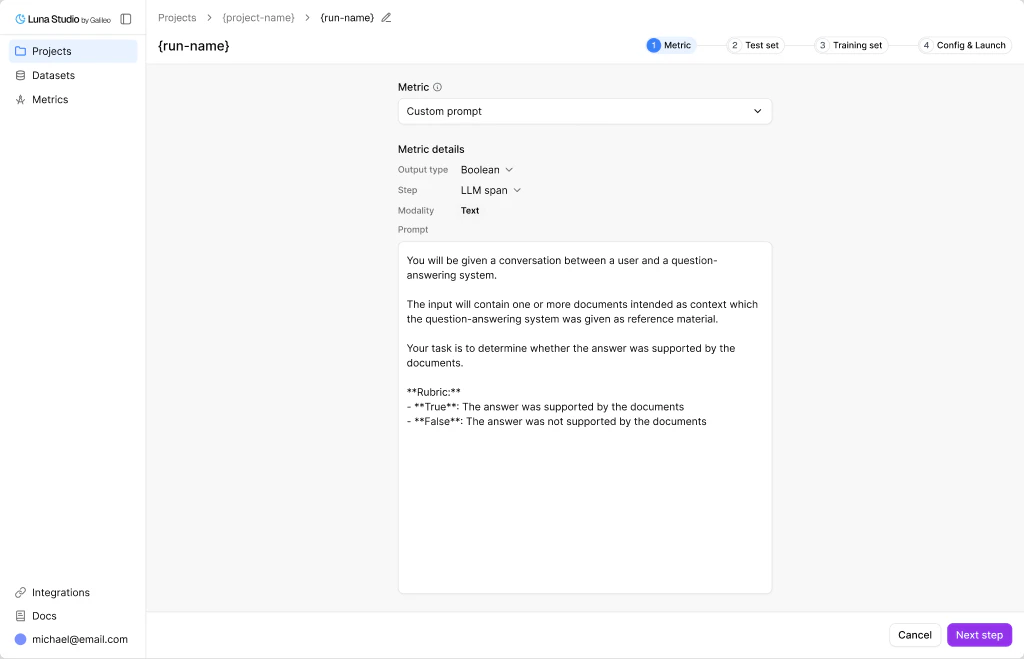 In custom mode, you fill in:
| Field | Notes |
| ----------- | -------------------------------------------------------------------- |
| Name | Optional display name for the custom metric. |
| Output type | Pick one of Boolean / Categorical |
| Step | Pick LLM span / Retriever / Agent span / Trace. |
| Input step | Pick Single message / Input-output pair / Full trace / Full session. |
| Prompt | The LLM-as-judge prompt \[required]. |
**Pro tip:** For best results, we recommend first creating your metric in the Galileo console and using the **Autotune** feature to test and refine it on a labelled test dataset. This helps you optimize the metric’s performance before
launching a full training run in Luna Studio.
## Where to go next
Pick the labelled dataset Luna evaluates against.
Reference for output types, steps, and prompt-writing tips.
In custom mode, you fill in:
| Field | Notes |
| ----------- | -------------------------------------------------------------------- |
| Name | Optional display name for the custom metric. |
| Output type | Pick one of Boolean / Categorical |
| Step | Pick LLM span / Retriever / Agent span / Trace. |
| Input step | Pick Single message / Input-output pair / Full trace / Full session. |
| Prompt | The LLM-as-judge prompt \[required]. |
**Pro tip:** For best results, we recommend first creating your metric in the Galileo console and using the **Autotune** feature to test and refine it on a labelled test dataset. This helps you optimize the metric’s performance before
launching a full training run in Luna Studio.
## Where to go next
Pick the labelled dataset Luna evaluates against.
Reference for output types, steps, and prompt-writing tips.