> ## Documentation Index
> Fetch the complete documentation index at: https://docs.galileo.ai/llms.txt
> Use this file to discover all available pages before exploring further.
# Step 2 — Test set
> Pick or upload the labelled dataset Luna Studio will evaluate the fine-tuned metric against.
The test set is the **ground truth** for the run. After training, Luna Studio scores the resulting metric against this dataset and reports F1, AUC-ROC, and other result metrics on the Run details page.
 ## Pick an existing test set
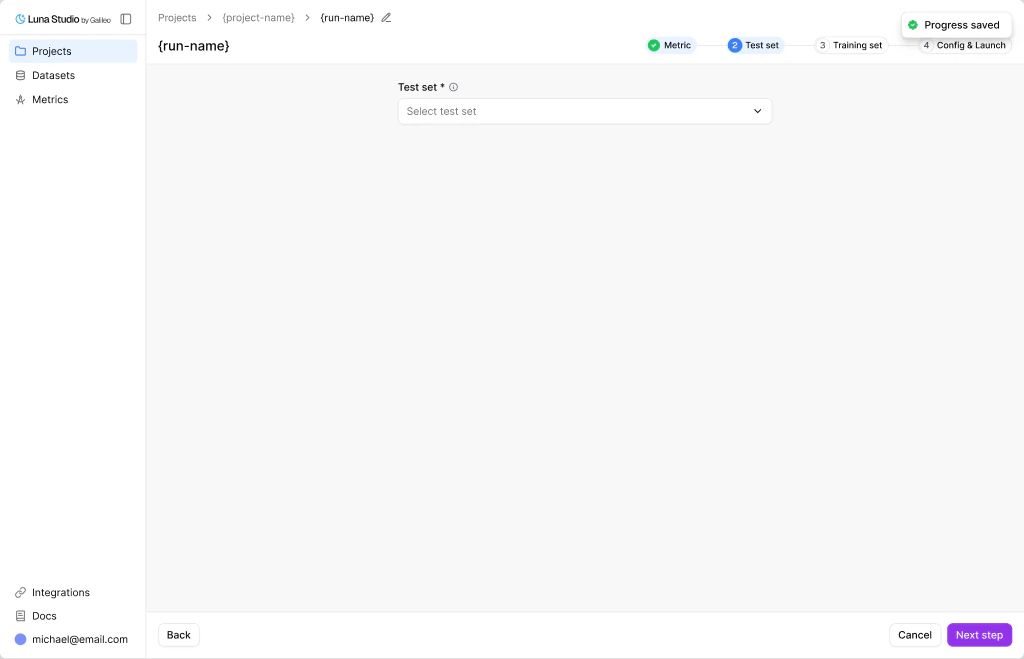
The **Test set** select shows test sets you've already added to this org. Each option includes a row count and source label, e.g. `rag-eval-dataset-v2 — 320 rows · Uploaded`.
Type into the select to filter by name.
## Add a new test set
If you don't have one yet, click the dropdown's **Add new test set** action. The **Add test set** modal opens.
## Pick an existing test set
The **Test set** select shows test sets you've already added to this org. Each option includes a row count and source label, e.g. `rag-eval-dataset-v2 — 320 rows · Uploaded`.
Type into the select to filter by name.
## Add a new test set
If you don't have one yet, click the dropdown's **Add new test set** action. The **Add test set** modal opens.
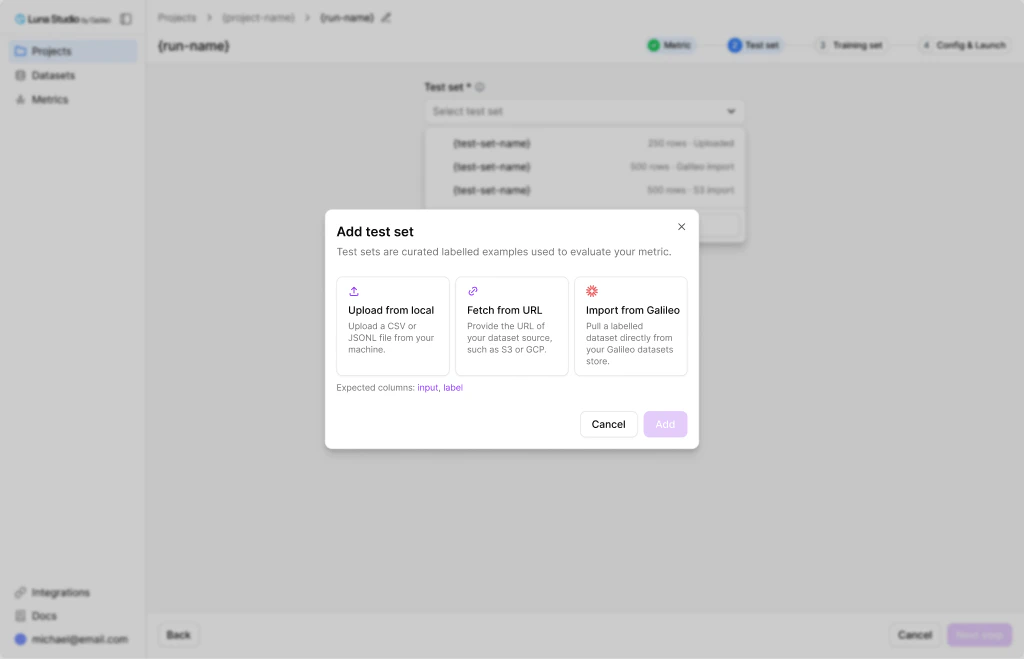 The modal title is **Add test set** with the subtitle "Test sets are curated labelled examples used to evaluate your metric." Three sources are available — see [Add a dataset](/luna-studio/ui/datasets/add-a-dataset) for a complete reference.
Drag-and-drop a `.csv` or `.jsonl` file.
Paste an `http://`, `https://`, `s3://`, or `gs://` URL.
Browse datasets in your connected Galileo workspace.
Required columns: depends on the metric's input type, for more details see [Prerequisites](/luna-studio/ui/prerequisites).
Importing from Galileo requires an active [Galileo integration](/luna-studio/ui/integrations/galileo). If one isn't configured, Luna Studio prompts you to add it inline before the import panel appears.
## Validation
Luna Studio runs validation on the test set to ensure it meets the required schema / format / content rules.
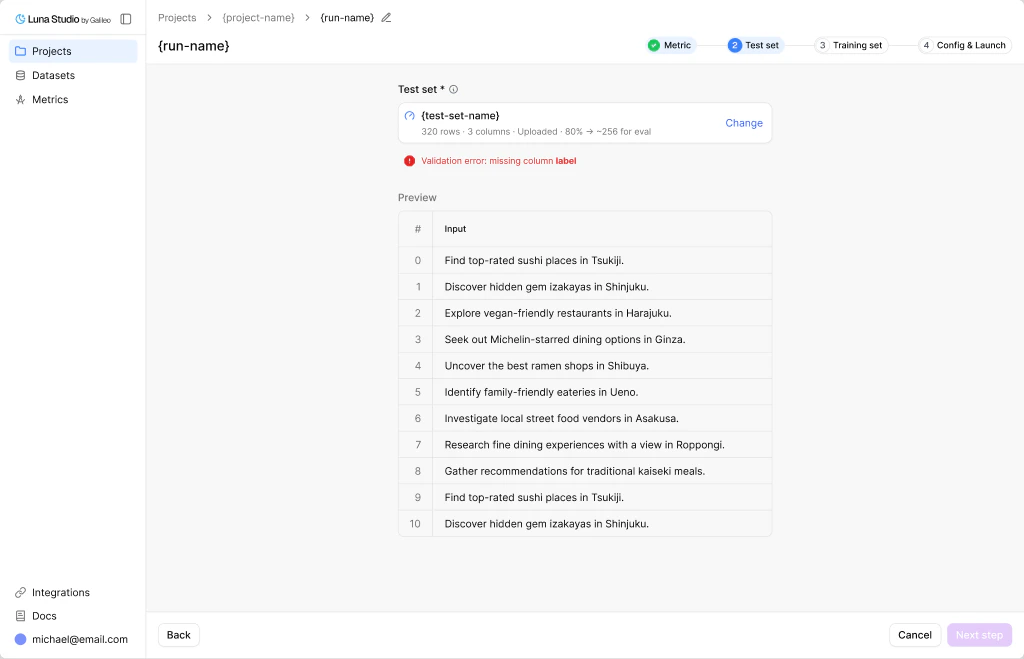
If there are any validation errors, they will be highlighted (See example below).
The modal title is **Add test set** with the subtitle "Test sets are curated labelled examples used to evaluate your metric." Three sources are available — see [Add a dataset](/luna-studio/ui/datasets/add-a-dataset) for a complete reference.
Drag-and-drop a `.csv` or `.jsonl` file.
Paste an `http://`, `https://`, `s3://`, or `gs://` URL.
Browse datasets in your connected Galileo workspace.
Required columns: depends on the metric's input type, for more details see [Prerequisites](/luna-studio/ui/prerequisites).
Importing from Galileo requires an active [Galileo integration](/luna-studio/ui/integrations/galileo). If one isn't configured, Luna Studio prompts you to add it inline before the import panel appears.
## Validation
Luna Studio runs validation on the test set to ensure it meets the required schema / format / content rules.
If there are any validation errors, they will be highlighted (See example below).
 ## Dataset preview
If validation completes, you should see a preview of the test set rows.
The preview is paginated so you can inspect rows without leaving the run creation flow.
Use the **Calculate F1 score** button to see the F1 score of your LLM-as-judge prompt on the selected test set. This is your benchmark score which Luna Studio will aim to achieve with a Luna metric.
## Where to go next
Generate from the test set, or upload your own.
Reference for all three dataset sources.
## Dataset preview
If validation completes, you should see a preview of the test set rows.
The preview is paginated so you can inspect rows without leaving the run creation flow.
Use the **Calculate F1 score** button to see the F1 score of your LLM-as-judge prompt on the selected test set. This is your benchmark score which Luna Studio will aim to achieve with a Luna metric.
## Where to go next
Generate from the test set, or upload your own.
Reference for all three dataset sources.