> ## Documentation Index
> Fetch the complete documentation index at: https://docs.galileo.ai/llms.txt
> Use this file to discover all available pages before exploring further.
# Step 3 — Training set
> Generate a training set from your test set or add your own training logs.
The training set is the dataset that fine-tunes your base model. Generated training sets contain 2,000 labelled examples, and you can also add or reuse your own training data.
 ## The three training dataset sources
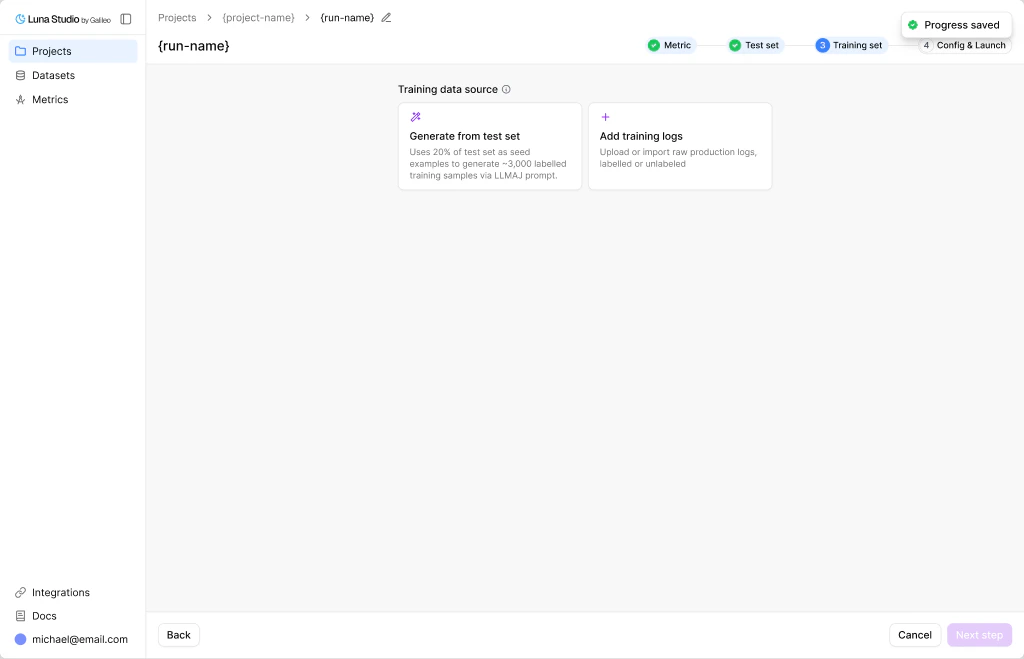
The step opens with a section heading **Training data source** and three selectable cards:
Uses 20% of your test set as seed examples to generate 2,000 labelled training examples. **Recommended for first runs.**
Upload or import your own raw production logs. If they are unlabelled, Luna Studio labels them before training.
Reuse a previously generated, labelled, or uploaded training dataset from your workspace.
Pick one — clicking a card opens the next step for that source.
## Generate from test set
This option creates a training set from your test set in three steps:
1. Configure generation and generate a sample dataset
2. Review 50 sample rows and provide feedback to the generator
3. Generate the final 2,000-example dataset once you are happy with the samples
### Configure the generator
Configure generation with the following settings:
## The three training dataset sources
The step opens with a section heading **Training data source** and three selectable cards:
Uses 20% of your test set as seed examples to generate 2,000 labelled training examples. **Recommended for first runs.**
Upload or import your own raw production logs. If they are unlabelled, Luna Studio labels them before training.
Reuse a previously generated, labelled, or uploaded training dataset from your workspace.
Pick one — clicking a card opens the next step for that source.
## Generate from test set
This option creates a training set from your test set in three steps:
1. Configure generation and generate a sample dataset
2. Review 50 sample rows and provide feedback to the generator
3. Generate the final 2,000-example dataset once you are happy with the samples
### Configure the generator
Configure generation with the following settings:
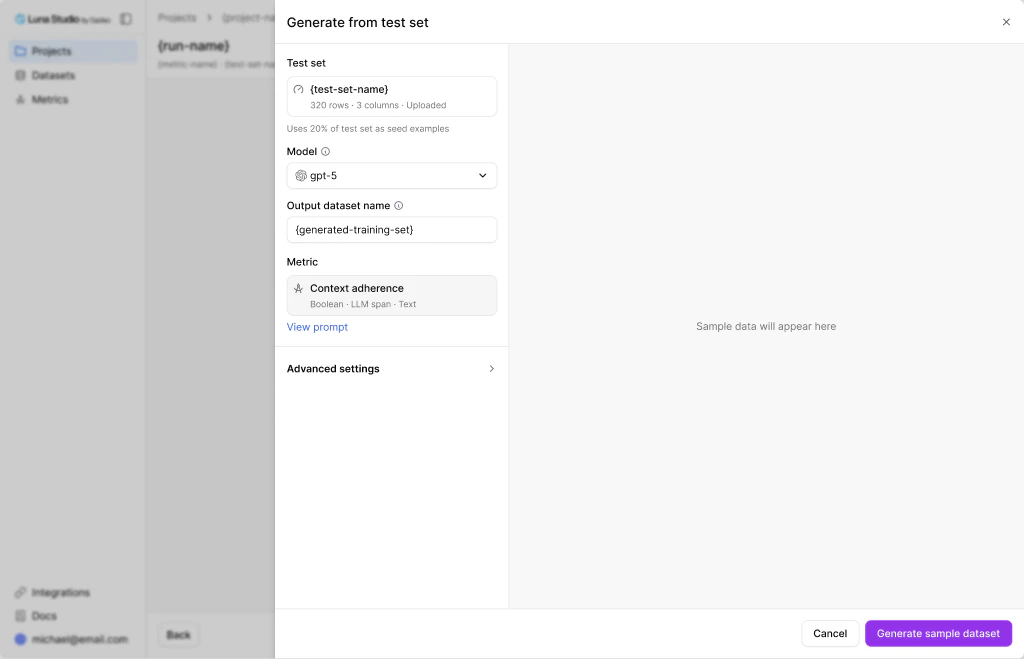 | Field | Notes |
| -------------------- | ----------------------------------------------------------------------------------------------------------------------------------------------------- |
| Test set (read-only) | Shows your selected test set with the caption "Uses 20% of test set as seed examples". |
| Model | The LLM that generates the training samples. Options depend on the providers you have configured. Larger models usually produce better training data. |
| Output dataset name | Provide a name for the output dataset like `project-ABC-metric-PQR-training-set-v1`. Defaults to `generated-training-set`. |
| Metric (read-only) | Includes a **View prompt** popover so you can re-check the metric prompt. |
| Advanced settings | Optional generation settings. Keep the defaults for first runs. |
Click **Generate sample dataset** at the bottom of the drawer, once you are happy with the settings.
### Review the sample data
| Field | Notes |
| -------------------- | ----------------------------------------------------------------------------------------------------------------------------------------------------- |
| Test set (read-only) | Shows your selected test set with the caption "Uses 20% of test set as seed examples". |
| Model | The LLM that generates the training samples. Options depend on the providers you have configured. Larger models usually produce better training data. |
| Output dataset name | Provide a name for the output dataset like `project-ABC-metric-PQR-training-set-v1`. Defaults to `generated-training-set`. |
| Metric (read-only) | Includes a **View prompt** popover so you can re-check the metric prompt. |
| Advanced settings | Optional generation settings. Keep the defaults for first runs. |
Click **Generate sample dataset** at the bottom of the drawer, once you are happy with the settings.
### Review the sample data
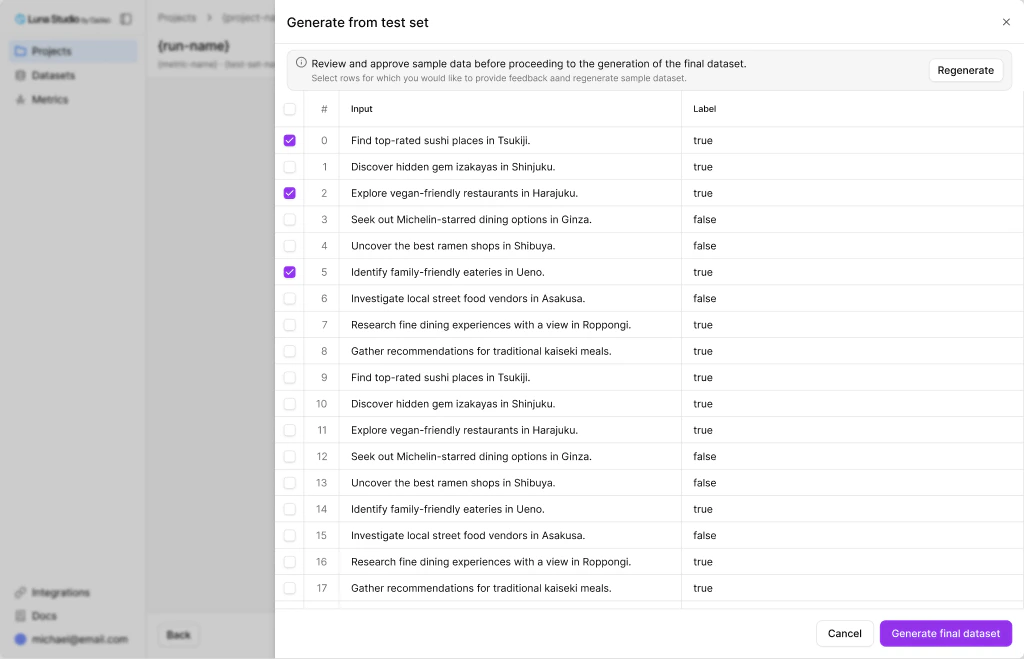 You're reviewing 50 sample rows before kicking off the full generation.
#### Provide feedback and Regenerate samples
You can provide feedback by selecting the rows that look wrong and clicking the **Regenerate** button. Once you click the button, the **Regenerate dataset** modal opens with a radio group of reasons:
| Reason | When to pick it |
| -------------------------- | ---------------------------------------------------------------------- |
| Samples are too repetitive | The generated rows look almost identical to each other. |
| Labels look incorrect | The labels don't match what the inputs deserve. |
| Inputs are off-topic | The inputs don't reflect the kind of data your application sees. |
| Provide own feedback | Free-form text area reveals — describe what's wrong in your own words. |
Click **Regenerate** to kick off another sample generation.
The **Regenerate** button in the modal stays disabled until either a reason is picked or, for "Provide own feedback", the text is non-empty.
Note: you can provide feedback up to three times. You can also track the cycles in the UI.
#### Generate the final dataset
Once you're happy with the samples, the footer button changes to **Generate final dataset**. Clicking it creates the full 2,000-example training set. When it completes, the drawer closes and Step 3 shows the **Training set completed** view (see below).
## Add training logs
The **Add training logs** path uploads or imports your own production logs.
Clicking the card opens the **Add training set** modal — the same generic dataset source modal used elsewhere in the app, with three sources:
Drag-and-drop a `.csv` or `.jsonl` file.
Paste an `http://`, `https://`, `s3://`, or `gs://` URL.
Browse datasets in your connected Galileo workspace.
If the logs are missing labels, Luna Studio opens the label-only generation flow. It uses your metric prompt to label the logs, saves a labelled training dataset, and then uses that dataset for training.
## Use existing training set
The **Use existing training set** path lets you pick a previously generated, labelled, or uploaded training dataset from this workspace without regenerating data or importing a new file.
### Validation
Luna Studio runs validation on the training set to ensure it meets the required schema / format / content rules.
If there are any validation errors, they will be highlighted (See example below).
For more details, see [Validation](/luna-studio/ui/datasets/validation).
## Training set completed
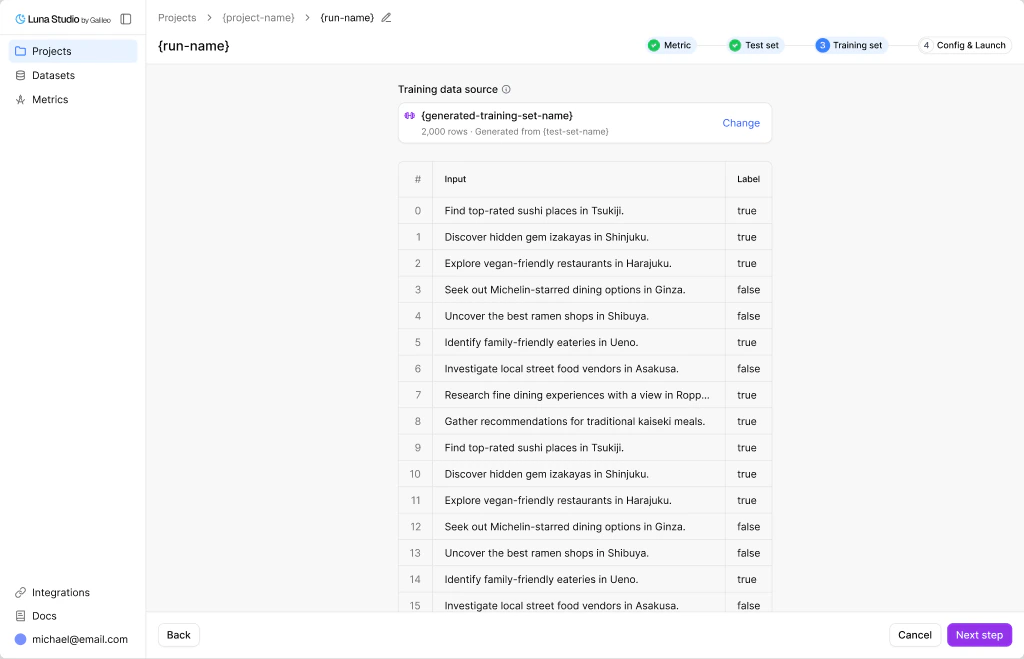
After either flow finishes, the step replaces the picker with a **Selected dataset card** and (if available) a preview table.
You're reviewing 50 sample rows before kicking off the full generation.
#### Provide feedback and Regenerate samples
You can provide feedback by selecting the rows that look wrong and clicking the **Regenerate** button. Once you click the button, the **Regenerate dataset** modal opens with a radio group of reasons:
| Reason | When to pick it |
| -------------------------- | ---------------------------------------------------------------------- |
| Samples are too repetitive | The generated rows look almost identical to each other. |
| Labels look incorrect | The labels don't match what the inputs deserve. |
| Inputs are off-topic | The inputs don't reflect the kind of data your application sees. |
| Provide own feedback | Free-form text area reveals — describe what's wrong in your own words. |
Click **Regenerate** to kick off another sample generation.
The **Regenerate** button in the modal stays disabled until either a reason is picked or, for "Provide own feedback", the text is non-empty.
Note: you can provide feedback up to three times. You can also track the cycles in the UI.
#### Generate the final dataset
Once you're happy with the samples, the footer button changes to **Generate final dataset**. Clicking it creates the full 2,000-example training set. When it completes, the drawer closes and Step 3 shows the **Training set completed** view (see below).
## Add training logs
The **Add training logs** path uploads or imports your own production logs.
Clicking the card opens the **Add training set** modal — the same generic dataset source modal used elsewhere in the app, with three sources:
Drag-and-drop a `.csv` or `.jsonl` file.
Paste an `http://`, `https://`, `s3://`, or `gs://` URL.
Browse datasets in your connected Galileo workspace.
If the logs are missing labels, Luna Studio opens the label-only generation flow. It uses your metric prompt to label the logs, saves a labelled training dataset, and then uses that dataset for training.
## Use existing training set
The **Use existing training set** path lets you pick a previously generated, labelled, or uploaded training dataset from this workspace without regenerating data or importing a new file.
### Validation
Luna Studio runs validation on the training set to ensure it meets the required schema / format / content rules.
If there are any validation errors, they will be highlighted (See example below).
For more details, see [Validation](/luna-studio/ui/datasets/validation).
## Training set completed
After either flow finishes, the step replaces the picker with a **Selected dataset card** and (if available) a preview table.
 ## Where to go next
Pick a base model and launch.
Schema, validation rules, and sources.
## Where to go next
Pick a base model and launch.
Schema, validation rules, and sources.