> ## Documentation Index
> Fetch the complete documentation index at: https://docs.galileo.ai/llms.txt
> Use this file to discover all available pages before exploring further.
# Step 4 — Config and launch
> Review the run summary and launch training.
The final step is a summary view. Everything you've configured shows up as a card; you can jump back to any step with a **Change** link.
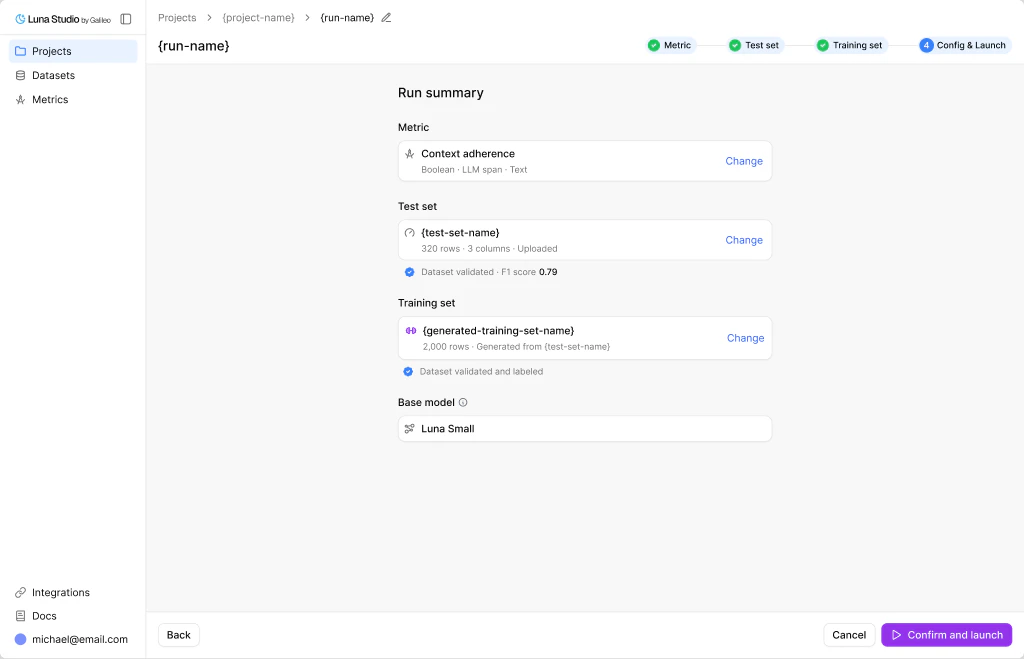 ## Run summary
The page is titled **Run summary** with one card per artifact:
| Card | What it shows |
| ------------ | ------------------------------------------------------------------------------------------------------------------------------ |
| Metric | Selected metric template or custom prompt with a sparkles icon. |
| Test set | Selected test set with validation status and (if available) F1 score pill. |
| Training set | Selected training set with validation status. For uploads with a label column, the line reads "Dataset validated and labeled". |
| Base model | Pre-selected base model based on the approved Luna model for your organization. |
Each card has a **Change** link in the top right that jumps you back to that step.
## Confirm and launch
When you click the **Confirm and launch** button, the run is submitted to Luna Studio and the following happens:
1. Saves the run with status **Queued**.
2. Allocates training resources for the picked base model.
3. Begins fine-tuning on the training set.
4. Evaluates the resulting metric against the test set.
5. Transitions the run to **Fine-tuned** (or **Failed**).
## Where to go next
The five statuses your run will flow through.
Once the run is Fine-tuned, publish it.
What to do if a run fails.
## Run summary
The page is titled **Run summary** with one card per artifact:
| Card | What it shows |
| ------------ | ------------------------------------------------------------------------------------------------------------------------------ |
| Metric | Selected metric template or custom prompt with a sparkles icon. |
| Test set | Selected test set with validation status and (if available) F1 score pill. |
| Training set | Selected training set with validation status. For uploads with a label column, the line reads "Dataset validated and labeled". |
| Base model | Pre-selected base model based on the approved Luna model for your organization. |
Each card has a **Change** link in the top right that jumps you back to that step.
## Confirm and launch
When you click the **Confirm and launch** button, the run is submitted to Luna Studio and the following happens:
1. Saves the run with status **Queued**.
2. Allocates training resources for the picked base model.
3. Begins fine-tuning on the training set.
4. Evaluates the resulting metric against the test set.
5. Transitions the run to **Fine-tuned** (or **Failed**).
## Where to go next
The five statuses your run will flow through.
Once the run is Fine-tuned, publish it.
What to do if a run fails.