> ## Documentation Index
> Fetch the complete documentation index at: https://docs.galileo.ai/llms.txt
> Use this file to discover all available pages before exploring further.
# Log Decorator
> Easily capture function inputs and outputs as spans in your traces
{/**/}
The `@log` decorator (Python) or `log` function wrapper (TypeScript) provides a single line of code way to capture the inputs and outputs of a function as a span within a trace. This is particularly useful for tracking the execution of your AI application without having to manually create and manage spans.
## Overview
When you wrap or decorate a function, Galileo automatically:
* Starts a session if there isn't currently a session active
* Starts a trace
* Captures the function's input arguments
* Tracks the function's execution
* Records the function's return value
* Creates an appropriate span in the current trace
* (Python only) Flushes all traces when exiting the decorated function
This approach is less automatic than using third-party SDK wrappers but more flexible, as you can decorate any function in your codebase, not just LLM calls. It is ideal when:
* You are using LLMs or frameworks that don't have a Galileo wrapper
* You want to add logging to existing code with minimal code changes
* You need to pass additional details to the logger based on function or method parameters
The full SDK reference for the `@log` Python decorator.
The full SDK reference for the `log` TypeScript wrapper.
## Basic usage
To use the `@log` decorator or `log` wrapper, import it from the Galileo package and apply it to your functions, setting the span type to be created, and optionally a name.
```python Python theme={null}
from galileo import log
@log(span_type="llm", name="My Span")
def my_function(input_text):
# Your function logic here
return result
# When called, this function will be automatically logged
response = my_function("Some input text")
```
```typescript TypeScript theme={null}
import { log } from "galileo";
const wrappedFunc = log({spanType: "llm", name: "My Span"}, (input:any) => {
// Your code here
return result;
});
const result = wrappedFunc("input data");
```
When the span is created, the input is set to the input passed to the decorated function by combining all the parameters into a single JSON object, and the output is set to the return value of the function call. You can customize the input using the [`params` parameter](#additional-parameters).
## Span types
By default, the `@log` decorator creates a workflow span, but you can specify different span types depending on what your function does.
| Span Type | Value. | Description |
| :-------- | :------------ | :---------------------------------------------------------------------------------------------------------------------------------------------------------- |
| Agent | `"agent"` | A span for logging agent actions. You can specify the agent type, for example a supervisor, planner, router, or judge. |
| LLM | `"llm"` | A span for logging calls to an LLM. You can specify the number of tokens, time to first token, temperature, model, and any tools. |
| Retriever | `"retriever"` | A span for logging RAG actions. In the output for this span you can provide all the data returned from the RAG platform for evaluating your RAG processing, |
| Tool | `"tool"`. | A span for logging calls to tools. You can specify the tool call ID to tie to an LLM tool call. |
| Workflow | `"workflow"` | Workflow spans are for creating logical groupings of spans based on different flows in your app. |
```python Python theme={null}
from galileo import log
# Create a workflow span (default)
@log
def my_workflow_function(input):
# This can contain multiple steps and child spans
return result
# Create an LLM span
@log(span_type="llm")
def my_llm_function(input):
# This should be for direct LLM calls
return result
# Create a retriever span
@log(span_type="retriever")
def my_retriever_function(query):
# For functions that retrieve documents
# If the output is an array, it will be captured as documents
return ["doc1", "doc2"]
# Create a tool span
@log(span_type="tool")
def my_tool_function(input="tool call input"):
# For functions that act as tools in an agent system
return "tool call output"
```
```typescript TypeScript theme={null}
import { log } from "galileo";
const myWorkflowFunction = log({}, async (input: any) => {
// This can contain multiple steps and child spans
return result;
});
const workflowResult = await myWorkflowFunction("input data");
const myLlmFunction = log({spanType: "llm"}, async (input: any) => {
// This should be for direct LLM calls
return result;
});
const llmResult = await myLlmFunction("input data");
const myRetrieverFunction = log({spanType: "retriever"}, async (input: any) => {
// For functions that retrieve documents
// If the output is an array, it will be captured as documents
return result;
});
const retrieverResult = await myRetrieverFunction("input data");
const myToolFunction = log({spanType: "tool"}, async (input: any) => {
// For functions that act as tools in an agent system
return result;
});
const toolResult = await myToolFunction("input data");
```
## Nested spans example
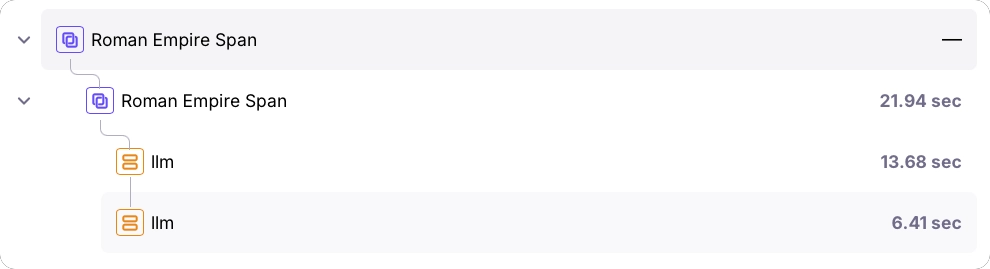
One of the most powerful features of the `log` decorator is its ability to create nested spans, which helps visualize the flow of your application.
You can nest calls to functions also decorated with the log decorator, or calls using third-party SDK integrations.
```python Python theme={null}
import os
from galileo import log
from galileo.openai import openai
client = openai.OpenAI(api_key=os.environ.get("OPENAI_API_KEY"))
def call_openai(prompt):
# This will be automatically logged as a child span
chat_completion = client.chat.completions.create(
messages=[{"role": "user", "content": prompt}],
model="gpt-4o"
)
return chat_completion.choices[0].message.content
@log(span_type="workflow", name="Roman Empire Span")
def make_nested_call():
# This creates a parent workflow span
first_result = call_openai("Tell me about the Roman Empire")
second_result = call_openai(f"Summarize this: {first_result}")
return second_result
# This will create a trace with a workflow span and two nested LLM spans
response = make_nested_call()
print(response)
```
```typescript TypeScript theme={null}
import { log, flush, wrapOpenAI } from "galileo";
import { OpenAI } from "openai";
// Create a wrapped OpenAI client
const openai = wrapOpenAI(new OpenAI({ apiKey: process.env.OPENAI_API_KEY }));
async function callOpenAI(prompt: string) {
// This will be automatically logged as a child span
const response = await openai.chat.completions.create({
model: "gpt-4.1-mini",
messages: [{ role: "user", content: prompt }],
});
return response.choices[0].message.content;
}
const makeNestedCall = log({ spanType: "workflow", name: "Roman Empire Span" },
async () => {
// This creates a parent workflow span
const firstResult = await callOpenAI("Tell me about the Roman Empire")
const secondResult = await callOpenAI(`Summarize this: ${firstResult}`)
return secondResult
});
const response = await makeNestedCall();
await flush();
console.log(response);
```
In this example, the nested calls use the OpenAI SDK integration. Each nested call is logged inside the same workflow trace that is created by the log decorator.
 ## Additional parameters
When you manually create a span, you can set properties such as tags, metadata, or the model for an LLM span. To do the same for the log decorator, you can map parameters that are passed to the function being logged to these fields in the span.
To do this, set the mapping in the `params` parameter, with the key being the span property, and the value being the name of the function parameter.
```python Python theme={null}
@log(span_type="workflow",
params={"model": "model_name"} # Additional parameters for the span
)
def my_function(input, model_name):
return result
```
```typescript TypeScript theme={null}
const loggedCall = log({
spanType: "workflow",
params: {"model": "model_name"} // Additional parameters for the span
}, async (input, model_name) => {
return result;
});
```
Use the `params` parameter to add or overwrite the span's fields' values. These are the supported parameter names:
| Field. | Supported span types | Type | Description |
| :--------------- | :------------------- | :----------------------------- | :------------------------------------------------------------------------------------------------------------------------------------------------------------------------ |
| `"name"` | All | string | The name of the span. |
| `"input"`. | All | string, message, or dictionary | The input to the span. If this is not set, all the parameters for the function that are not listed in the `params` are combined into a JSON object and sent as the input. |
| `"metadata"` | All | dictionary | Metadata for the span. |
| `"tags"` | All | list of strings | Tags for the span. |
| `"model"` | `llm` | string | The LLM model name. |
| `"temperature"` | `llm` | float | The temperature of the LLM. |
| `"tools"` | `llm` | list of dictionaries | Tool descriptions. |
| `"tool_call_id"` | `tool` | string | The tool call ID from the LLM. |
Here is an example on how to add metadata and tags to an LLM span:
```python Python theme={null}
@log(span_type="llm", params={"metadata": "meta", "tags": "tag"})
def my_function(input: str, meta: dict, tag: list):
return result
```
```typescript TypeScript theme={null}
const loggedCall = log({
spanType: "workflow",
params: {"metadata": "meta", "tags": "tag"}
}, async (input, meta, tag) => {
return result;
});
```
## Context management (Python)
In Python, you can use the `galileo_context` to set the project and Log stream for all decorated functions within its scope:
```python Python theme={null}
from galileo import log, galileo_context
@log
def my_function(input):
return f"Processed: {input}"
# This will log to the specified project and Log stream
with galileo_context(project="my-project", log_stream="my-log-stream"):
result = my_function("test input")
print(result)
```
## Handling generators (Python)
The `@log` decorator also works with generator functions, both synchronous and asynchronous:
```python Python theme={null}
from galileo import log
@log
def generate_numbers(count):
for i in range(count):
yield i
# The generator will be logged as a workflow span
for num in generate_numbers(5):
print(num)
```
## Best practices
1. **Decorate high-level functions**: For the clearest traces, decorate the highest-level functions that encompass meaningful units of work.
2. **Use appropriate span types**: Choose the span type that best represents what your function does.
3. **Combine with third-party integrations**: The `@log` decorator works seamlessly with Galileo's third-party integrations, allowing you to create rich, nested traces.
4. **Add meaningful tags**: Use the `params` parameter to add metadata that will make it easier to filter and analyze your traces later.
5. **Be mindful of performance**: While the decorator adds minimal overhead, be cautious about decorating very frequently called or performance-critical functions.
### Basic logging components
Log with full control over sessions, traces, and spans using the Galileo logger.
Manage logging using the Galileo context manager.
### Integrations with third-party SDKs
Automatically log calls to the OpenAI SDK with a wrapper.
Automatically log all the steps in your OpenAI Agent SDK apps using the Galileo trace processor.
Automatically log all the steps in your LangChain or LangGraph application with the Galileo callback.
## Additional parameters
When you manually create a span, you can set properties such as tags, metadata, or the model for an LLM span. To do the same for the log decorator, you can map parameters that are passed to the function being logged to these fields in the span.
To do this, set the mapping in the `params` parameter, with the key being the span property, and the value being the name of the function parameter.
```python Python theme={null}
@log(span_type="workflow",
params={"model": "model_name"} # Additional parameters for the span
)
def my_function(input, model_name):
return result
```
```typescript TypeScript theme={null}
const loggedCall = log({
spanType: "workflow",
params: {"model": "model_name"} // Additional parameters for the span
}, async (input, model_name) => {
return result;
});
```
Use the `params` parameter to add or overwrite the span's fields' values. These are the supported parameter names:
| Field. | Supported span types | Type | Description |
| :--------------- | :------------------- | :----------------------------- | :------------------------------------------------------------------------------------------------------------------------------------------------------------------------ |
| `"name"` | All | string | The name of the span. |
| `"input"`. | All | string, message, or dictionary | The input to the span. If this is not set, all the parameters for the function that are not listed in the `params` are combined into a JSON object and sent as the input. |
| `"metadata"` | All | dictionary | Metadata for the span. |
| `"tags"` | All | list of strings | Tags for the span. |
| `"model"` | `llm` | string | The LLM model name. |
| `"temperature"` | `llm` | float | The temperature of the LLM. |
| `"tools"` | `llm` | list of dictionaries | Tool descriptions. |
| `"tool_call_id"` | `tool` | string | The tool call ID from the LLM. |
Here is an example on how to add metadata and tags to an LLM span:
```python Python theme={null}
@log(span_type="llm", params={"metadata": "meta", "tags": "tag"})
def my_function(input: str, meta: dict, tag: list):
return result
```
```typescript TypeScript theme={null}
const loggedCall = log({
spanType: "workflow",
params: {"metadata": "meta", "tags": "tag"}
}, async (input, meta, tag) => {
return result;
});
```
## Context management (Python)
In Python, you can use the `galileo_context` to set the project and Log stream for all decorated functions within its scope:
```python Python theme={null}
from galileo import log, galileo_context
@log
def my_function(input):
return f"Processed: {input}"
# This will log to the specified project and Log stream
with galileo_context(project="my-project", log_stream="my-log-stream"):
result = my_function("test input")
print(result)
```
## Handling generators (Python)
The `@log` decorator also works with generator functions, both synchronous and asynchronous:
```python Python theme={null}
from galileo import log
@log
def generate_numbers(count):
for i in range(count):
yield i
# The generator will be logged as a workflow span
for num in generate_numbers(5):
print(num)
```
## Best practices
1. **Decorate high-level functions**: For the clearest traces, decorate the highest-level functions that encompass meaningful units of work.
2. **Use appropriate span types**: Choose the span type that best represents what your function does.
3. **Combine with third-party integrations**: The `@log` decorator works seamlessly with Galileo's third-party integrations, allowing you to create rich, nested traces.
4. **Add meaningful tags**: Use the `params` parameter to add metadata that will make it easier to filter and analyze your traces later.
5. **Be mindful of performance**: While the decorator adds minimal overhead, be cautious about decorating very frequently called or performance-critical functions.
### Basic logging components
Log with full control over sessions, traces, and spans using the Galileo logger.
Manage logging using the Galileo context manager.
### Integrations with third-party SDKs
Automatically log calls to the OpenAI SDK with a wrapper.
Automatically log all the steps in your OpenAI Agent SDK apps using the Galileo trace processor.
Automatically log all the steps in your LangChain or LangGraph application with the Galileo callback.