> ## Documentation Index
> Fetch the complete documentation index at: https://docs.galileo.ai/llms.txt
> Use this file to discover all available pages before exploring further.
# Logging
> Learn about using the Galileo LangChain and LangGraph logging integration to log agent traces
{/**/}
The Galileo LangChain integration allows you to automatically log all LangChain and LangGraph interactions with LLMs, including prompts, responses, and performance metrics. The Galileo SDK has a custom callback that is passed to LangChain or LangGraph.
The Python Galileo Synchronous LangChain SDK reference.
The Python Galileo Asynchronous LangChain SDK reference.
The TypeScript Galileo LangChain SDK reference.
## Basic usage
The integration is based on the `GalileoCallback` class, which implements LangChain's callback interface. To use it, create an instance of the callback and pass it to your LangChain components:
```python Python theme={null}
from galileo.handlers.langchain import GalileoCallback
from langchain_openai import ChatOpenAI
from langchain_core.messages import HumanMessage
# Create a callback handler
callback = GalileoCallback()
# Initialize the LLM with the callback
llm = ChatOpenAI(model="gpt-4o", temperature=0.7, callbacks=[callback])
# Create a message with the user's query
messages = [
HumanMessage(content="What is LangChain and how is it used with OpenAI?")
]
# Make the API call
response = llm.invoke(messages)
print(response.content)
```
```typescript TypeScript theme={null}
import { GalileoCallback } from "galileo";
import { ChatOpenAI } from "@langchain/openai";
// Create a callback handler
const callback = new GalileoCallback();
// Initialize the LLM with the callback
const llm = new ChatOpenAI({
model: "gpt-4o",
temperature: 0.7,
callbacks: [callback]
});
// Make the LLM call
const response = await llm.invoke(
"What is LangChain and how is it used with OpenAI?"
);
console.log(response.content);
```
The `GalileoCallback` captures various LangChain events, including:
* LLM starts and completions
* Chat model interactions
* Chain executions
* Tool calls
* Retriever operations
* Agent actions
For each of these events, the callback logs relevant information to Galileo, such as:
* Input prompts and messages
* Output responses
* Model information
* Timing data
* Token usage
* Error information (if any)
The GalileoCallback automatically handles nested chains and agents, creating a hierarchical trace that reflects the structure of your LangChain application.
### Asynchronous callbacks
In Python, there are separate callbacks for synchronous and asynchronous code. If you are using the asynchronous LangChain or LangGraph API, use the [`GalileoAsyncCallback` callback handler](/sdk-api/python/reference/handlers/langchain/async_handler).
In TypeScript, the standard `GalileoCallback` handles async natively — no separate class is needed.
```python Python theme={null}
import asyncio
from galileo.handlers.langchain import GalileoAsyncCallback
from langchain_openai import ChatOpenAI
from langchain_core.messages import HumanMessage
# Create a callback handler
callback = GalileoAsyncCallback()
# Initialize the LLM with the callback
llm = ChatOpenAI(model="gpt-4o", temperature=0.7, callbacks=[callback])
# Create a message with the user's query
messages = [
HumanMessage(content="What is LangChain and how is it used with OpenAI?")
]
async def main():
# Make the API call
response = await llm.ainvoke(messages)
print(response.content)
asyncio.run(main())
```
```typescript TypeScript theme={null}
import { GalileoCallback } from "galileo";
import { ChatOpenAI } from "@langchain/openai";
import { HumanMessage } from "@langchain/core/messages";
// Create a callback handler
// In the TypeScript SDK, GalileoCallback handles async natively —
// there is no separate async class
const callback = new GalileoCallback();
// Initialize the LLM with the callback
const llm = new ChatOpenAI({
model: "gpt-4o",
temperature: 0.7,
callbacks: [callback],
});
// Create a message with the user's query
const messages = [
new HumanMessage("What is LangChain and how is it used with OpenAI?"),
];
// Make the async API call
const response = await llm.invoke(messages);
console.log(response.content);
```
## Use a custom logger
When initializing the `GalileoCallback`, you can optionally specify a Galileo logger instance, either by creating a new logger, or by using the current logger from the Galileo context:
```python Python theme={null}
from galileo import GalileoLogger
from galileo.handlers.langchain import GalileoCallback
# Create a custom logger
logger = GalileoLogger(project="my-project", log_stream="my-log-stream")
# Create a callback with the custom logger
callback = GalileoCallback(
galileo_logger=logger, # Optional custom logger
start_new_trace=True, # Whether to start a new trace for each chain
flush_on_chain_end=True # Whether to flush traces when chains end
)
```
```typescript TypeScript theme={null}
import { GalileoCallback, GalileoLogger, flush } from "galileo";
import { ChatOpenAI } from "@langchain/openai";
// Create a custom logger
const logger = new GalileoLogger({
projectName: "my-project",
logStreamName: "my-log-stream"
});
// Create a callback with the custom logger
const callback = new GalileoCallback(
logger, // Optional custom logger
true, // Whether to start a new trace for each chain
true, // Whether to flush traces when chains end
);
```
This is particularly useful if you want to call your LangChain code from inside a function [decorated with the `log` decorator](/sdk-api/logging/log-decorator/log-decorator), or from inside an [experiment](/sdk-api/third-party-integrations/langchain/experiments).
### Session and trace support
Every time you invoke a chain or an LLM call, a new session and trace is created. If you want to manually manage sessions or traces, you can do this using by passing a Galileo logger instance to the callback.
To add the chain or LLM call invocation as a new trace to an existing session, create the session first using the logger instance that was used to create the callback:
```python Python theme={null}
from galileo import GalileoLogger
from galileo.handlers.langchain import GalileoCallback
# Create a custom logger
logger = GalileoLogger(project="my-project", log_stream="my-log-stream")
# Create a callback with the custom logger
callback = GalileoCallback(
galileo_logger=logger
)
# Create a new session
logger.start_session(name="My new session")
```
```typescript TypeScript theme={null}
import { GalileoCallback, GalileoLogger } from "galileo";
// Create a custom logger
const logger = new GalileoLogger({
projectName: "my-project",
logStreamName: "my-log-stream"
});
// Create a callback with the custom logger
const callback = new GalileoCallback(
logger,
);
// Create a new session
logger.startSession({ name: "My new session" })
```
To add the chain or LLM call invocation to an existing trace, ensure the trace is started, and set the `start_new_trace` parameter to `False` (Python) or `false` (TypeScript).
```python Python theme={null}
from galileo import GalileoLogger
from galileo.handlers.langchain import GalileoCallback
# Create a custom logger
logger = GalileoLogger(project="my-project", log_stream="my-log-stream")
# Create a callback with the custom logger
callback = GalileoCallback(
galileo_logger=logger,
start_new_trace=False
)
# Create a new session
logger.start_session(name="My new session")
# Add a trace and a span
logger.start_trace("My trace")
logger.add_workflow_span("Crew workflow")
```
```typescript TypeScript theme={null}
import { GalileoCallback, GalileoLogger } from "galileo";
// Create a custom logger
const logger = new GalileoLogger({
projectName: "my-project",
logStreamName: "my-log-stream"
});
// Create a callback with the custom logger
const callback = new GalileoCallback(
logger,
false,
);
// Create a new session
logger.startSession({ name: "My new session" })
// Add a trace and a span
logger.startTrace({ input: "User query", name: "My trace" })
logger.addWorkflowSpan({ input: "User query", name:"Crew workflow" })
```
## Use with LangChain chains
You can also use the callback with LangChain chains. Make sure to pass the callback to both the LLM and the chain.
```python Python theme={null}
from galileo.handlers.langchain import GalileoAsyncCallback
from langchain_openai import ChatOpenAI
from langchain_core.output_parsers import StrOutputParser
from langchain_core.prompts import ChatPromptTemplate
from langchain_core.runnables.config import RunnableConfig
# Create a callback handler
callback = GalileoAsyncCallback()
# Create the model
llm = ChatOpenAI(model="gpt-4o", temperature=0.7, callbacks=[callback])
# Create a prompt template
prompt = ChatPromptTemplate.from_template("Tell me a joke about {topic}")
# Assemble the chain with the prompt, LLM, and output parser
chain = prompt | llm | StrOutputParser()
# Create a configuration for the runnable
# that includes the callback handler
config = RunnableConfig(
callbacks=[callback]
)
# Invoke the chain with a topic and configuration
response = chain.invoke({"topic": "the Roman Empire"},
config=config)
print(response)
```
```typescript TypeScript theme={null}
import { GalileoCallback } from "galileo";
import { ChatOpenAI } from "@langchain/openai";
import { ChatPromptTemplate } from "@langchain/core/prompts";
import { StringOutputParser } from "@langchain/core/output_parsers";
// Create a callback handler
const callback = new GalileoCallback();
// Initialize the LLM with the callback
const llm = new ChatOpenAI({
model: "gpt-4o",
temperature: 0.7,
callbacks: [callback],
});
// Create a prompt template
const prompt = ChatPromptTemplate.fromTemplate(
"Tell me a joke about {topic}"
);
// Assemble the chain with the prompt, LLM, and output parser
const chain = prompt.pipe(llm).pipe(new StringOutputParser());
// Invoke the chain with a topic and configuration
// The callback is passed in the second argument (config)
const response = await chain.invoke(
{ topic: "the Roman Empire" },
{ callbacks: [callback] }
);
console.log(response);
```
## Add metadata
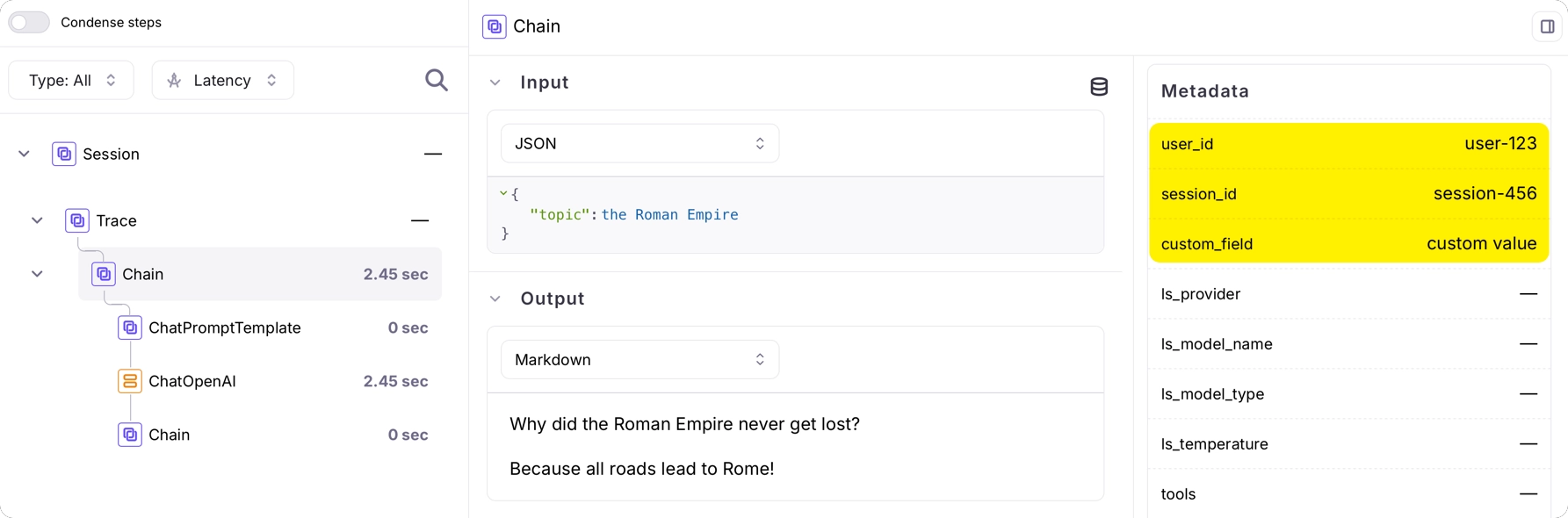
You can add custom metadata and tags to your logs by including them in the `metadata` and `tags` parameters of a LangChain runnable configuration when invoking a chain or LLM.
```python Python theme={null}
# Create a configuration for the runnable
# that includes the callback handler and metadata
config = RunnableConfig(
callbacks=[callback],
metadata={
"user_id": "user-123",
"session_id": "session-456",
"custom_field": "custom value",
},
tags=["my-tag"],
)
# Invoke the chain with a topic and configuration
response = chain.invoke({"topic": "the Roman Empire"}, config=config)
```
```typescript TypeScript theme={null}
// Invoke the chain with a topic and configuration
// Metadata and tags are passed via the config object (second argument)
const response = await chain.invoke(
{ topic: "the Roman Empire" },
{
callbacks: [callback],
metadata: {
userId: "user-123",
sessionId: "session-456",
customField: "custom value",
},
tags: ["my-tag"],
}
);
```
This metadata will be attached to the logs in Galileo, making it easier to filter and analyze your data.
 ## Best practices
1. **Pass callbacks consistently**: Make sure to pass the callback to all LangChain components (LLMs, chains, agents, etc.) to ensure complete logging.
2. **Include meaningful metadata**: Add relevant metadata to your invocations to make it easier to filter and analyze your logs.
## Next steps
### Basic logging components
Log with full control over sessions, traces, and spans using the Galileo logger.
Quickly add logging to your code with the log decorator and wrapper.
Manage logging using the Galileo context manager.
### Cookbooks
Learn how to build and monitor a LangChain AI Agent using Galileo for tracing and observability.
Learn how to add evaluations to a multi-agent LangGraph chat bot using Galileo
## Best practices
1. **Pass callbacks consistently**: Make sure to pass the callback to all LangChain components (LLMs, chains, agents, etc.) to ensure complete logging.
2. **Include meaningful metadata**: Add relevant metadata to your invocations to make it easier to filter and analyze your logs.
## Next steps
### Basic logging components
Log with full control over sessions, traces, and spans using the Galileo logger.
Quickly add logging to your code with the log decorator and wrapper.
Manage logging using the Galileo context manager.
### Cookbooks
Learn how to build and monitor a LangChain AI Agent using Galileo for tracing and observability.
Learn how to add evaluations to a multi-agent LangGraph chat bot using Galileo