> ## Documentation Index
> Fetch the complete documentation index at: https://docs.galileo.ai/llms.txt
> Use this file to discover all available pages before exploring further.
# Set up Gemini Enterprise credentials
> Create a Google Cloud service account JSON key and add it as a Gemini Enterprise integration in Galileo.
Galileo connects to Google's [Gemini Enterprise Agent Platform](https://cloud.google.com/products/gemini-enterprise-agent-platform) (previously known as Vertex AI) using a Google Cloud service account JSON key.
Paste the full JSON key file into Galileo to use Gemini models in the Playground, LLM-as-a-Judge metrics, Signals, and more. In the Galileo SDK and API, this integration is stored in the provider ID [`vertex_ai`](/sdk-api/python/reference/integration#vertex-ai).
## Prerequisites
The instructions on this page assume that you have these prerequisites:
* A [Google Cloud project](https://console.cloud.google.com/projectselector2/home/dashboard) with [billing enabled](https://cloud.google.com/billing/docs/how-to/verify-billing-enabled)
* Permission to enable APIs (**Service Usage Admin**, `roles/serviceusage.serviceUsageAdmin`)
* Permission to create service accounts and keys (**Service Account Admin** and **Service Account Key Admin**, or equivalent custom roles)
* If your organization enforces `iam.disableServiceAccountKeyCreation`, an exemption for your project — see [Google's service account key documentation](https://cloud.google.com/iam/docs/keys-create-delete)
## Create JSON key in Google Cloud
In the [Google Cloud console](https://console.cloud.google.com/projectselector2/home/dashboard), select an existing project or create a new one. [Verify that billing is enabled](https://cloud.google.com/billing/docs/how-to/verify-billing-enabled#confirm_billing_is_enabled_on_a_project) for the project.
Galileo calls Gemini models through the **Agent Platform API** (`aiplatform.googleapis.com`).
Using the Google Cloud Console:
Open [APIs & Services](https://console.cloud.google.com/apis/library), go to the **Agent Platform API**, and click the **Enable** button (if not already enabled).
Using the command-line (gcloud):
```bash theme={null}
gcloud services enable aiplatform.googleapis.com --project=PROJECT_ID
```
1. Open [IAM & Admin → Service Accounts](https://console.cloud.google.com/iam-admin/serviceaccounts).
2. Select your project.
3. Click **Create service account**.
4. Enter a service account name, required service account ID (for example, `galileo-integration`), and optional description. Click **Create and continue**.
Assign at least **Agent Platform User** (`roles/aiplatform.user`) so Galileo can invoke Gemini models.
| Role | Purpose |
| :--------------------------------------------------- | :---------------------------------------------------------------------------------------------------------------------- |
| **Agent Platform User** (`roles/aiplatform.user`) | Required for model inference |
| **Storage Object Admin** (or a narrower bucket role) | Optional — only if you use [multimodal observability](/concepts/logging/multimodal-observability) with GCS file uploads |
For more information, see [Agent Platform access control with IAM](https://docs.cloud.google.com/gemini-enterprise-agent-platform/machine-learning/general/access-control#roles).
Click **Done** after adding permissions.
1. Open the service account you just created (e.g. from the [Service accounts](https://console.cloud.google.com/iam-admin/serviceaccounts) page).
2. Open the **Keys** tab.
3. Click **Add key** → **Create new key**.
4. Select **JSON** and click **Create**.
The key file downloads immediately. You cannot download it again. Store it securely and do not commit it to source control.
The file looks similar to below:
```json theme={null}
{
"type": "service_account",
"project_id": "your-project-id",
"private_key_id": "key-id",
"private_key": "-----BEGIN PRIVATE KEY-----\n...\n-----END PRIVATE KEY-----\n",
"client_email": "galileo-integration@your-project-id.iam.gserviceaccount.com",
"client_id": "123456789",
"auth_uri": "https://accounts.google.com/o/oauth2/auth",
"token_uri": "https://oauth2.googleapis.com/token",
"auth_provider_x509_cert_url": "https://www.googleapis.com/oauth2/v1/certs",
"client_x509_cert_url": "https://www.googleapis.com/robot/v1/metadata/x509/..."
}
```
```bash theme={null}
export PROJECT_ID="your-project-id"
gcloud services enable aiplatform.googleapis.com --project="${PROJECT_ID}"
gcloud iam service-accounts create galileo-integration \
--project="${PROJECT_ID}" \
--display-name="Galileo integration"
SA_EMAIL="galileo-integration@${PROJECT_ID}.iam.gserviceaccount.com"
gcloud projects add-iam-policy-binding "${PROJECT_ID}" \
--member="serviceAccount:${SA_EMAIL}" \
--role="roles/aiplatform.user"
gcloud iam service-accounts keys create galileo-key.json \
--iam-account="${SA_EMAIL}"
```
## Add the integration in Galileo
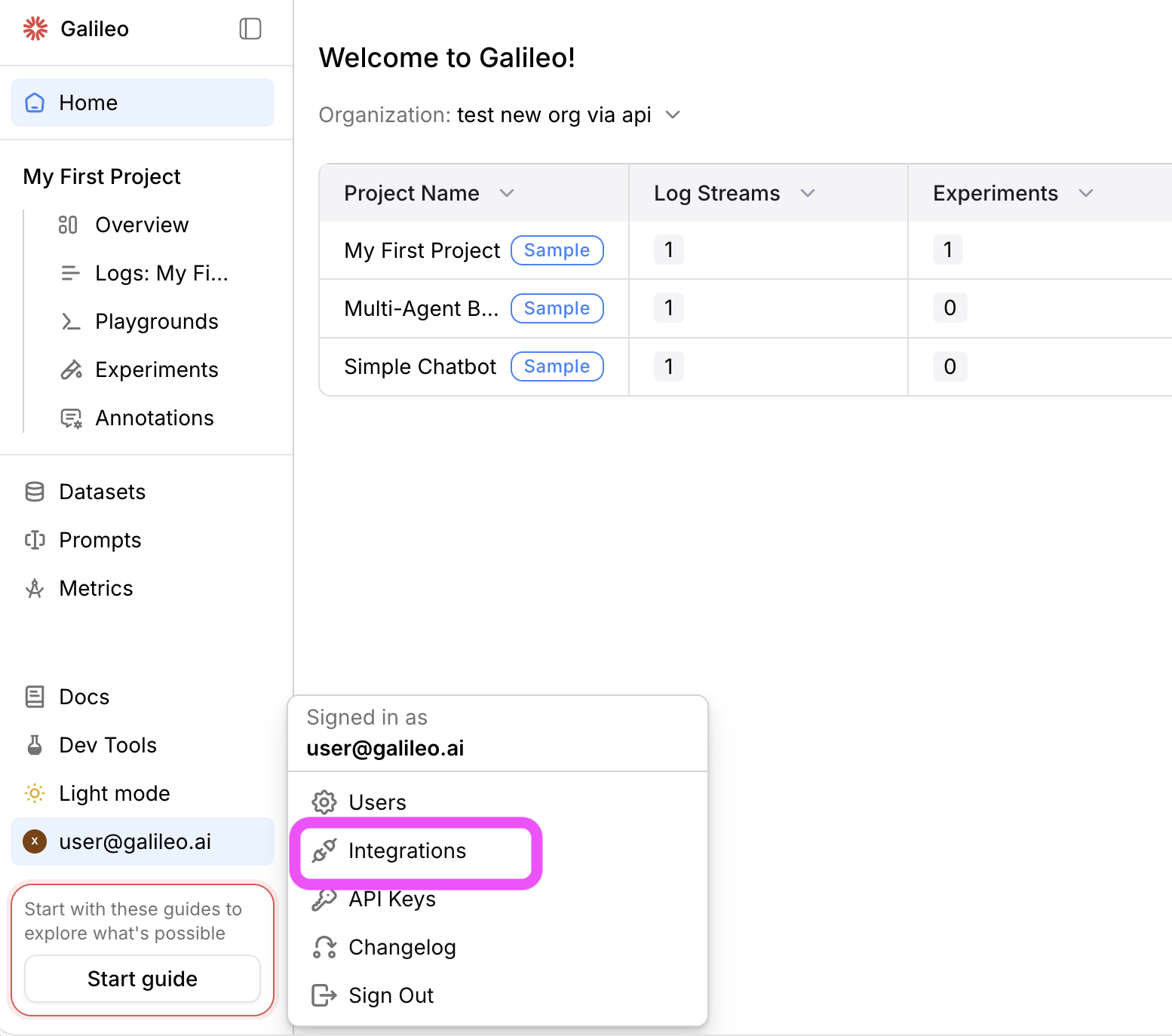
In the Galileo console, open the user menu (bottom left) and select **Integrations**, or go to [Settings → Integrations](https://app.galileo.ai/settings/integrations).
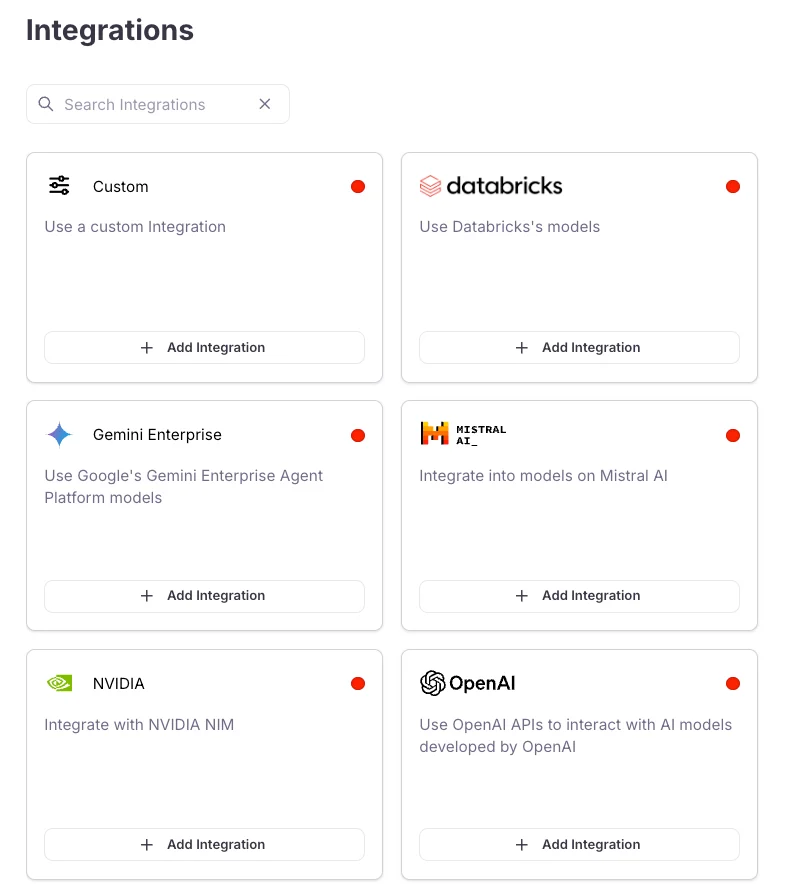
 Locate **Gemini Enterprise** in the provider list and click **+ Add Integration**.
 In the integration dialog, paste the **full contents** of the JSON key file you downloaded, then click **Save changes**.
After saving, Gemini models appear in the Playground and for metrics that use your organization's LLM integrations.
## Optional — Multimodal and GCS
For audio, image, or PDF evaluation in Log streams, you may need a separate Google Cloud Storage bucket and additional credentials. Galileo accepts optional `gcs_config` when configuring the integration via API. See [Multimodal observability](/concepts/logging/multimodal-observability.mdx).
## Configure via API
You can create or update the integration with a `PUT` request. Set `token` to the JSON key file contents as a string (escape newlines in the `private_key` field when building JSON manually).
```bash theme={null}
if [ -z "$GALILEO_API_KEY" ]; then
echo "Error: GALILEO_API_KEY environment variable is not set"
exit 1
fi
if [ -z "$GALILEO_API_URL" ]; then
echo "Error: GALILEO_API_URL environment variable is not set"
exit 1
fi
curl "${GALILEO_API_URL}/integrations/vertex_ai" \
-X PUT \
-H "Galileo-API-Key: ${GALILEO_API_KEY}" \
-H "Content-Type: application/json" \
--data-raw "$(jq -n --rawfile token /path/to/galileo-key.json '{token: $token}')"
```
A successful response returns integration metadata including `id`, `name`, and `updated_at`. See [Create or update Vertex AI integration](https://docs.galileo.ai/api-reference/integrations/create-or-update-vertex-ai-integration) for optional `gcs_config` and `multi_modal_config` fields.
## Supported models
Galileo supports the following Gemini model aliases when using this integration:
* `gemini-2.0-flash`
* `gemini-2.0-flash-lite`
* `gemini-2.0-flash-thinking`
* `gemini-2.0-pro`
* `gemini-2.5-flash`
* `gemini-2.5-flash-lite`
* `gemini-2.5-pro`
* `gemini-3.0-flash-preview`
* `gemini-3.0-pro-image-preview`
* `gemini-3.0-pro-preview`
* `gemini-3.1-flash-image-preview`
* `gemini-3.1-pro-preview`
* `gemini-3.1-pro-preview-customtools`
## Troubleshooting
If key creation fails, your organization may enforce `iam.disableServiceAccountKeyCreation`. Ask an organization policy administrator to exempt your project, or follow [Allow service account key creation](https://cloud.google.com/iam/docs/keys-create-delete#allow-service-account-key-creation).
Confirm the Vertex AI API is enabled (`aiplatform.googleapis.com`) and billing is active on the project. Enable the API from [APIs & Services](https://console.cloud.google.com/apis/library/aiplatform.googleapis.com).
Ensure the service account has **Vertex AI User** (`roles/aiplatform.user`) on the project. Wait a few minutes after granting roles before retrying in Galileo.
Paste the **entire** key file, including opening and closing braces. Do not paste only the `private_key` field or a truncated file. If you edited the file, validate it with `jq . galileo-key.json` before pasting.
## Related info
Configure other LLM providers or proxies with custom JSON.
Log and evaluate image, audio, and PDF content in traces.
In the integration dialog, paste the **full contents** of the JSON key file you downloaded, then click **Save changes**.
After saving, Gemini models appear in the Playground and for metrics that use your organization's LLM integrations.
## Optional — Multimodal and GCS
For audio, image, or PDF evaluation in Log streams, you may need a separate Google Cloud Storage bucket and additional credentials. Galileo accepts optional `gcs_config` when configuring the integration via API. See [Multimodal observability](/concepts/logging/multimodal-observability.mdx).
## Configure via API
You can create or update the integration with a `PUT` request. Set `token` to the JSON key file contents as a string (escape newlines in the `private_key` field when building JSON manually).
```bash theme={null}
if [ -z "$GALILEO_API_KEY" ]; then
echo "Error: GALILEO_API_KEY environment variable is not set"
exit 1
fi
if [ -z "$GALILEO_API_URL" ]; then
echo "Error: GALILEO_API_URL environment variable is not set"
exit 1
fi
curl "${GALILEO_API_URL}/integrations/vertex_ai" \
-X PUT \
-H "Galileo-API-Key: ${GALILEO_API_KEY}" \
-H "Content-Type: application/json" \
--data-raw "$(jq -n --rawfile token /path/to/galileo-key.json '{token: $token}')"
```
A successful response returns integration metadata including `id`, `name`, and `updated_at`. See [Create or update Vertex AI integration](https://docs.galileo.ai/api-reference/integrations/create-or-update-vertex-ai-integration) for optional `gcs_config` and `multi_modal_config` fields.
## Supported models
Galileo supports the following Gemini model aliases when using this integration:
* `gemini-2.0-flash`
* `gemini-2.0-flash-lite`
* `gemini-2.0-flash-thinking`
* `gemini-2.0-pro`
* `gemini-2.5-flash`
* `gemini-2.5-flash-lite`
* `gemini-2.5-pro`
* `gemini-3.0-flash-preview`
* `gemini-3.0-pro-image-preview`
* `gemini-3.0-pro-preview`
* `gemini-3.1-flash-image-preview`
* `gemini-3.1-pro-preview`
* `gemini-3.1-pro-preview-customtools`
## Troubleshooting
If key creation fails, your organization may enforce `iam.disableServiceAccountKeyCreation`. Ask an organization policy administrator to exempt your project, or follow [Allow service account key creation](https://cloud.google.com/iam/docs/keys-create-delete#allow-service-account-key-creation).
Confirm the Vertex AI API is enabled (`aiplatform.googleapis.com`) and billing is active on the project. Enable the API from [APIs & Services](https://console.cloud.google.com/apis/library/aiplatform.googleapis.com).
Ensure the service account has **Vertex AI User** (`roles/aiplatform.user`) on the project. Wait a few minutes after granting roles before retrying in Galileo.
Paste the **entire** key file, including opening and closing braces. Do not paste only the `private_key` field or a truncated file. If you edited the file, validate it with `jq . galileo-key.json` before pasting.
## Related info
Configure other LLM providers or proxies with custom JSON.
Log and evaluate image, audio, and PDF content in traces.