

Experiment walkthrough
Follow these steps to test and improve your AI projects using the Galileo console UI.1
Select a project and open the Playground
In the Galileo console, use the left-hand navigation menu to select the project you would like to experiment with. You can also select the Create new project button in the upper-right corner to create a new project.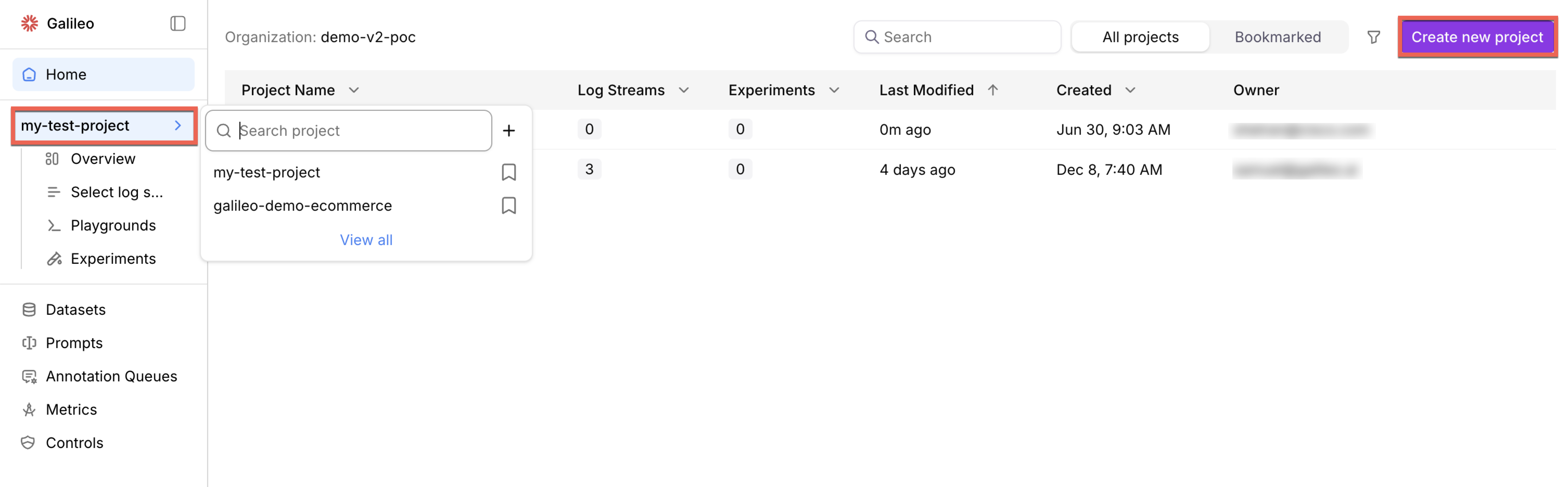
2
Select a model and enter API keys
After you create or select a Playground, choose a model using the Select a model drop-down menu.Some models require that you enter your corresponding API key. Visit their respective API platforms to obtain your keys, then add it using the integrations page in the Galileo console.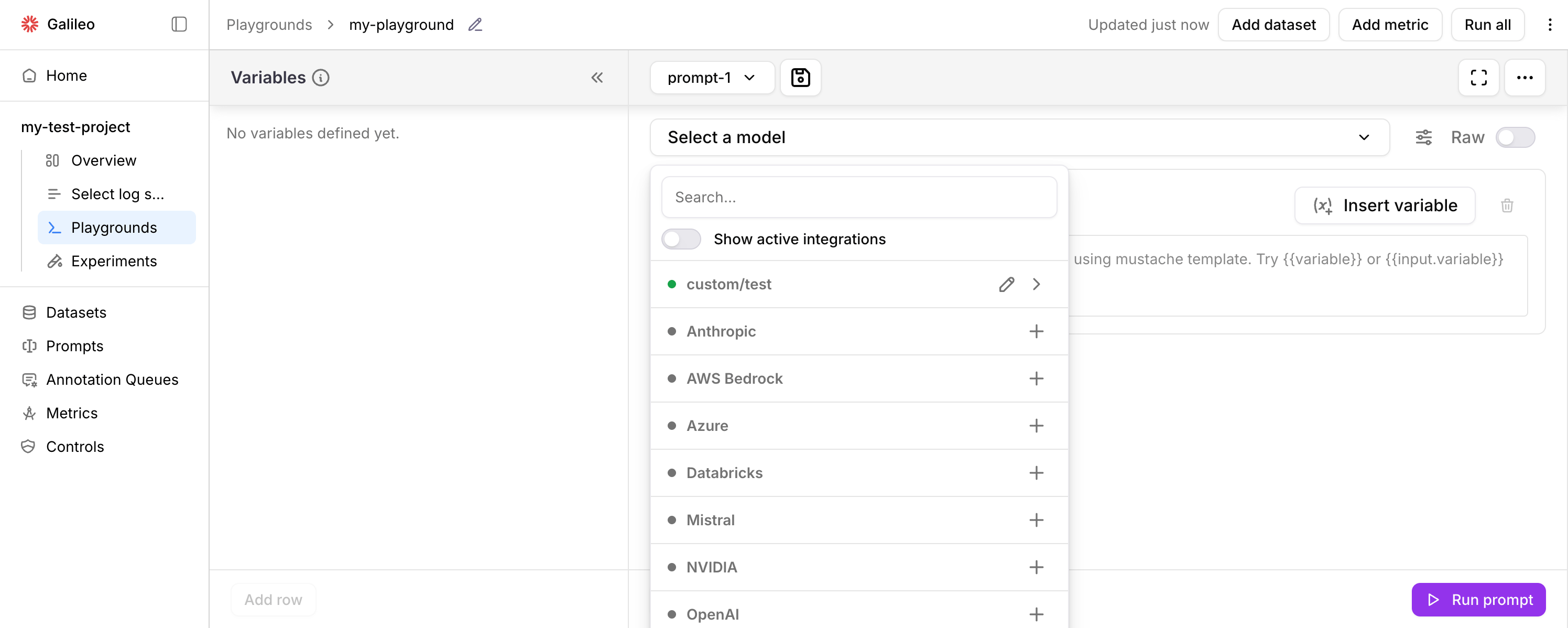
3
Configure model settings
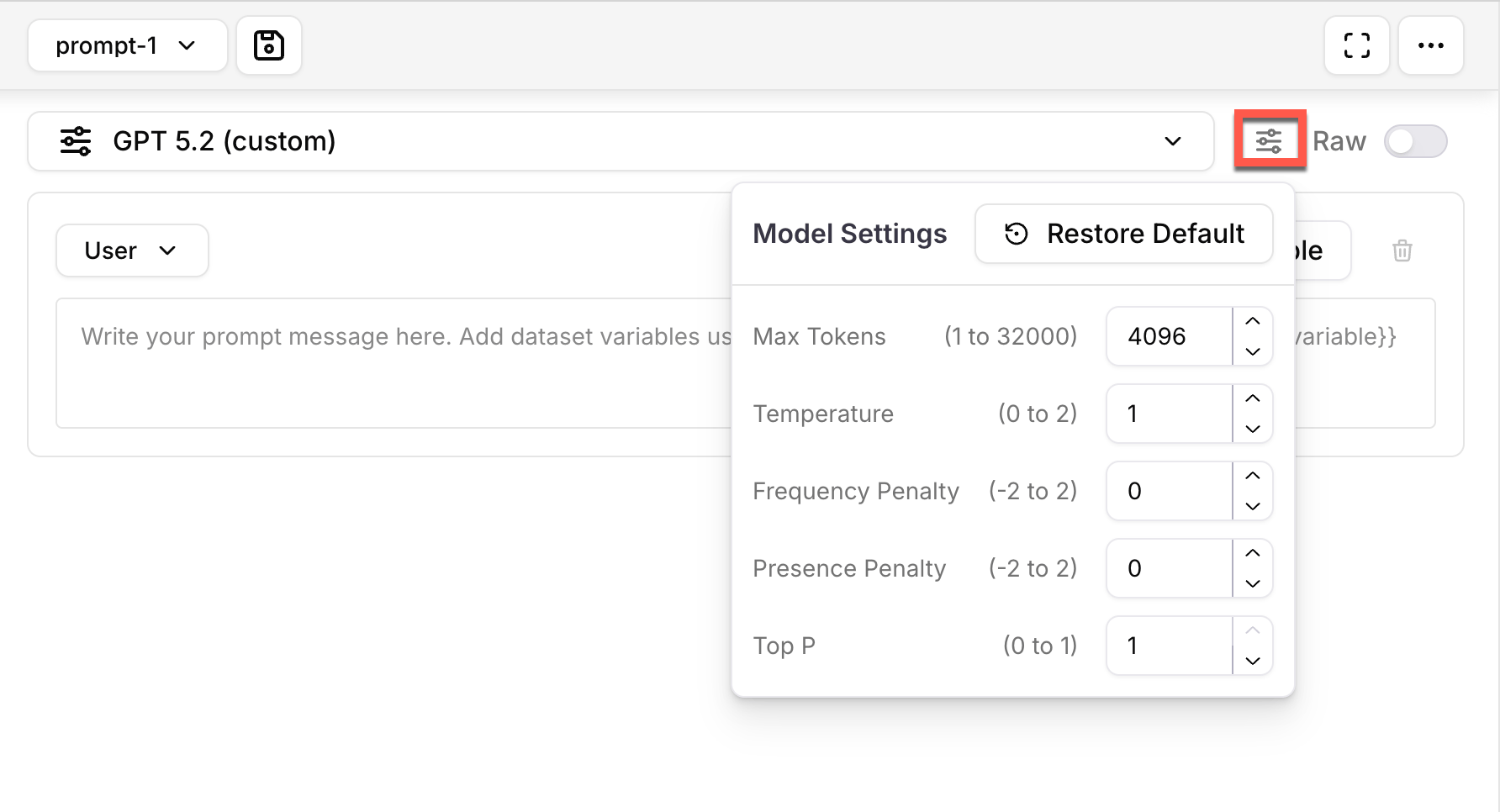
Select the settings icon to the right of your model name to adjust its behavior:
- Max Tokens: Sets the maximum number of tokens the model can generate in its output.
- Temperature: Controls randomness in output—higher values make responses more creative, lower values make them more focused and deterministic.
- Frequency Penalty: Reduces the likelihood of the model repeating the same tokens by penalizing frequent ones.
- Presence Penalty: Discourages the model from mentioning tokens that have already appeared, promoting new content.
-
Top P: Limits sampling to the most likely tokens whose cumulative probability is within this threshold (a form of nucleus sampling).
4
Configure prompt data
There are two ways to set the prompt data for your experiment:In this example, both 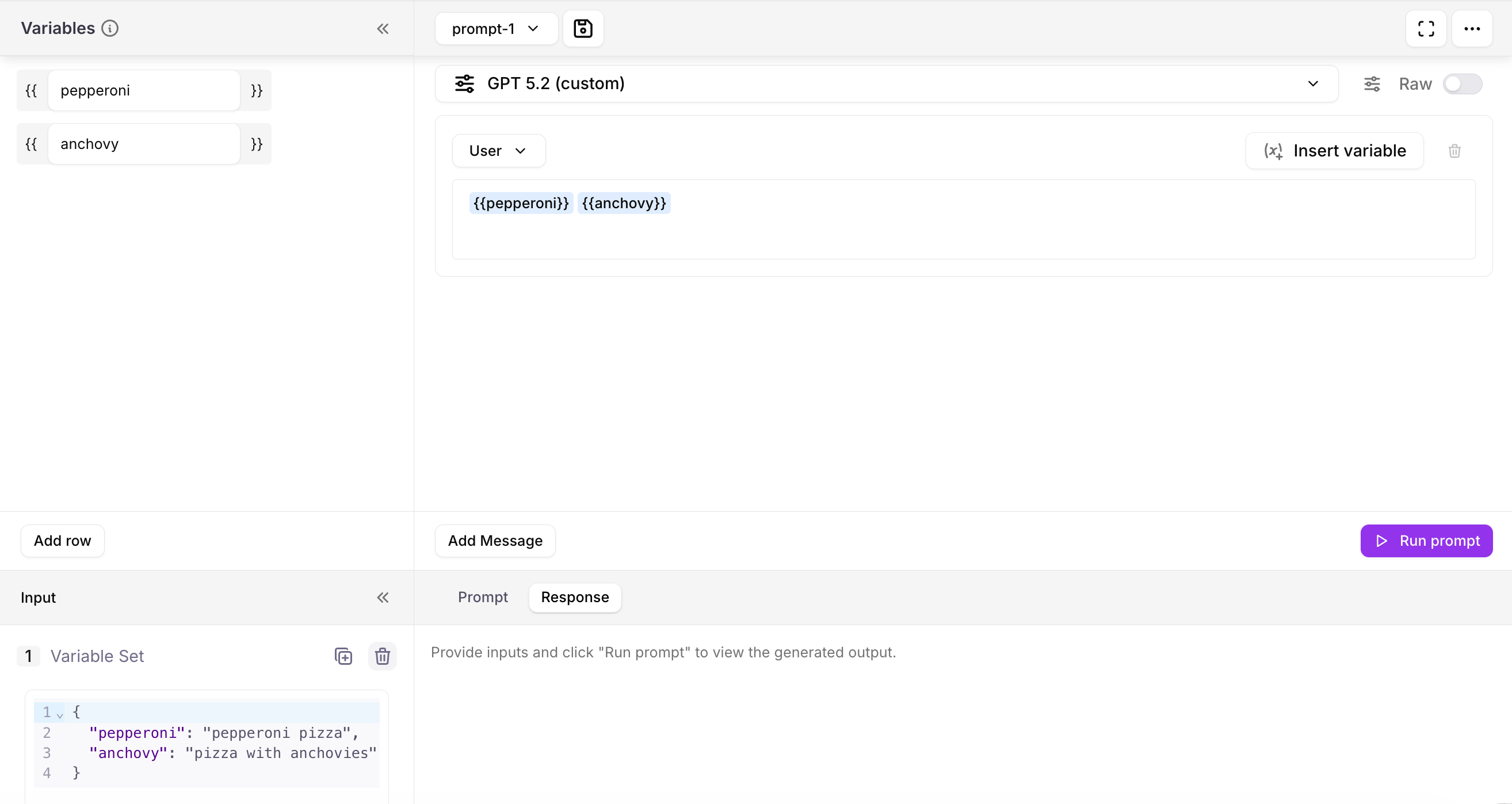
- Add prompts and variables through the console UI. Ideal for quick tests.
- Use datasets from past experiments or create new ones. Ideal for real, fully-configured experiments.
Add prompt and variables
In the prompt text field, add your prompt.In your prompt, you can use variable names with curly brackets (e.g.{{variable_name}}). Add new variable options with the duplicate icon next to Variable Set and fill them in with different values to be used in place of your variable.You can also use nested variables by entering JSON formatted key-value pairs into the Variable Set text input field. Then, refer to their values with either {{key}} or {{input.key}}{{pepperoni}} and {{input.pepperoni}} will result in “pepperoni pizza” being used in the prompt. This approach is great for testing how changing individual words in a prompt structure affects outputs.Add new messages beyond the initial prompt with the Add Message button below the prompt field. New messages can be from the user or the model (“system”).Add dataset
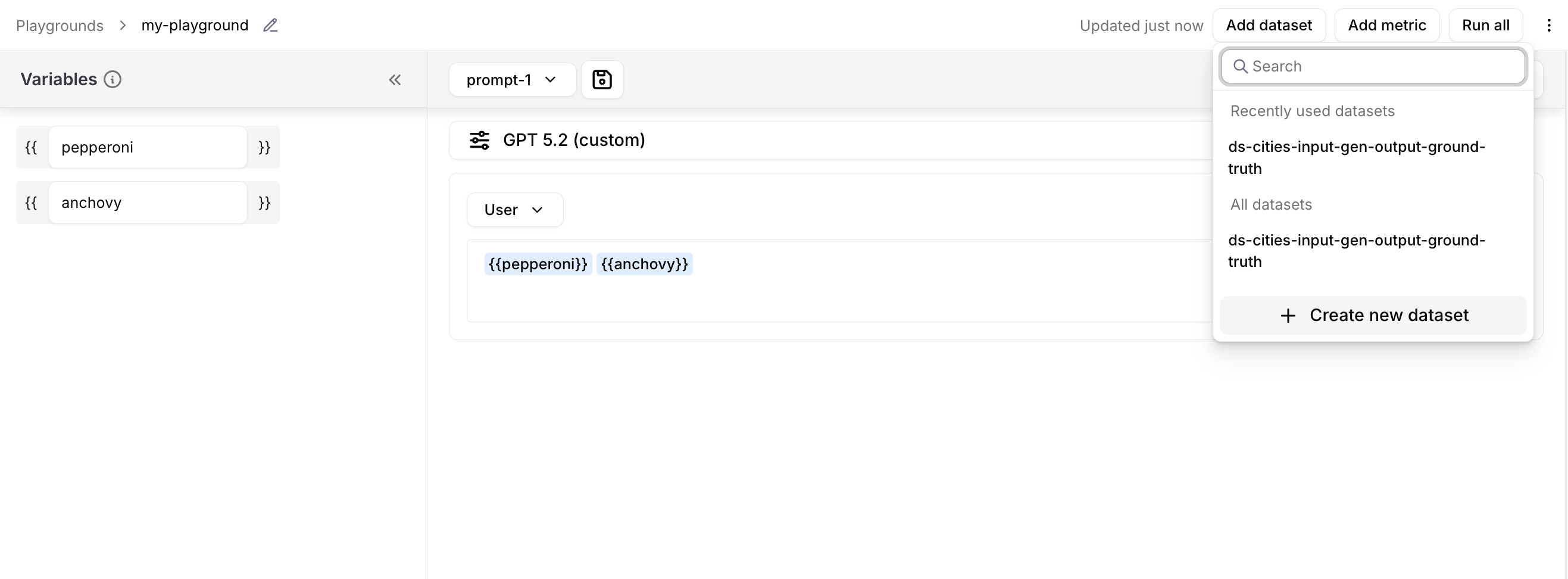
Select the Add dataset button in the upper-right corner to choose the dataset your model will use.The datasets listed are from your past experiments. You can also add your own by selecting Create new dataset.Learn more about datasets →5
Add metrics
Select the Add metric button in the upper-right corner to choose metrics by which your experiment’s outputs are measured.Filter and select from the preset metrics, or add your own by selecting Create metric in the upper-right corner.Scores are produced for each selected metric after running an experiment.Learn more about metrics →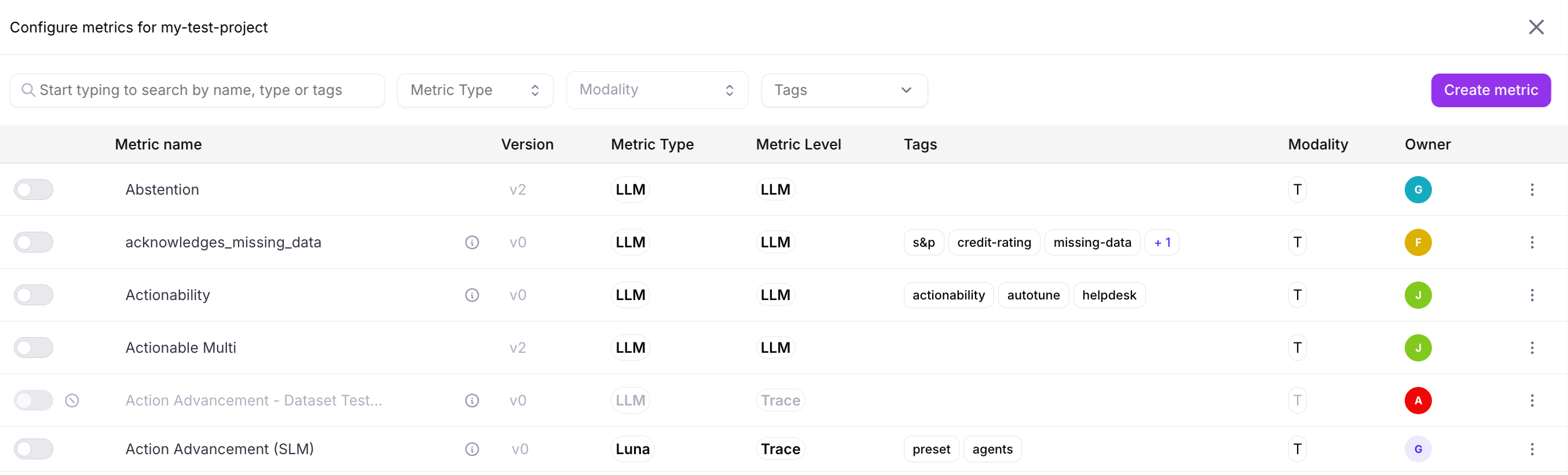
6
Add more models, prompts, and settings
Add additional prompt sections by selecting the actions (…) menu in the upper-right corner of the Variables panel, then the Add Prompt button.Each new prompt section can have its own distinct configuration of: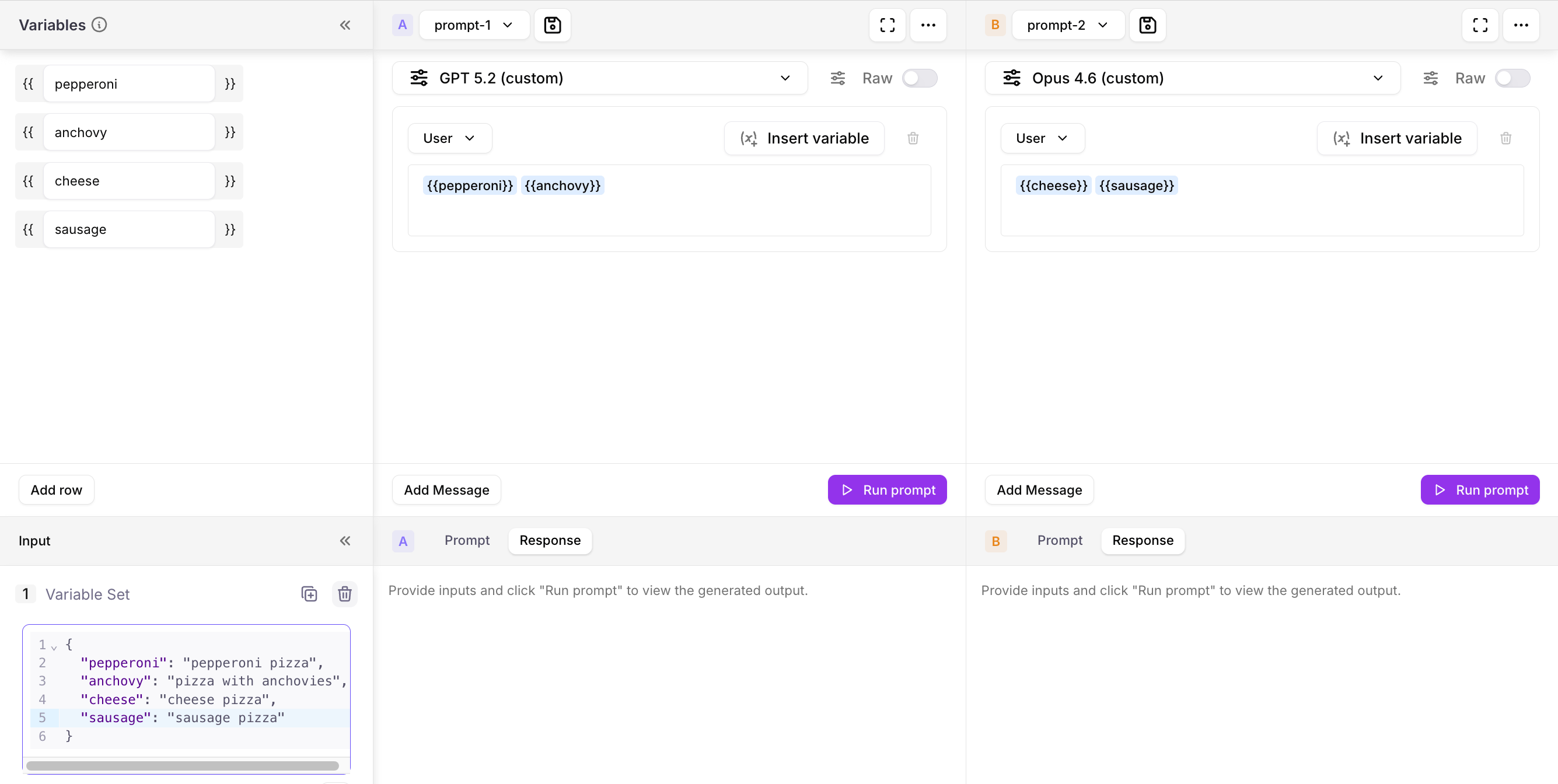
- Model
- Model settings
- Prompt
- Message conversation
7
Run experiments
Select the Run all button in the upper-right corner to run your experiments, generate outputs, and calculate evaluations based on your chosen metrics.
8
Review outputs
After the experiment has completed, scroll down to view their outputs and evaluations.The more distinct prompts and variable sets you used, the more results there will be.
9
Log your experiment results
Select the Log as experiment button above the outputs to record all the details of the experiment.Use a descriptive name for your experiment so that it’s easy to keep track of your progress.Learn more about logging →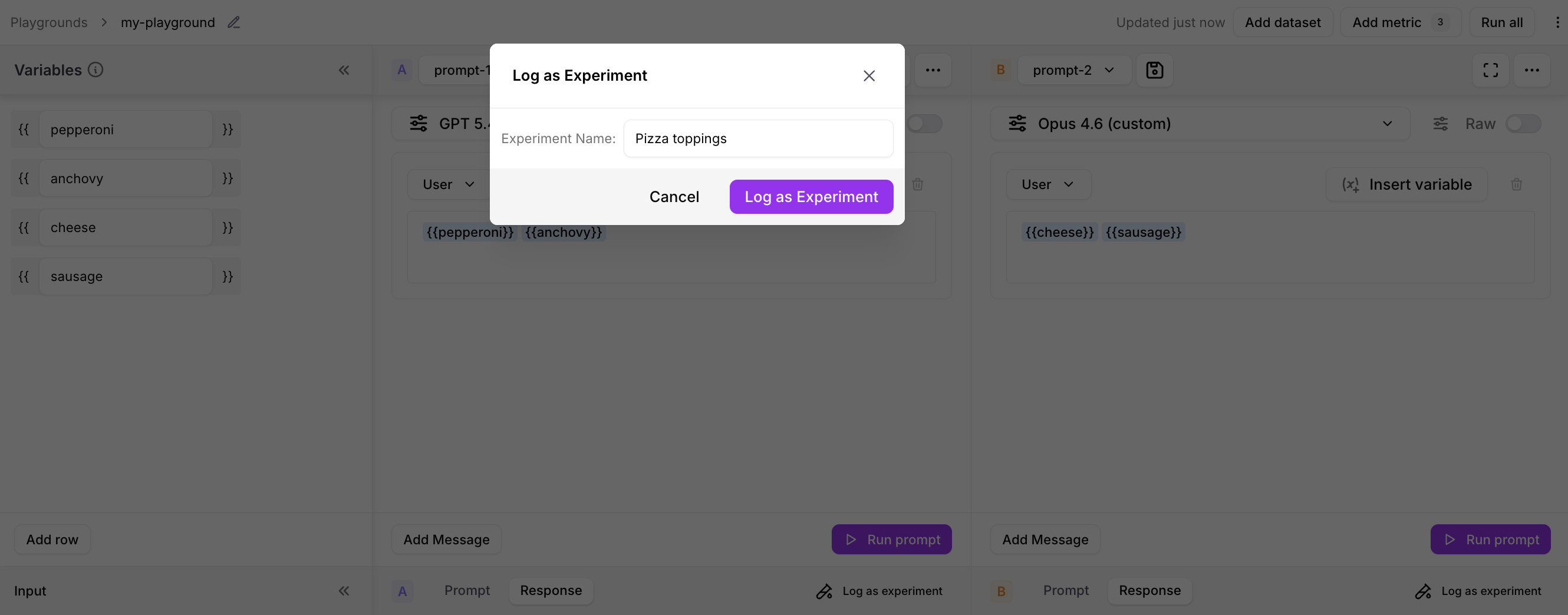
10
Continue experimenting!
That’s it! Now, further customize and configure your experiment to meet your testing goals. Log your experiment results, and create new projects to try out different configurations.If you encounter any errors, visit our Common Errors guide.