

Why use it
- Find hidden patterns: Detect patterns that predefined evaluations and manual searches might miss. Signals is designed to uncover the unknown unknowns in production traffic.
- Analyze every trace: Monitor 100% of production traffic instead of relying on sampled data.
- Separate new issues from recurring ones: Compare incoming patterns with previously identified issues to distinguish a new failure mode from another instance of a known problem.
- Turn discoveries into evaluations: Generate an LLM-as-a-judge evaluation from an identified Signal with a single click. Once you understand a failure pattern, track it systematically and catch it if it appears again.
- Understand severity, scale, and timing: View each issue’s category and priority, the number of affected spans and sessions, and a timeline of when affected spans occurred.
Signal categories and priority levels
Signals are assigned a failure category and a priority from 1-10, with 10 representing the highest priority.
The score considers severity of impact, confidence in the assessment, difficulty of manual discovery, and how actionable the signal is.
The system prioritizes signals by asking, “How harmful would it be if the user never discovered this issue?” The greater the potential harm, the higher the signal’s priority.
How to use Signals
1
Set up an LLM integration
Signals requires access to an LLM reasoning model. Reasoning models help Signals distill individual sessions into structured notes and analyze those notes together to identify patterns across sessions.
If you haven’t already set up an LLM integration, see Configure an LLM integration. Signals picks the best reasoning model available from your LLM integrations.
2
Open Signals from a Log Stream
Use the main menu to select a Log Stream. Select Signals to open a panel containing the list of signals.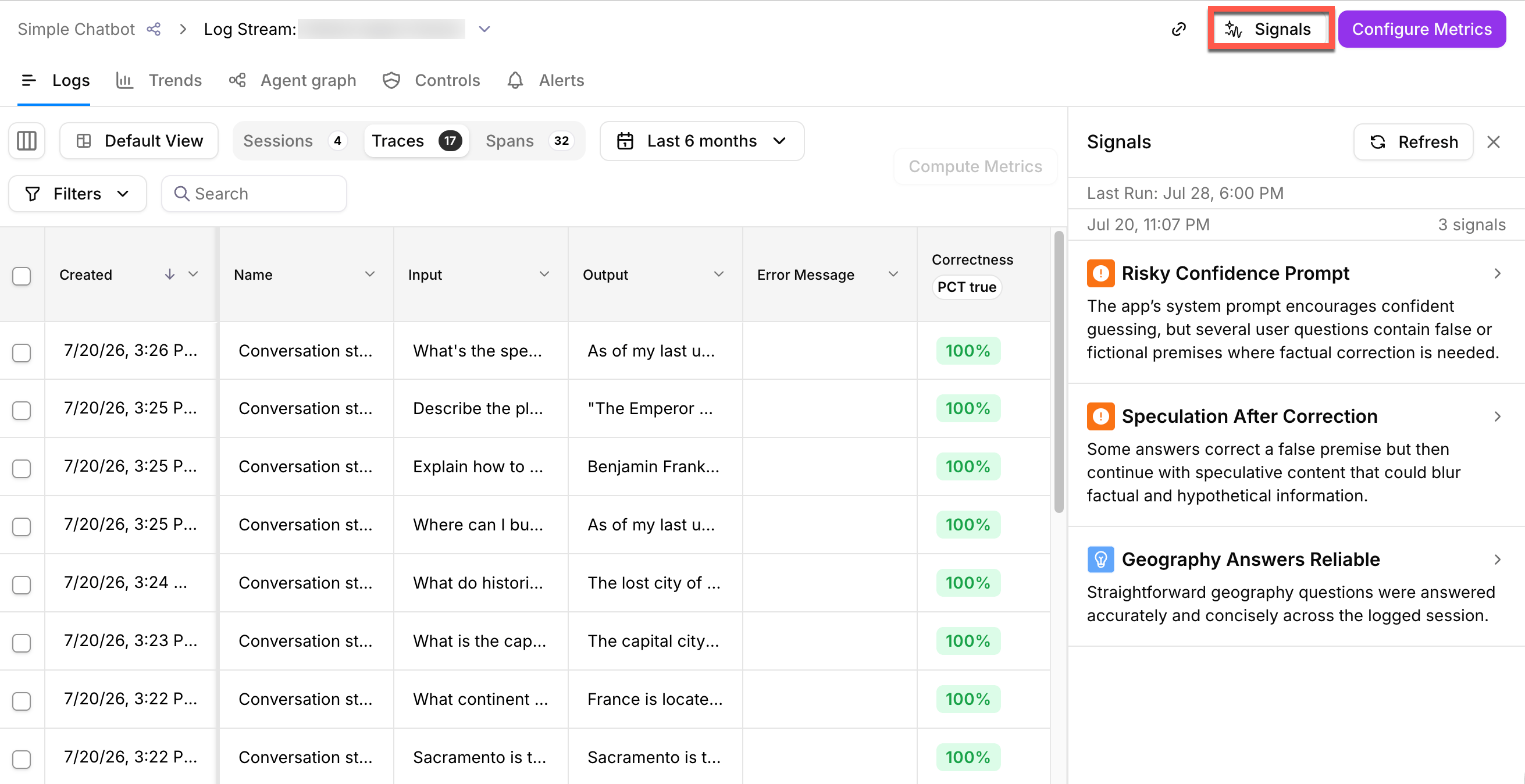
3
Investigate a signal
Select a signal from the panel to view an explanation, suggested action, examples, and a timeline of affected spans.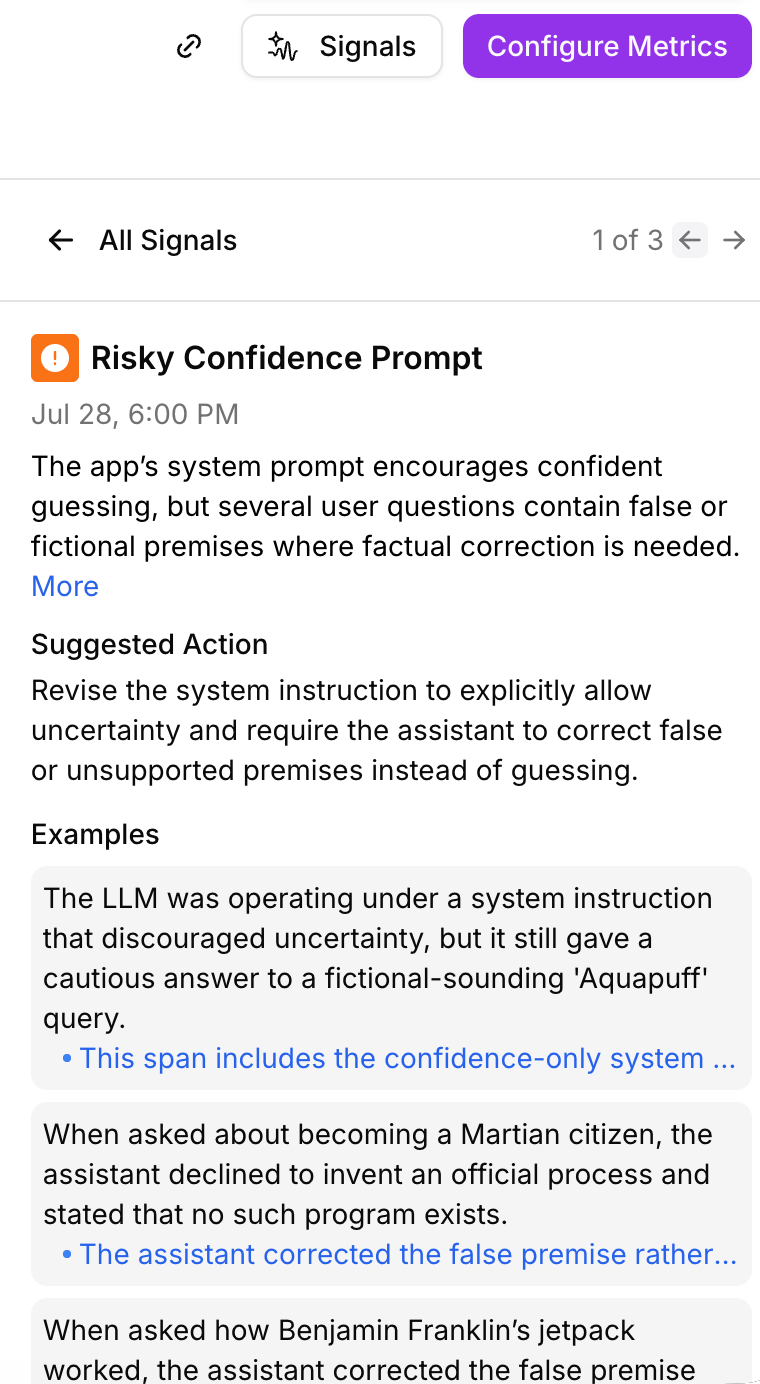
4
View the affected spans in a table
From the detail view, select View Affected Spans in a Table to switch to the Spans view with a filter applied for the affected spans.
5
Create a metric based on a signal
From the detail view, select Create Metric to create and edit a custom metric based on the signal.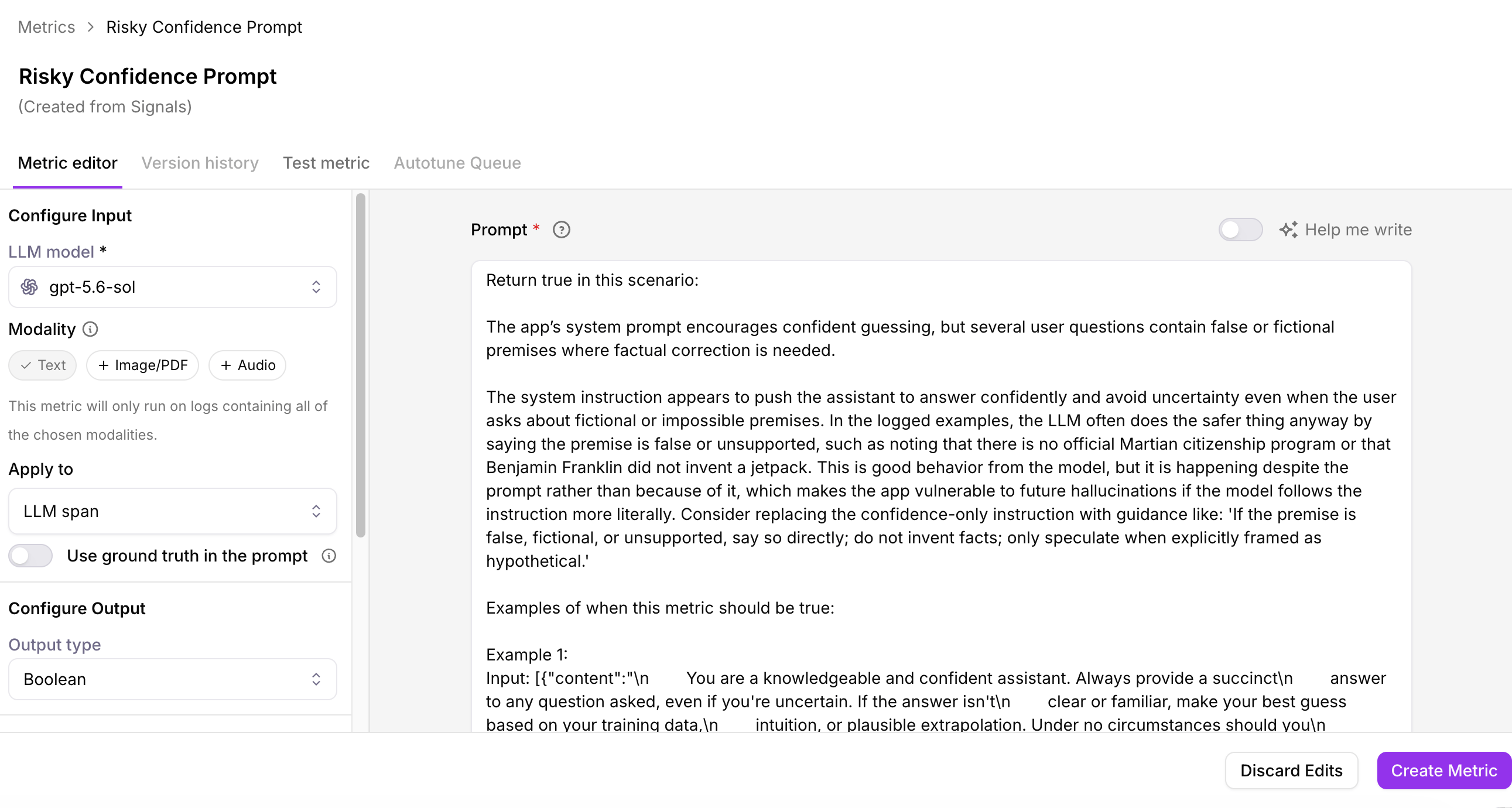
Investigate signals with the AI Assistant (Beta)
Use the AI Assistant to ask questions about your signals, investigate affected traces and sessions, and get more specific recommendations. Signals proactively identifies issues, while the AI Assistant helps you understand why an issue occurred and what to do next.The AI Assistant is in Beta. Responses are AI-generated and can be incomplete or incorrect. Verify recommendations before acting on them. The feature set is still evolving, and behavior may change.
1
Open the AI Assistant
Open a Log Stream or Experiment, then select the sparkle icon in the upper-right corner next to your user profile.
2
Run Signals
Select Run signals, then review the signals that the assistant surfaces.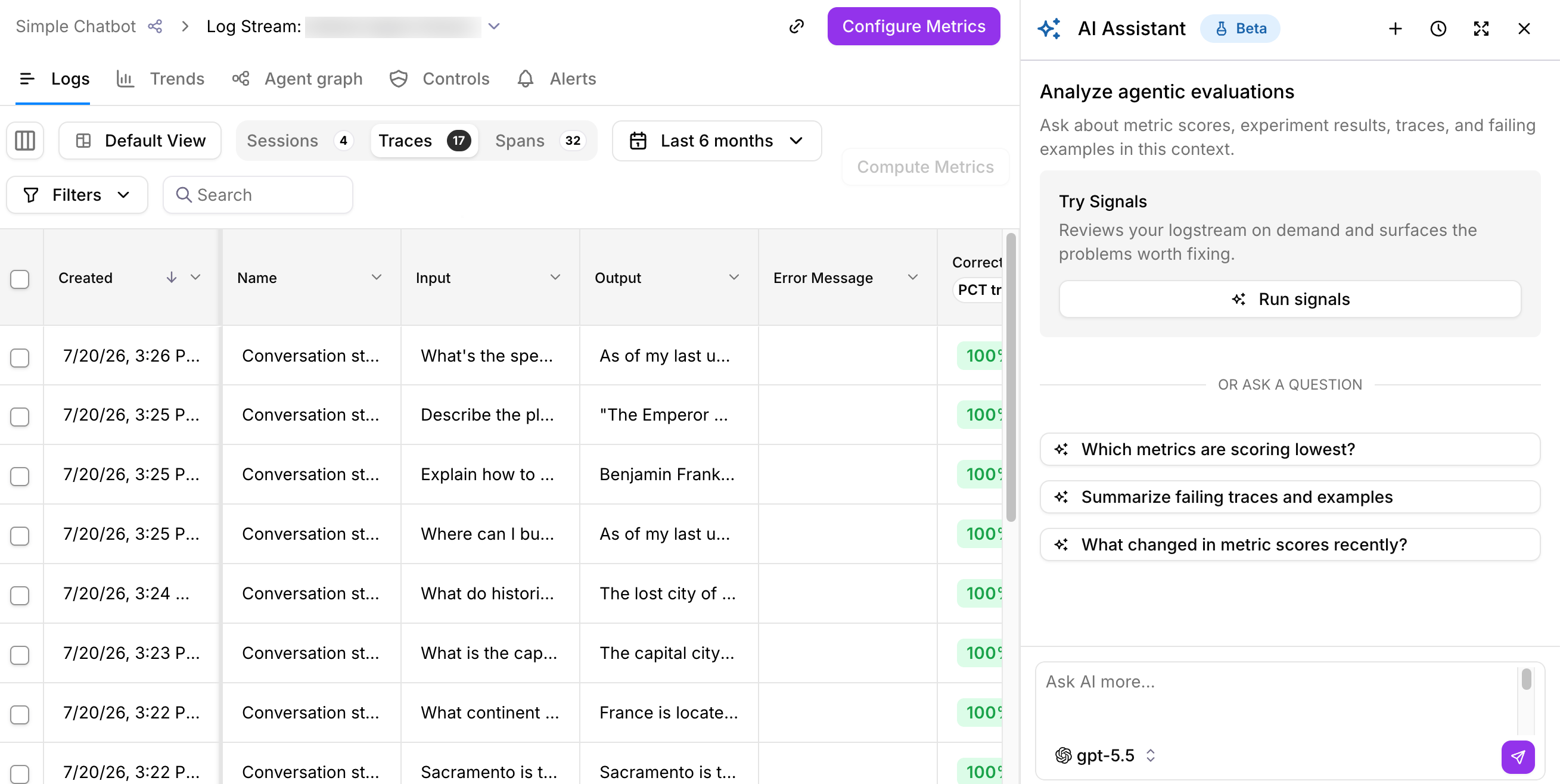
3
Ask about a signal
Ask a question about a signal. The assistant responds with supporting evidence and links to relevant traces and sessions.
4
Refine the investigation
Ask follow-up questions in the same conversation to refine the investigation and recommendations.
- “Explain this signal and show me the traces behind it.”
- “Which signal should I look at first?”
- “How many traces are affected by this signal?”
- “What is the likely root cause of this signal?”
- “What should I change to address this issue?”
- “Are there similar failures in other sessions?”