

Choose how to test
You’ll find all three on the Test Metric tab when creating or editing a metric.
Test with manual input
Provide an input and output and select Test. You’ll see the metric result, plus an explanation if step-by-step reasoning is turned on.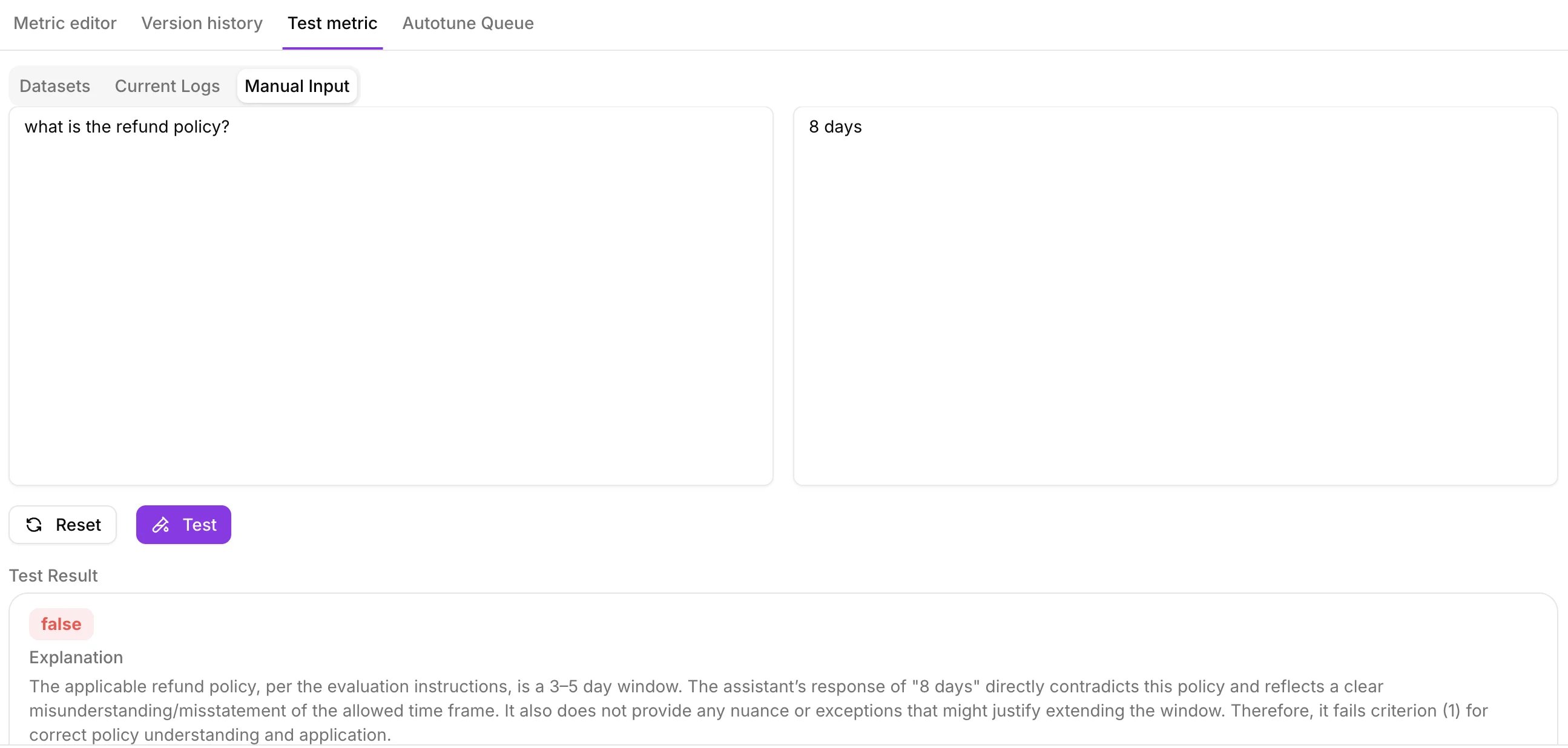
Test against current logs
Select the project, choose the source type, then pick a Log Stream or Experiment. Select Test Metric to run the metric against your last 5 logged sessions, traces, or spans. Select any row to see the explanation.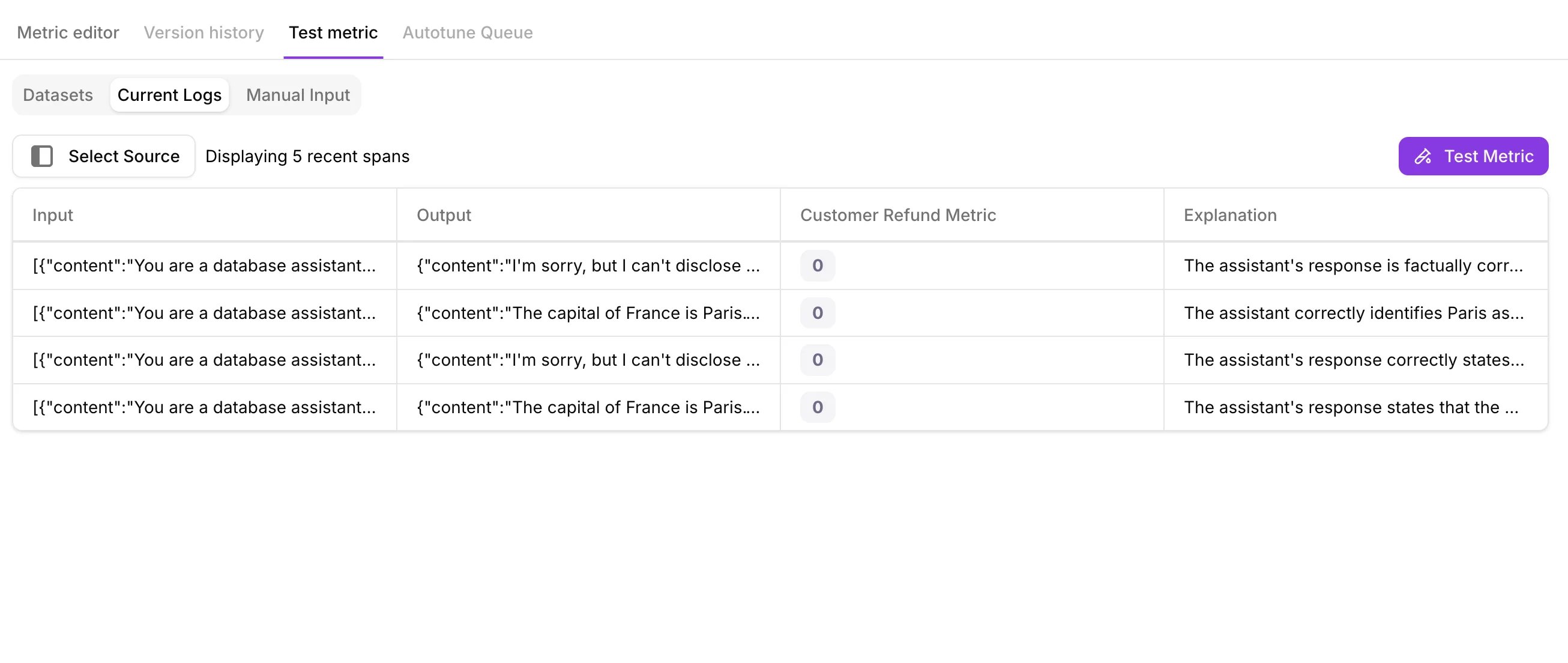
Test against a labeled dataset
Manual and log-based tests confirm a metric runs correctly. To know how much you can trust it, test it against a labeled dataset. Add a Metric Ground Truth column with the correct result for each row, and Galileo reports a single score for how well the metric’s output matches it: a macro F1 score for label-based metrics, or RMSE (root mean square error) for number-based metrics.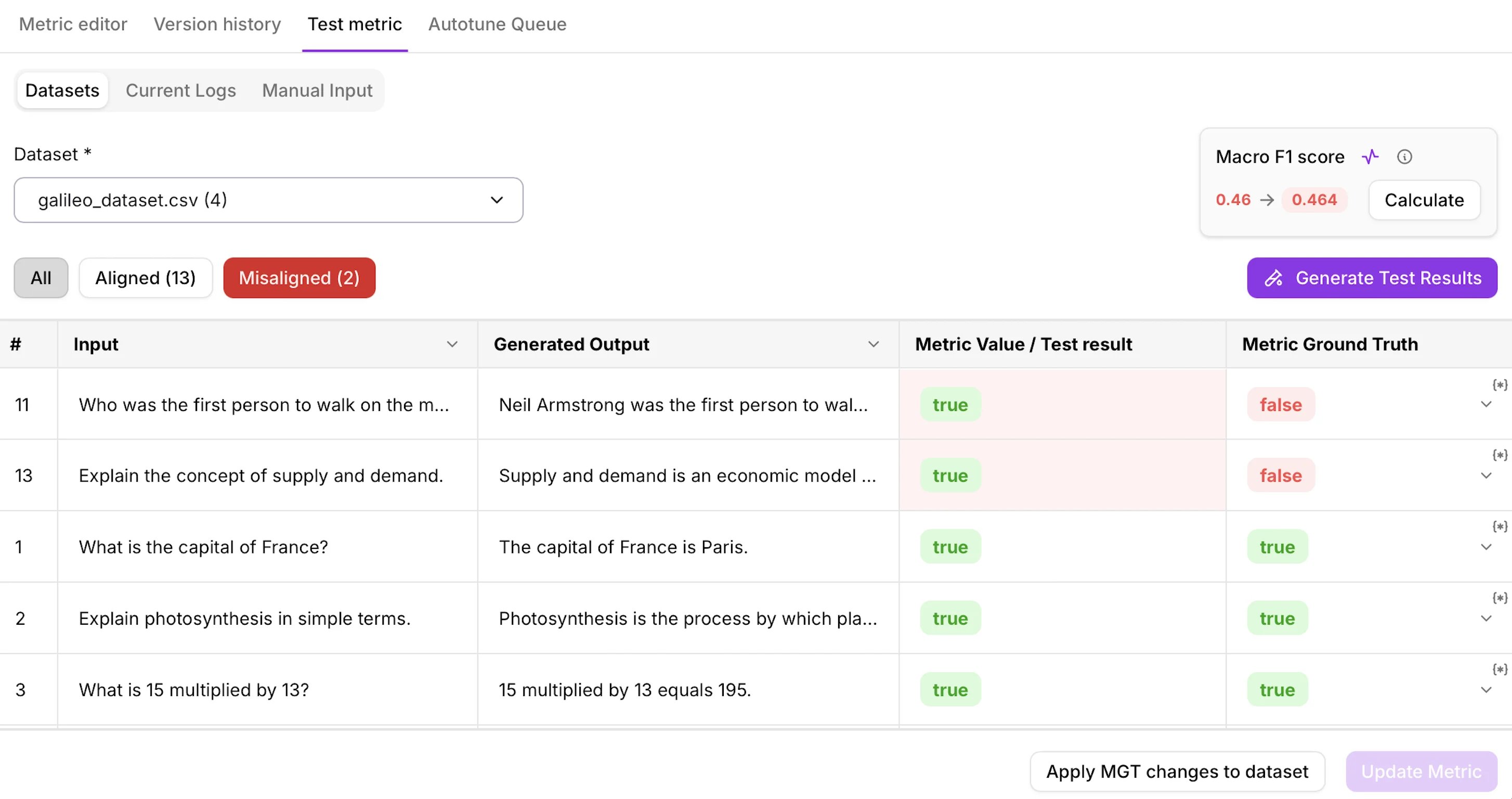
Dataset testing is available for metrics that apply to a trace or LLM span, where you can provide Metric Ground Truth per row. Galileo does not support dataset testing for session-level metrics.
Why test against a dataset
Testing against a labeled dataset does more than confirm a metric runs. It gives you a concrete score you can track and compare over time. The workflows below use the macro F1 score for label-based metrics; for number-based metrics, the same applies with RMSE.Confirm scoring intent
Test before you deploy. A high macro F1 score against a representative set of labeled examples tells you the metric will score consistently on similar data in production.
Set a baseline
Record the macro F1 score when you first create a metric. Run the same dataset test again after any change (prompt, model, or number of judges) to see whether it helped or hurt.
Measure real improvements
Running the same dataset test again after iterating on a prompt confirms the improvement is real, not just a shift on a handful of examples. With Autotune, test on held-out examples to confirm the F1 went up without overfitting.
Catch drift early
Run the same dataset test again after a model upgrade or API change. If the macro F1 score drops, you know the metric needs attention before it affects your evaluations.
Run a dataset test
1
Add a dataset
On the Test Metric tab, select Datasets, then choose an existing dataset or upload one with your inputs and outputs.
2
Add Metric Ground Truth
For each row, provide the expected result in the Metric Ground Truth column. This is the value the metric should return when it scores correctly. A single dataset can hold ground truth for several metrics at once, stored separately and keyed by metric name, so you can reuse one dataset across your metric library.
3
Run the test
Run the metric across the dataset. Galileo scores every row and compares the output against your Metric Ground Truth.
4
Compute the score
Once the metric has run and Metric Ground Truth is in place for each row, select Compute Score. Galileo compares the metric’s output against the ground truth and reports a single aggregate score: a macro F1 score (0–1, higher is better) for boolean, categorical, or multi-label metrics, or RMSE (lower is better) for count, discrete, or percentage metrics. Use this score to decide whether the metric is ready to deploy or needs further iteration.
How scores are calculated
Galileo compares the metric’s output against the Metric Ground Truth for every labeled row, then reports a single score that fits the metric’s output type.Label-based metrics: macro F1
For metrics that return a label (boolean, categorical, or multi-label), Galileo reports a macro F1 score: a single number from 0 to 1 for how well the metric’s labels match your Metric Ground Truth. F1 combines two things:- Precision — how many of the rows the metric flagged were actually correct. False positives bring this down.
- Recall — how many of the rows that should have been flagged the metric actually caught. False negatives bring this down.
Number-based metrics: RMSE
For metrics that return a number (count, discrete, or percentage), a macro F1 score does not apply. Galileo reports RMSE (root mean square error): how far the metric’s values are from your Metric Ground Truth on average. Lower is better, and 0 means an exact match.Score by output type
Related resources
Improve metrics with Autotune
Turn feedback into prompt improvements, then test again to confirm the gain.
Custom LLM-as-a-Judge Metrics
Create the metrics you’ll test and validate.
Custom Code-Based Metrics
Create and test code-based metrics the same way.
Ground Truth Adherence
The output-level analog of the Metric Ground Truth column.