

The Metrics page (sidebar → Metrics) is where you see every metric in your project, including fine-tuned metrics produced by training runs.Documentation Index
Fetch the complete documentation index at: https://docs.galileo.ai/llms.txt
Use this file to discover all available pages before exploring further.
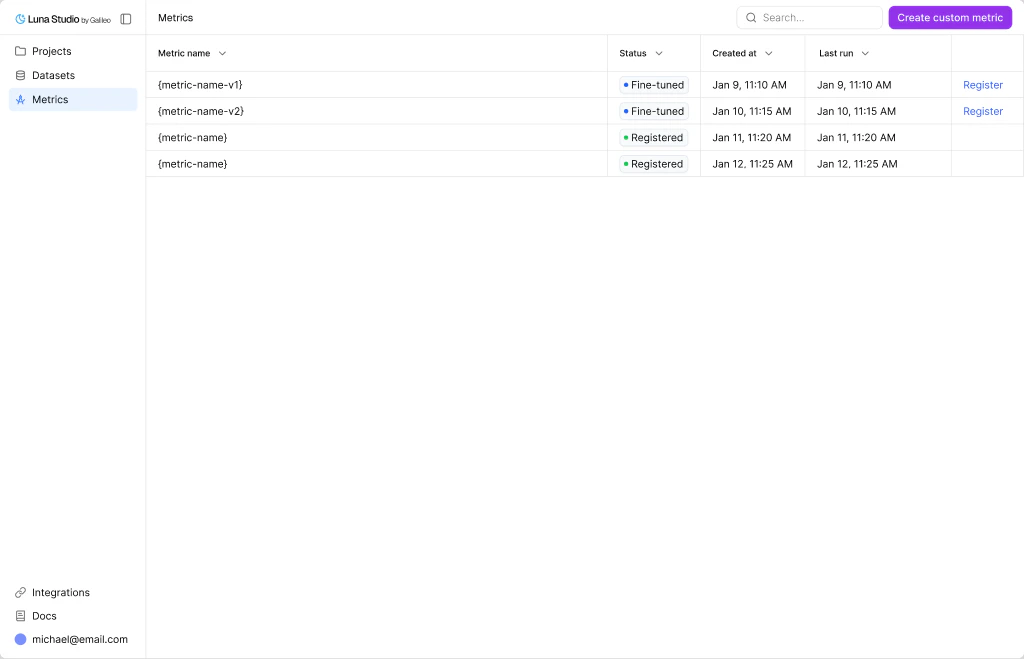
Metrics table
The table has these columns:| Column | What it shows |
|---|---|
| Metric name | The metric name. |
| Status | The metric’s lifecycle status: Queued, Training, Fine-tuned, Registered, or Failed. |
| Created at | When the metric was created. |
| Last run | When the most recent training run for this metric finished. |
| Actions | For Fine-tuned metrics only: a Register metric action link. |
Top-bar actions
- Search — filter the table by metric name.
Where metrics come from
Metrics in Luna Studio come from two places:- Training runs. Every run produces exactly one metric. After Step 1 of the run creation flow, the metric is implicitly created and tracks the run’s status.
- Metric definitions. Runs can start from Galileo presets, custom Galileo metrics, saved custom prompts, or a custom prompt written in Step 1.
Register a metric
Once a metric reaches Fine-tuned, the Register metric action appears in the row’s Actions cell. Clicking it opens the same modal documented in Register a metric.Lifecycle
Metrics share the same five-state lifecycle as runs:- Queued → Training → Fine-tuned → Registered
- (or Failed at any point)
Where to go next
Custom metrics
Define a custom prompt inside the run creation flow.
Run lifecycle
The five statuses runs and metrics flow through.
Register a metric
Publish a Fine-tuned metric to the Galileo metrics store.
Creating a new run
Launch a training run that produces a metric.