

The Add dataset modal is reused everywhere you can pick a dataset source — the Datasets page, Step 2 of the run creation flow, and Step 3. The title and copy adapt to whether you’re adding a test set or a training set, but the three sources are the same.Documentation Index
Fetch the complete documentation index at: https://docs.galileo.ai/llms.txt
Use this file to discover all available pages before exploring further.
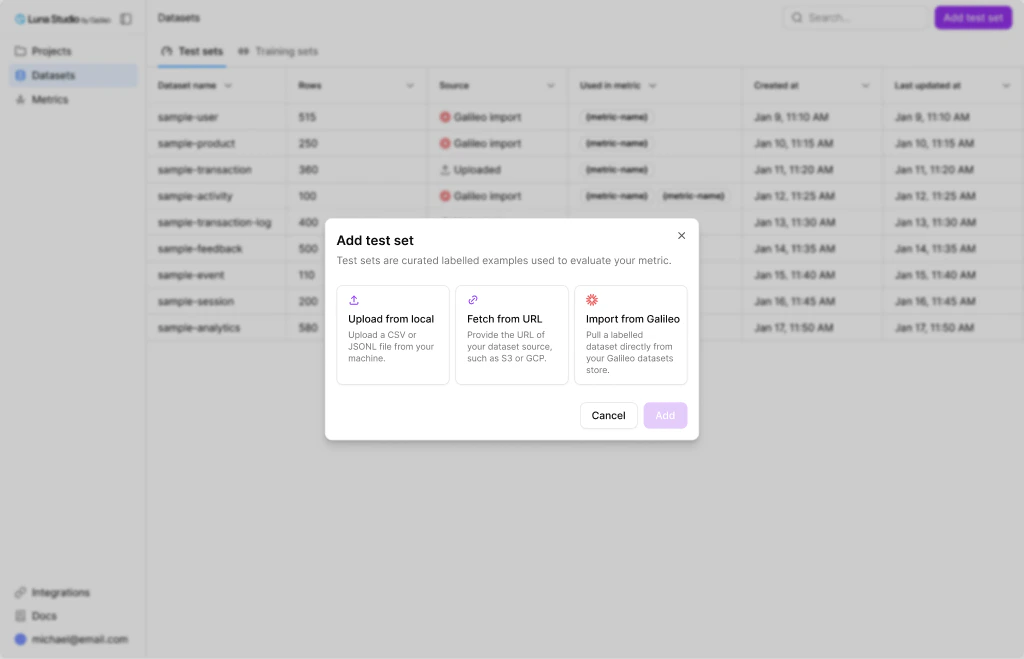
The three sources
Pick one card. Only one source can be active at a time.Upload from local
Drag-and-drop a
.csv or .jsonl file from your machine.Fetch from URL
Paste an
http://, https://, s3://, or gs:// URL.Import from Galileo
Browse datasets in your connected Galileo workspace.
Upload from local
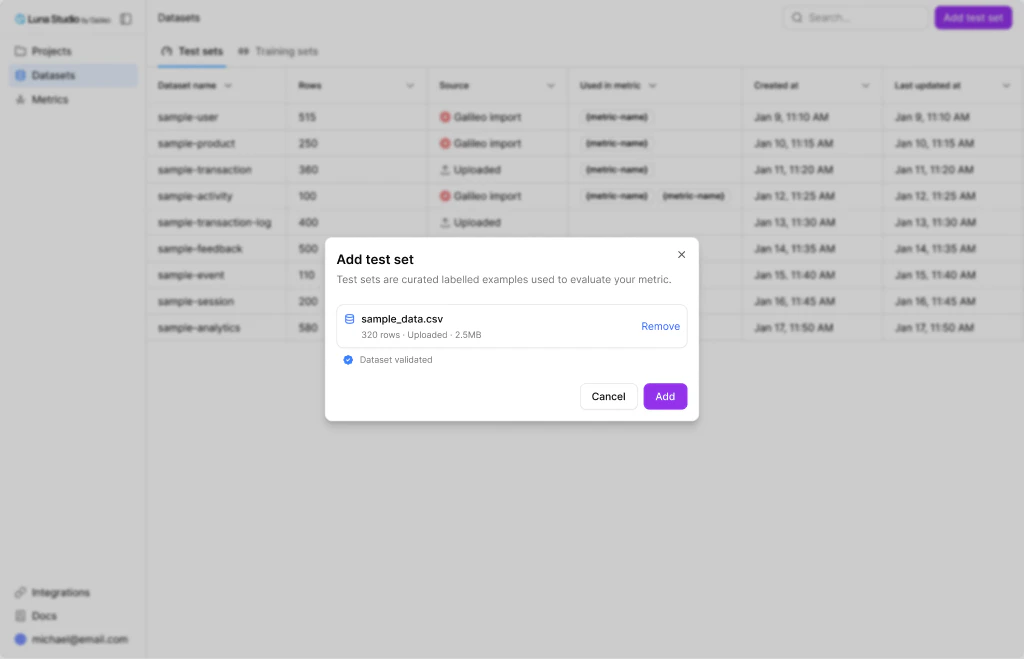
Drag the file in or click the drop zone
Accepted file types:
.csv and .jsonl. Other types are rejected.Format reference
For CSV, the first row is treated as headers. For JSONL, each line is a JSON object with at leastinput and (for labelled data) label.
Examples:
Fetch from URL
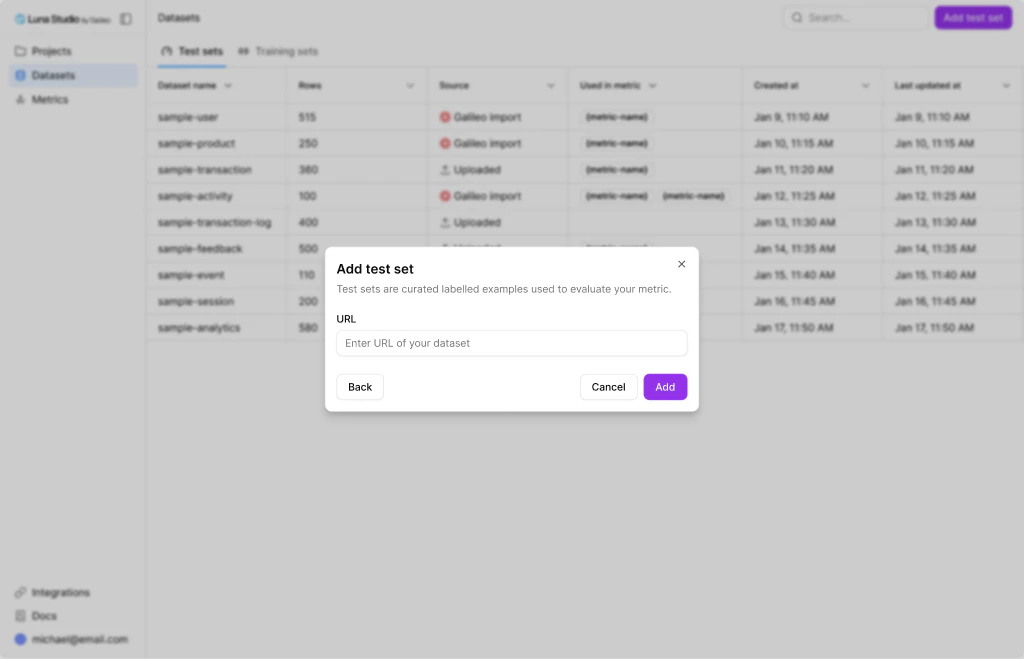
Paste a URL
Acceptable schemes:
http://, https://, s3://, gs://. The input validates the format inline.Authentication for cloud URLs
s3://— uses the credentials in your AWS-hosted models integration, if any. For public buckets, no auth is needed.gs://— uses the GCS credentials in your Vertex AI integration (when Support file uploads is on).
Import from Galileo
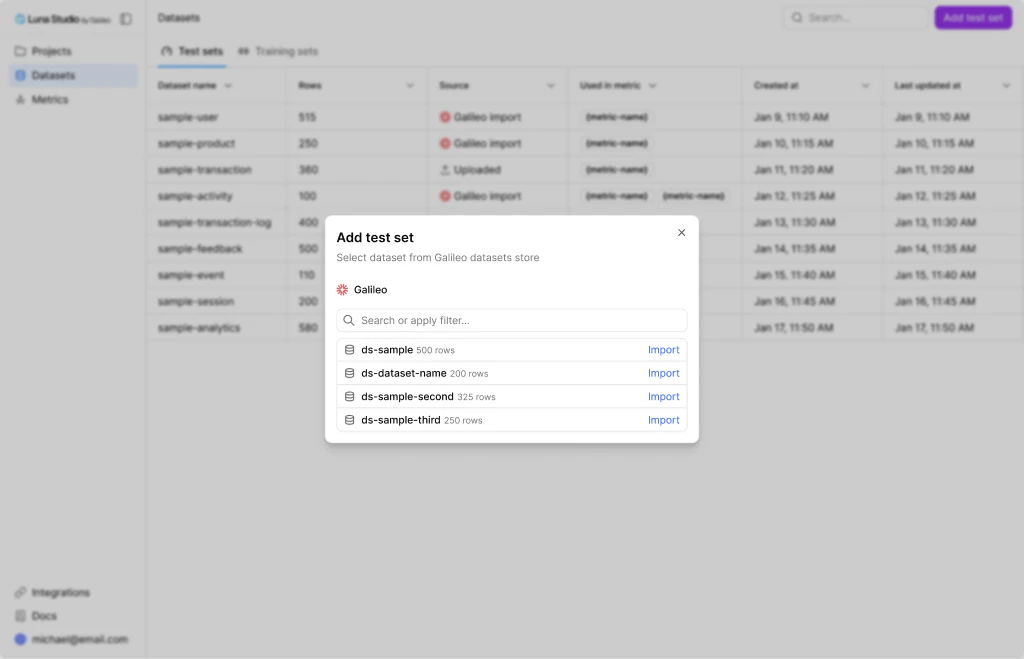
Galileo integration required. Importing from Galileo requires an active Galileo integration.
If one isn’t configured, Luna Studio prompts you to add it inline before continuing. See Galileo
integration for the API key setup.
Pick the Import from Galileo card
The Galileo import panel replaces the source picker.If a Galileo integration isn’t configured, Luna Studio first opens the Galileo integration modal. After saving, the import panel appears.
Search for the dataset
Type into the search input. Each row in the list shows the dataset name plus a row count.
What if the integration is removed mid-flow?
If you cancel the integration modal that pops up before the import panel, the source selection is cleared and you can pick a different source.Validation
After Add, every dataset goes through schema and content validation. The result is shown as a status line:- Validating… — Luna is checking the file.
- Validated — ready to use.
- Validated with warnings — usable, but check the warnings (e.g. partial UTF-8 issues, mixed casing).
- Validation error:
{message}— the dataset can’t be used until you fix the underlying file.
Where to go next
Test sets
Schema rules and best practices for evaluation data.
Training sets
Schema rules and best practices for fine-tuning data.
Validation
What Luna checks and what to do when validation fails.
Galileo integration
Required for Import from Galileo.