

The first step asks: what should this metric measure? You can pick from a curated list of templates, or click Use custom prompt to write your own.Documentation Index
Fetch the complete documentation index at: https://docs.galileo.ai/llms.txt
Use this file to discover all available pages before exploring further.
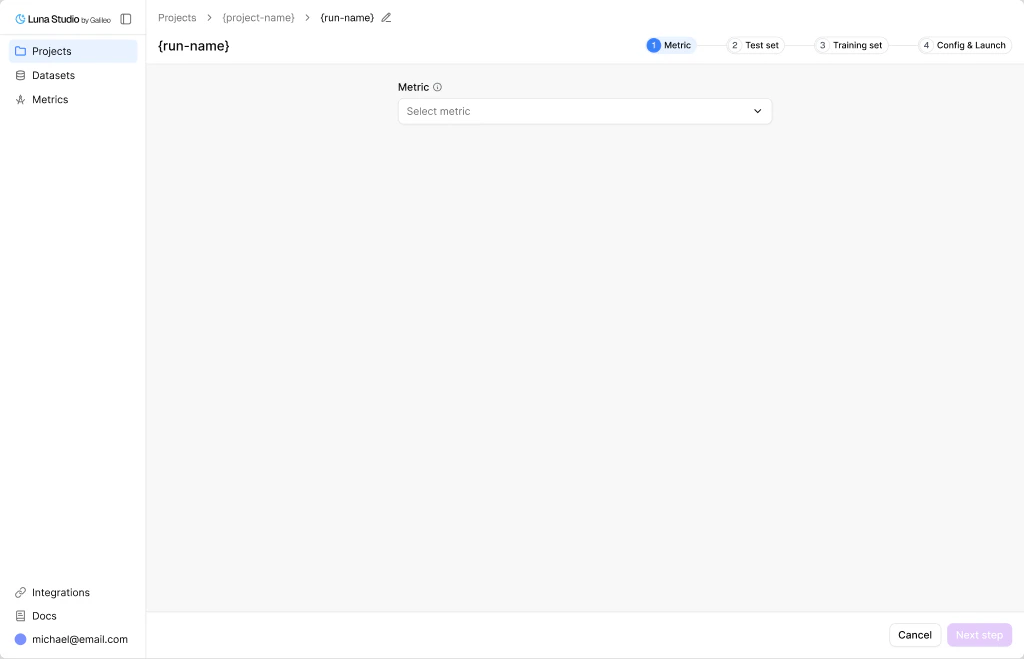
Pick a metric
The Metric select is searchable. It includes trainable Galileo LLM-as-judge metrics available to your workspace, plus custom metrics and prompts your org created. The picker is organized into three groups:- Galileo presets — built-in Galileo scorers that Luna Studio can train.
- Custom Galileo metrics — custom metrics already created in Galileo.
- Saved custom prompts — prompts previously authored in Luna Studio.
Inspect a selected template
Once you pick a template, the form expands to show a read-only Metric details panel:- Output type — the metric’s return shape (Boolean, Categorical etc.). See Output types.
- Step — the trace step the metric runs against (LLM span, Retriever, Agent span, or Trace).
- Input step — the input shape Luna Studio expects for training data, such as a single message, input / output pair, full trace, or full session.
- Prompt — the LLM-as-judge prompt the template uses, in a read-only textarea.
Write a custom prompt
For metrics that don’t fit a template, click the dropdown’s Use custom prompt option (with a+ icon). The form switches into editable mode.
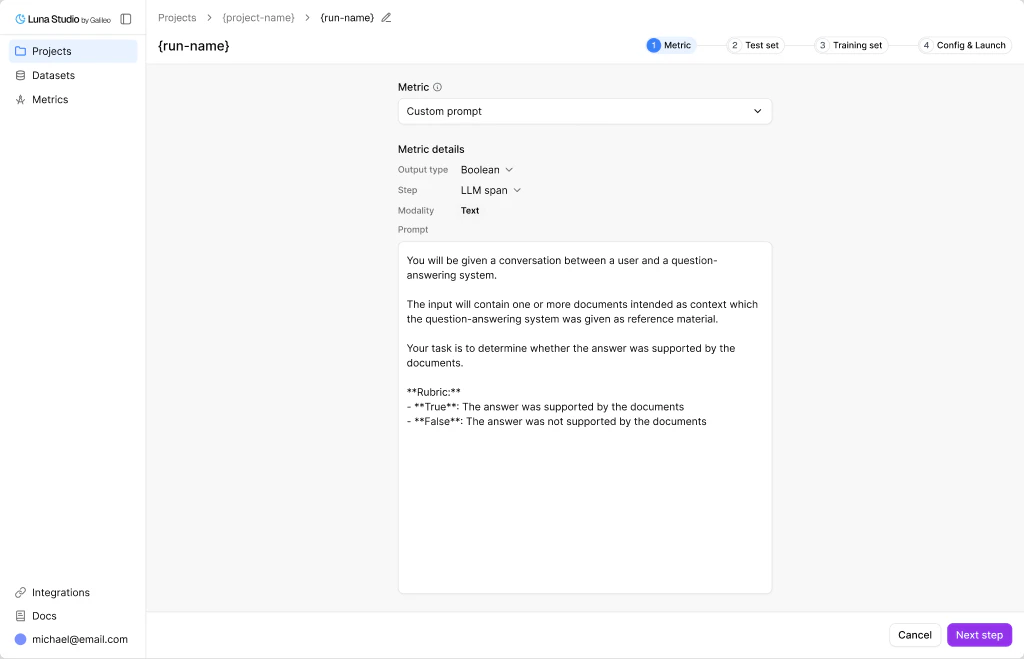
| Field | Notes |
|---|---|
| Name | Optional display name for the custom metric. |
| Output type | Pick one of Boolean / Categorical |
| Step | Pick LLM span / Retriever / Agent span / Trace. |
| Input step | Pick Single message / Input-output pair / Full trace / Full session. |
| Prompt | The LLM-as-judge prompt [required]. |
Where to go next
Step 2 — Test set
Pick the labelled dataset Luna evaluates against.
Custom metrics
Reference for output types, steps, and prompt-writing tips.