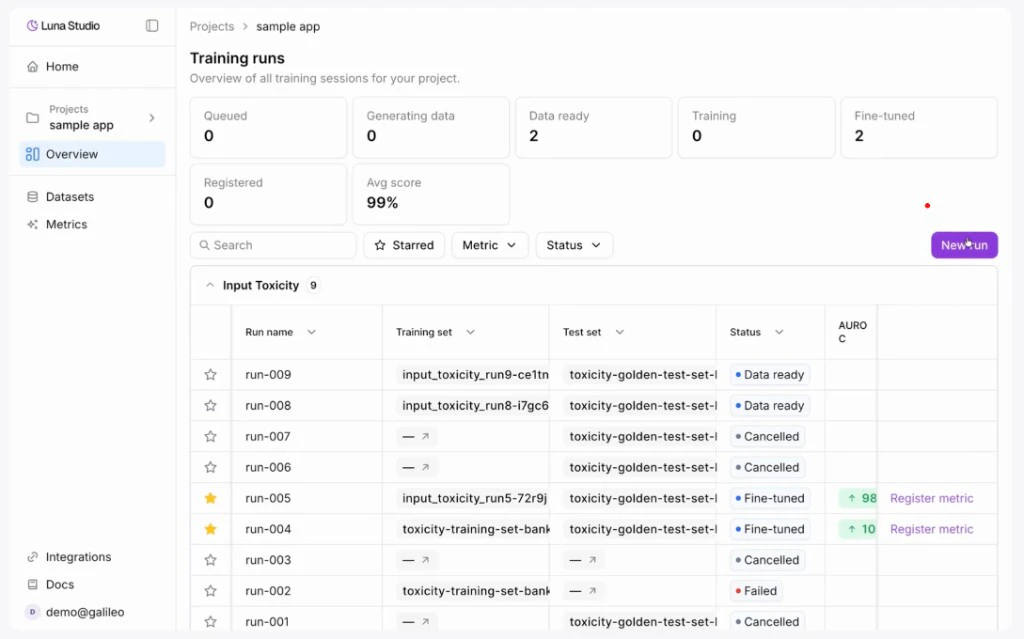
The Training runs page is the heart of every project. It shows every run you’ve launched in this project, plus the controls to filter, star, and act on them.
To get here, click any project on the Projects page.
Status summary stat cards
Below the page header is a row of stat cards — one per run lifecycle status :
Stat What it counts Queued Runs accepted but not yet started. Training Runs currently fine-tuning. Fine-tuned Runs that completed training and are ready to register. Registered Runs whose metric has been published to Galileo. Failed Runs whose training or registration failed.
The numbers update live as runs change status.
Below the stat cards, the filter toolbar lets you narrow the runs table:
Control Behavior Search Filter by run name or by metric name. Starred Toggle to show only starred runs. The icon turns amber when active. Metric Multi-select dropdown. Options are the unique metrics in this project’s runs. Status Multi-select dropdown of the five lifecycle statuses. Clear filters Appears once any filter is active. Resets all filters to the default. New run Primary button on the right. Opens Creating a new run .
The Starred filter is the fastest way to surface runs you’re actively iterating on. Star a row from the leftmost column of the table — see below.
Runs table
The runs table has these columns:
Column What it shows Star Click to star the run. Pinned to the left of the table. Run name The name you gave the run (or the auto-generated New Run N). Metric Outline-style badge with the metric name. Training set Interactive chip showing the training set used for the run. Test set Interactive chip showing the test set used for the run. Status Status pill. See Run lifecycle . F1 score Coloured pill showing F1 score relative to thresholds. Up arrow ≥ 0.80, down arrow < 0.30, neutral otherwise. Only shown for runs with a score. Created at When the run was launched. Actions For Fine-tuned runs only: a Register metric link. Pinned to the right.
Star a run
Click the star icon in the leftmost column to mark a run as important. Starred runs stay starred until you click the icon again. Combine with the Starred filter to focus on the runs you’re actively comparing.
Empty states
The page shows different copy depending on the filter context:
When What you see No runs yet ”No training runs yet” with a hint to “Start a new run”. Active filters return no results ”No runs match your filters” with a Clear filters button.
Where to go next
Launch a run Walk through the four-step run creation flow.
Run lifecycle The five statuses runs flow through.
Register a metric Publish a fine-tuned metric to the Galileo metrics store.