

vertex_ai.
Prerequisites
The instructions on this page assume that you have these prerequisites:- A Google Cloud project with billing enabled
- Permission to enable APIs (Service Usage Admin,
roles/serviceusage.serviceUsageAdmin) - Permission to create service accounts and keys (Service Account Admin and Service Account Key Admin, or equivalent custom roles)
- If your organization enforces
iam.disableServiceAccountKeyCreation, an exemption for your project — see Google’s service account key documentation
Create JSON key in Google Cloud
1
Create or select a project
In the Google Cloud console, select an existing project or create a new one. Verify that billing is enabled for the project.
2
Enable the Agent Platform API
Galileo calls Gemini models through the Agent Platform API (
Using the Google Cloud Console:
Open APIs & Services, go to the Agent Platform API, and click the Enable button (if not already enabled).
Using the command-line (gcloud):
aiplatform.googleapis.com).Using the Google Cloud Console:
Open APIs & Services, go to the Agent Platform API, and click the Enable button (if not already enabled).
Using the command-line (gcloud):
3
Create a service account
- Open IAM & Admin → Service Accounts.
- Select your project.
- Click Create service account.
- Enter a service account name, required service account ID (for example,
galileo-integration), and optional description. Click Create and continue.
4
Grant permissions
Assign at least Agent Platform User (
Click Done after adding permissions.
roles/aiplatform.user) so Galileo can invoke Gemini models.For more information, see Agent Platform access control with IAM.
Click Done after adding permissions.
5
Create and download a JSON key
- Open the service account you just created (e.g. from the Service accounts page).
- Open the Keys tab.
- Click Add key → Create new key.
- Select JSON and click Create.
The file looks similar to below:
Create credentials with gcloud
Create credentials with gcloud
Add the integration in Galileo
1
Navigate to Integrations
In the Galileo console, open the user menu (bottom left) and select Integrations, or go to Settings → Integrations.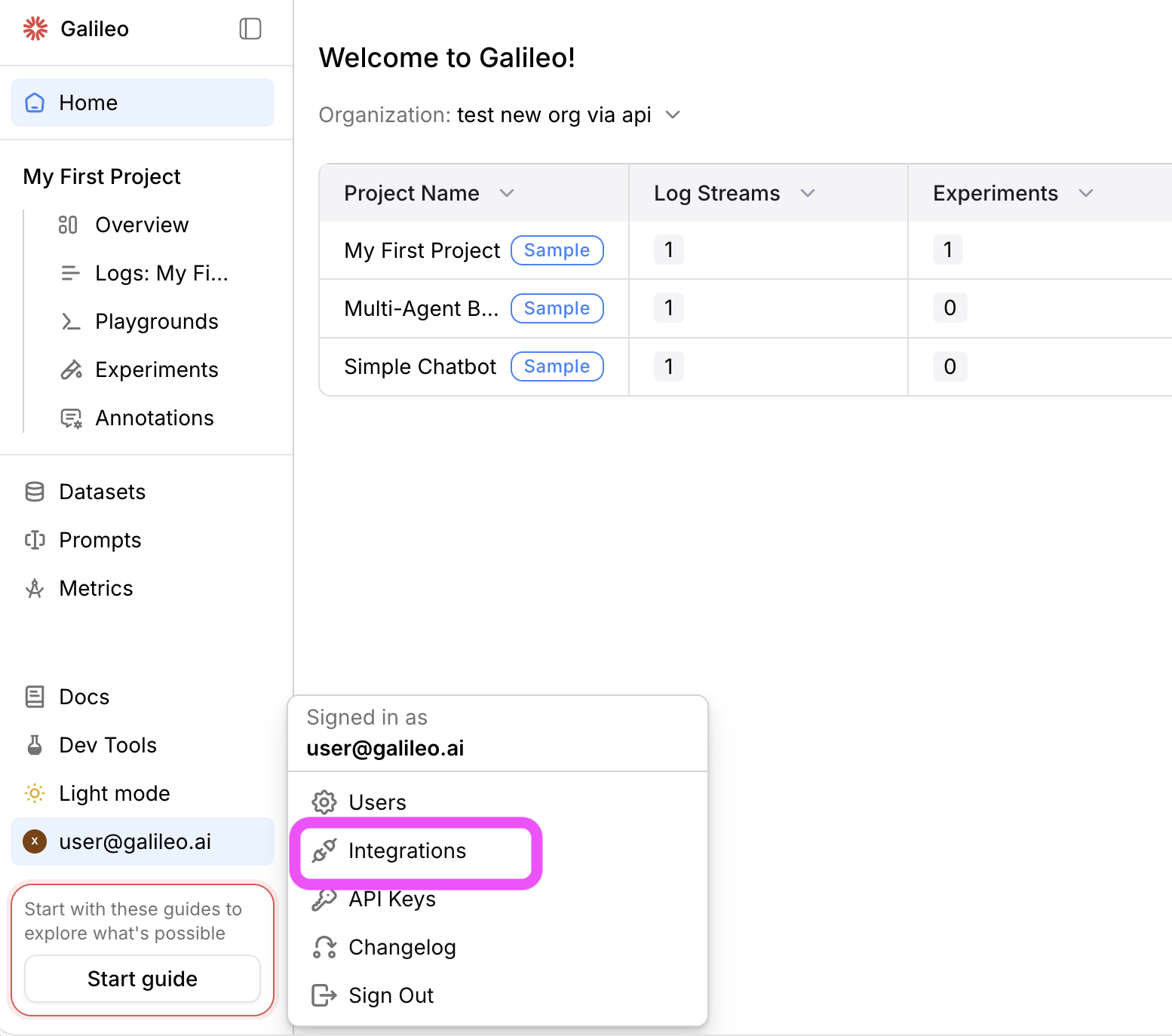
2
Add Gemini Enterprise
Locate Gemini Enterprise in the provider list and click + Add Integration.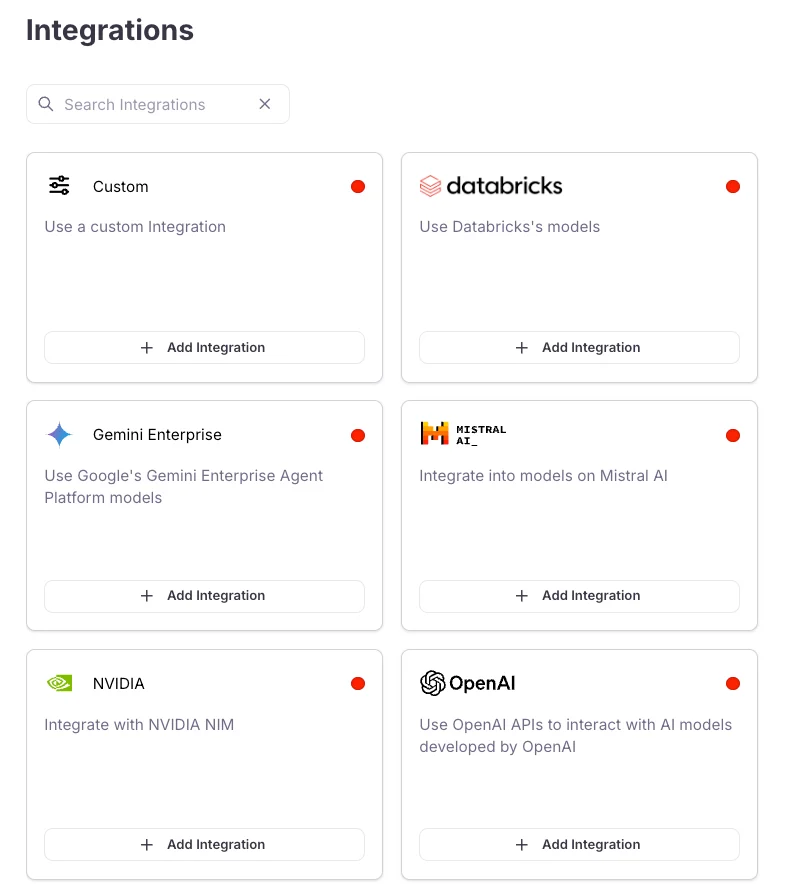
3
Paste the service account JSON
In the integration dialog, paste the full contents of the JSON key file you downloaded, then click Save changes.
Optional — Multimodal and GCS
For audio, image, or PDF evaluation in Log streams, you may need a separate Google Cloud Storage bucket and additional credentials. Galileo accepts optionalgcs_config when configuring the integration via API. See Multimodal observability.
Configure via API
You can create or update the integration with aPUT request. Set token to the JSON key file contents as a string (escape newlines in the private_key field when building JSON manually).
id, name, and updated_at. See Create or update Vertex AI integration for optional gcs_config and multi_modal_config fields.
Supported models
Galileo supports the following Gemini model aliases when using this integration:gemini-2.0-flashgemini-2.0-flash-litegemini-2.0-flash-thinkinggemini-2.0-progemini-2.5-flashgemini-2.5-flash-litegemini-2.5-progemini-3.0-flash-previewgemini-3.0-pro-image-previewgemini-3.0-pro-previewgemini-3.1-flash-image-previewgemini-3.1-pro-previewgemini-3.1-pro-preview-customtools
Troubleshooting
Organization policy blocks service account keys
Organization policy blocks service account keys
If key creation fails, your organization may enforce
iam.disableServiceAccountKeyCreation. Ask an organization policy administrator to exempt your project, or follow Allow service account key creation.Vertex AI API not enabled or billing missing
Vertex AI API not enabled or billing missing
Confirm the Vertex AI API is enabled (
aiplatform.googleapis.com) and billing is active on the project. Enable the API from APIs & Services.Permission denied (403) from Google
Permission denied (403) from Google
Ensure the service account has Vertex AI User (
roles/aiplatform.user) on the project. Wait a few minutes after granting roles before retrying in Galileo.Invalid JSON in Galileo
Invalid JSON in Galileo
Paste the entire key file, including opening and closing braces. Do not paste only the
private_key field or a truncated file. If you edited the file, validate it with jq . galileo-key.json before pasting.Related info
Custom model integrations
Configure other LLM providers or proxies with custom JSON.
Multimodal observability
Log and evaluate image, audio, and PDF content in traces.